Tracking Your Requests
Open Requests to see everything you've submitted (and, if you submit for others, everything you've submitted for them). Each row shows the request ID, type, who it's for, when it was submitted, and its current status.
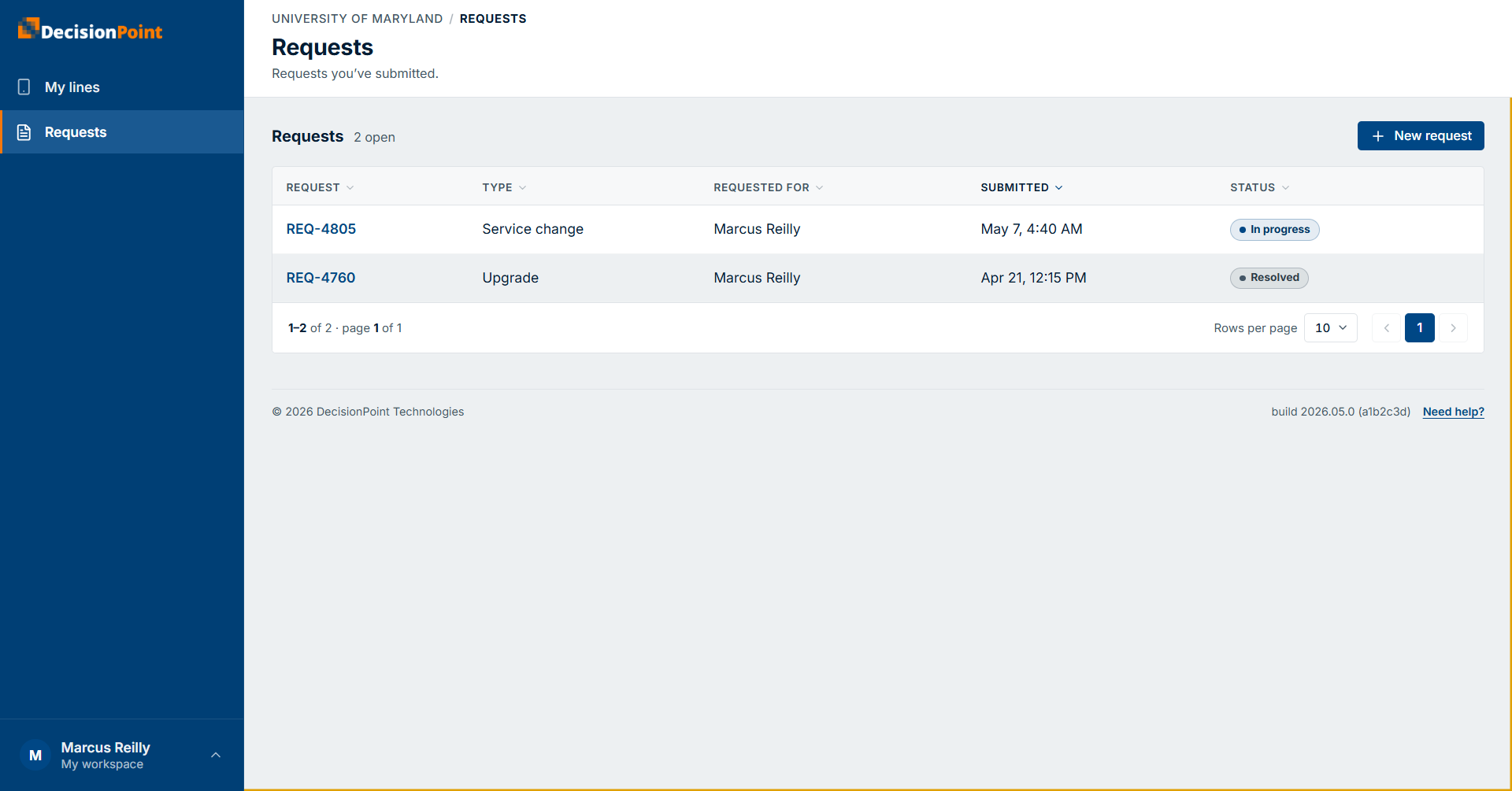
Sort the list by any column, and start a new request from New request. (For the organization-wide list with full search and filters, administrators use All Requests.)
Request detail
Select a request to open its detail. A banner at the top tells you where it stands — for example, approved and completed, with who approved it and when.
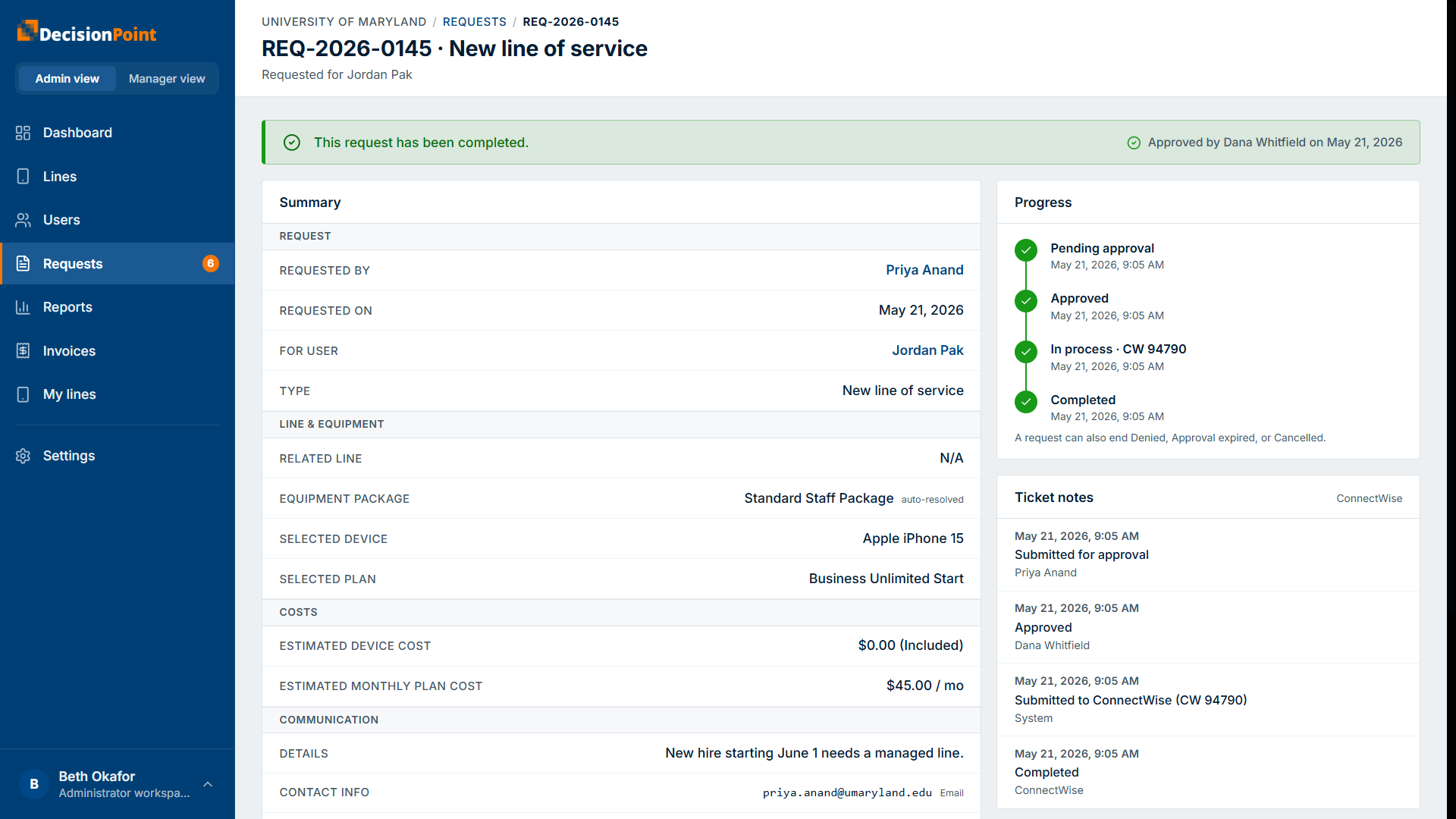
The Summary gathers everything about the request:
- Who's involved — who submitted it, who it's for, and the approver.
- Line & equipment — the related line, equipment package, selected device, and plan.
- Costs — estimated device cost and monthly plan cost.
- Communication — the justification, contact info, any CC addresses, and whether the requested-for person was notified.
- Processing — the service ticket number once the request reaches the service team.
Alongside the summary, a Progress timeline tracks the request through its stages — Pending approval → Approved → In process → Completed — each stamped with a date and time. A request can also end Denied, Approval expired, or Cancelled.
Notes
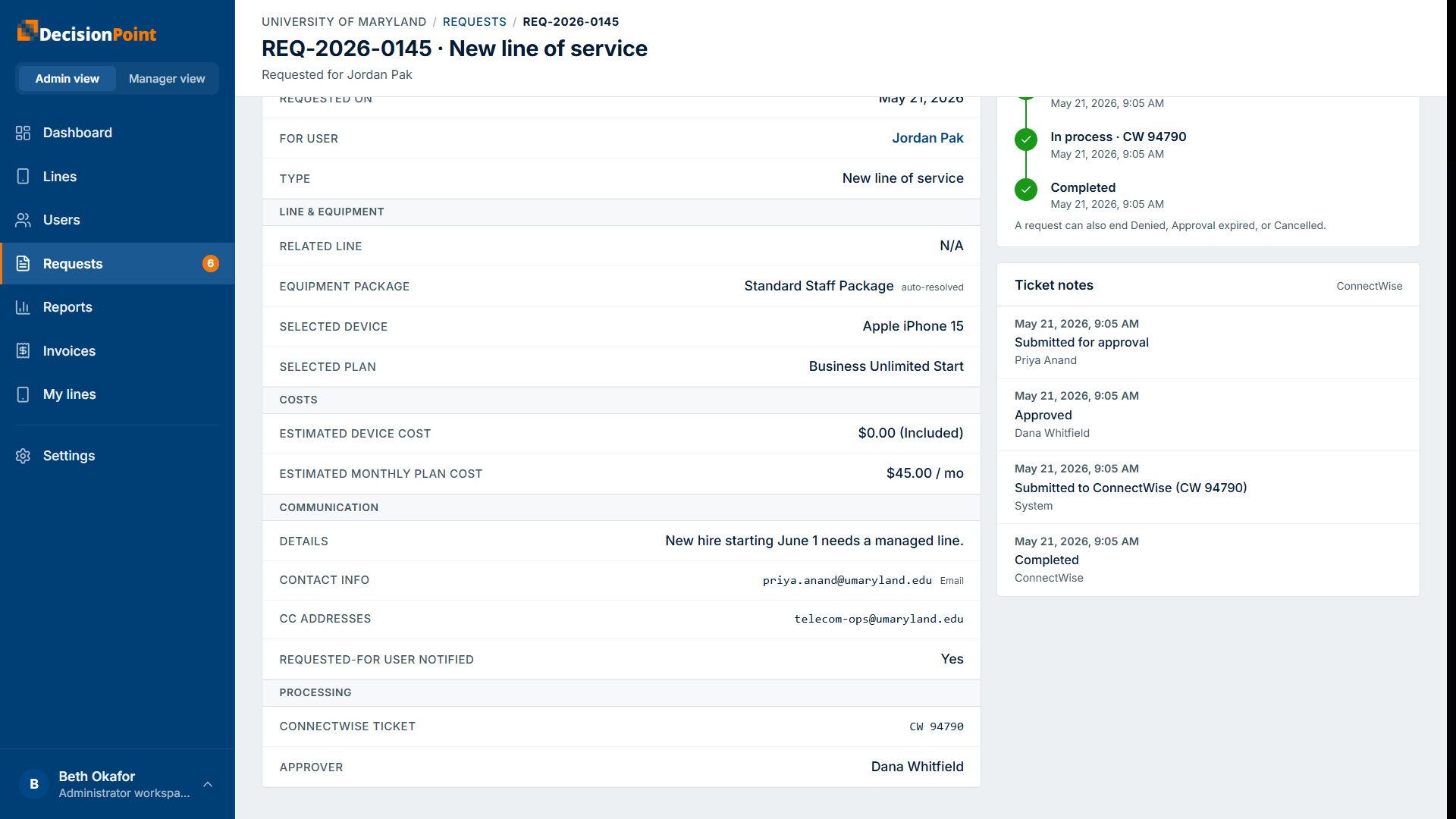
The Ticket notes panel is the running conversation on the request — each entry stamped with who added it and when (submitted, approved, sent to the service team, completed). Add a note to pass along extra information or ask a question; it's posted to the request's ticket so the service team sees it, and it's attributed to you. (CC'd email recipients can't add notes — only the people involved in the request.)
Cancelling a request
You can cancel a request only before it becomes a ticket — while it's still pending approval, just approved, or its approval has expired. The Cancel request button sits at the top right of the request's detail page.
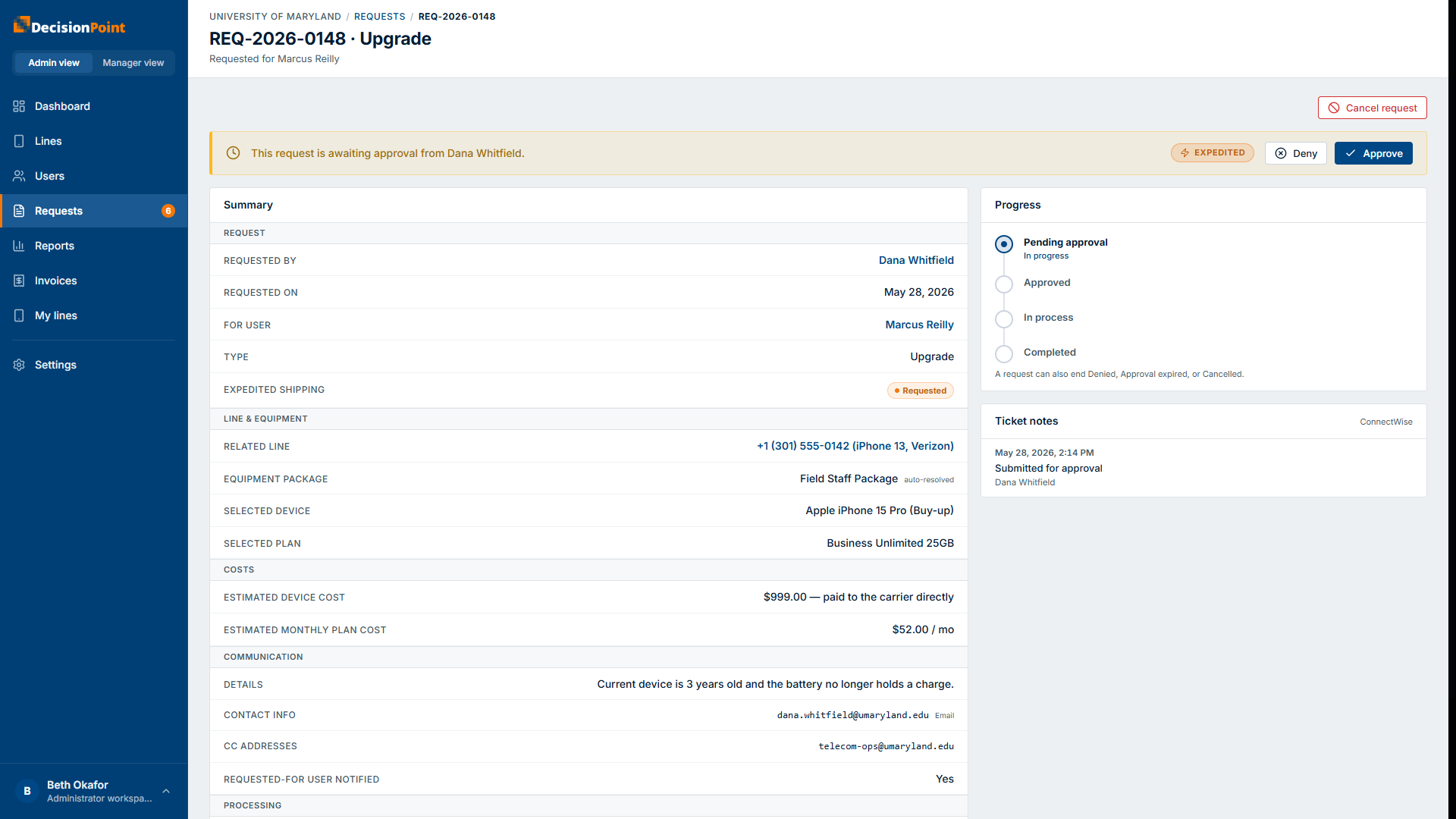
Cancelling asks you to confirm first — the dialog reminds you this can't be undone and that both the requester and the approver will be notified.
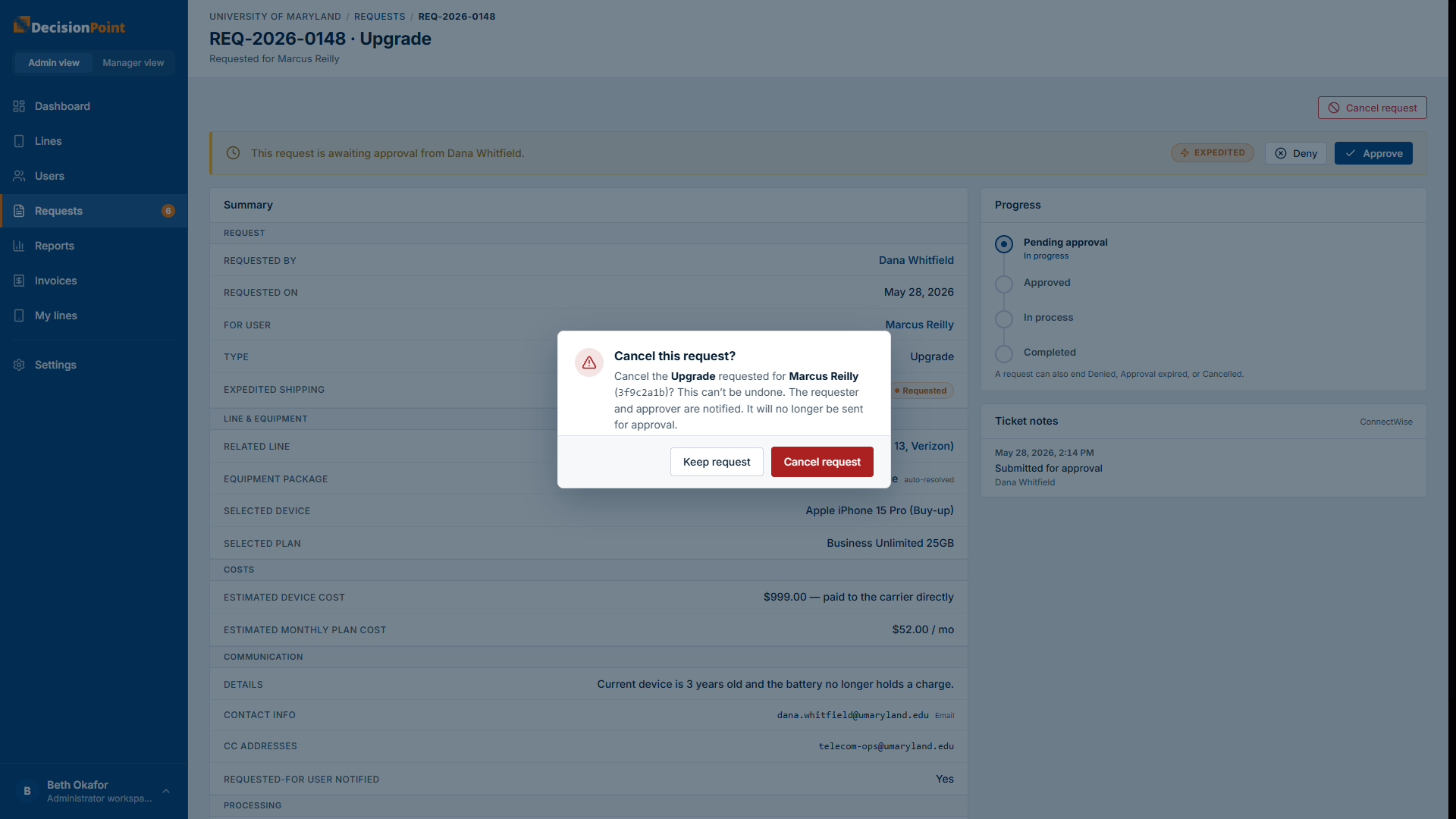
Once a request is in process (it has become a ticket and the work has started), the cancel option goes away. To stop work at that point, contact DecisionPoint support — they can cancel it on the ticket, and your request updates to match.
Resending an expired approval
If a request's approval expired — no one approved or denied it within 7 days — you can resend it. That issues a fresh approval email, valid for another 7 days, to the approver.
Related
- Requests overview — types, lifecycle, and statuses.
- Submitting a Request
- Approving Requests — for the people who approve.