Approving Requests
If requests route to you for approval, the portal gives you a queue of everything awaiting your approval. You can approve or deny each one — either right in the portal (this page) or straight from the email (see Approving by Email).
Your approval queue
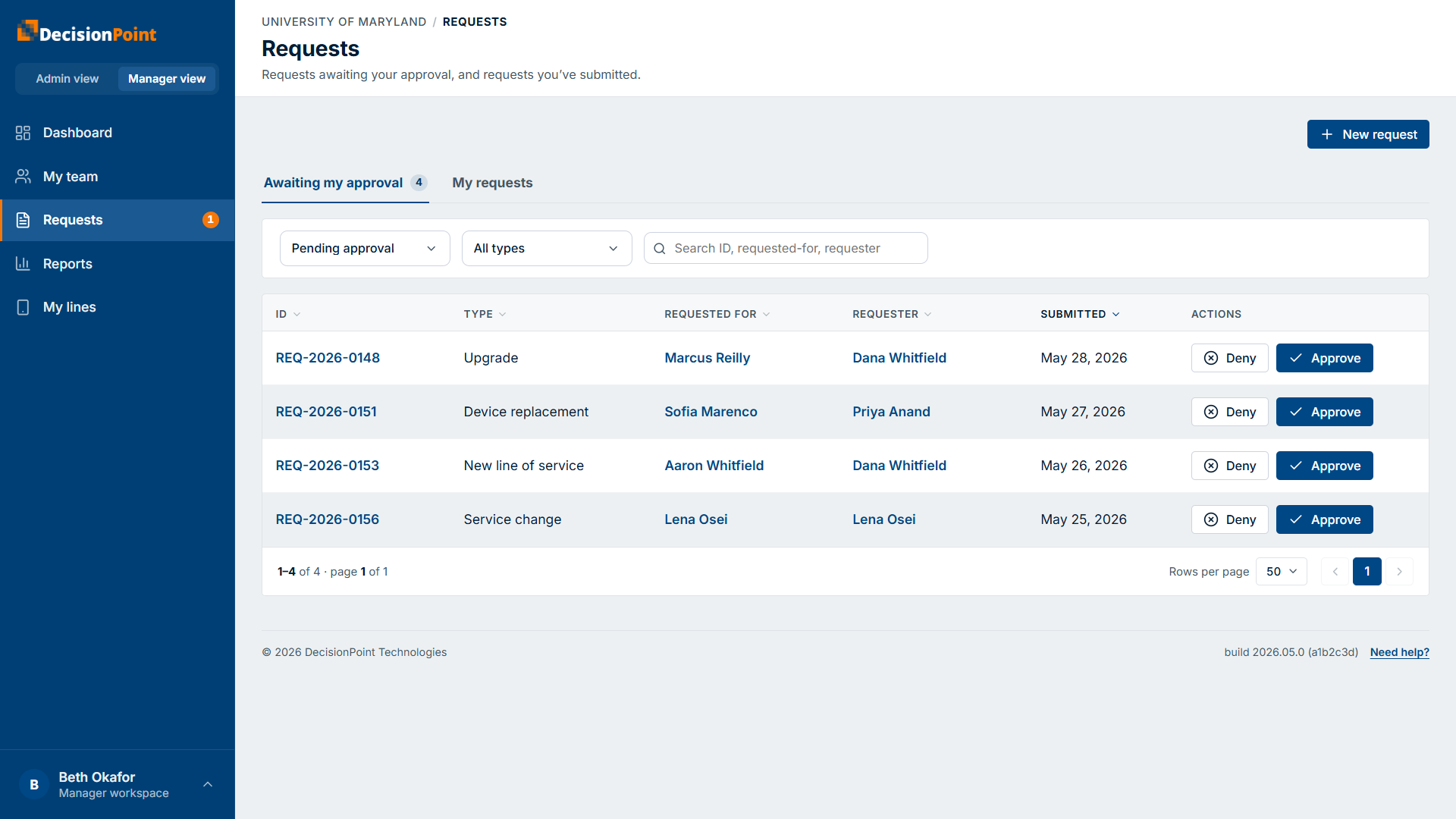
Open Requests. The Awaiting my approval tab lists the requests waiting on you, with a count; the My requests tab holds the ones you've submitted yourself. Each row shows the request ID, type, who it's for, the requester, and when it was submitted — and you can approve or deny right from the row. Filter by status or type, or search by ID, requested-for, or requester.
Reviewing a request
Open a request to see the full details before you decide. A banner at the top shows it's awaiting your approval, with Approve and Deny buttons, and flags ⚡ Expedited if the submitter marked it urgent.
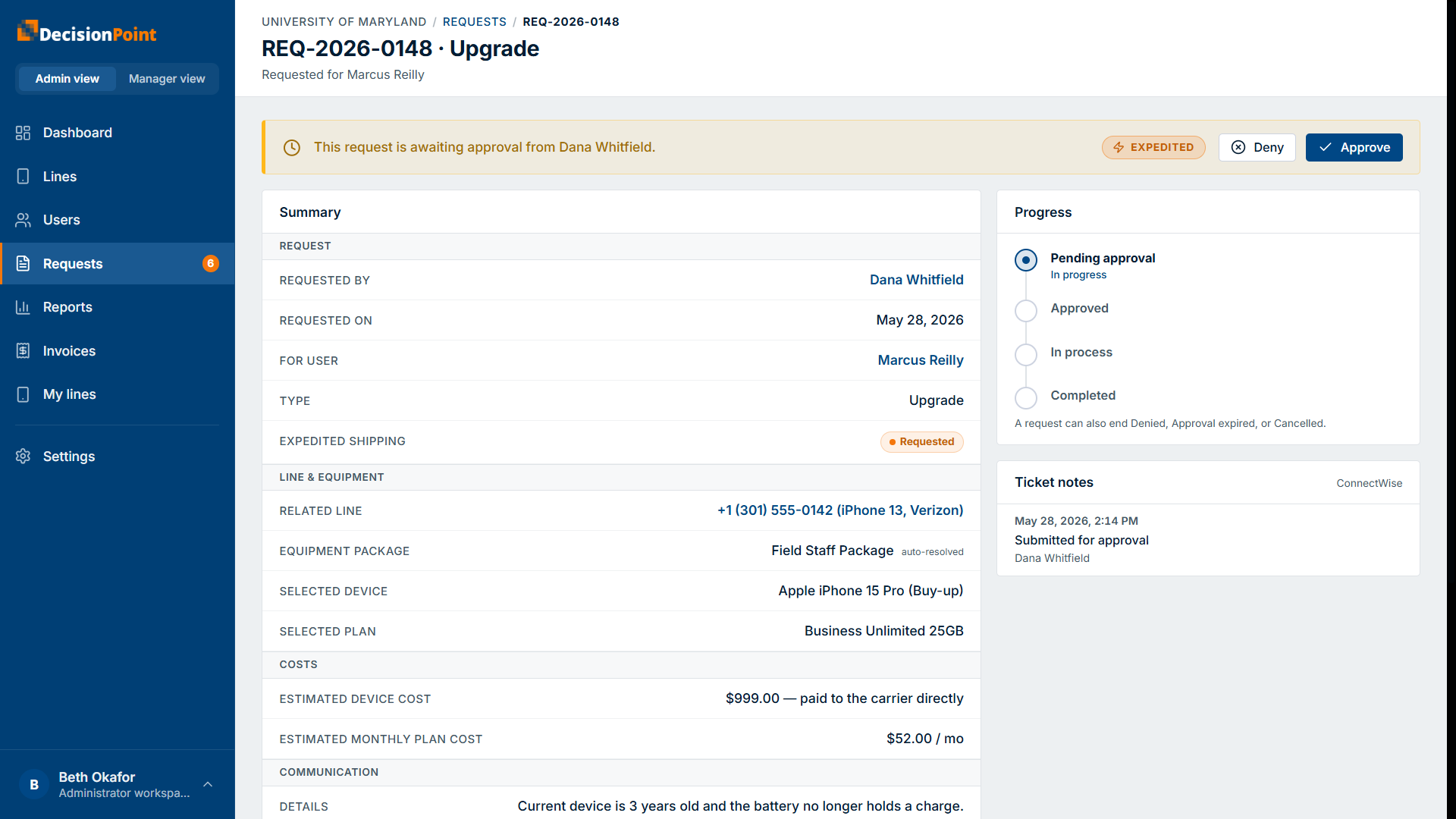
The summary gives you everything you need — who it's for, the related line, the selected device and plan, and the costs. For a buy-up device, the cost is shown as paid to the carrier directly, so you know it isn't billed to the organization. Watch for an over-limit note, which means approving would put the person over the number of lines they're normally allowed.
Approving or denying
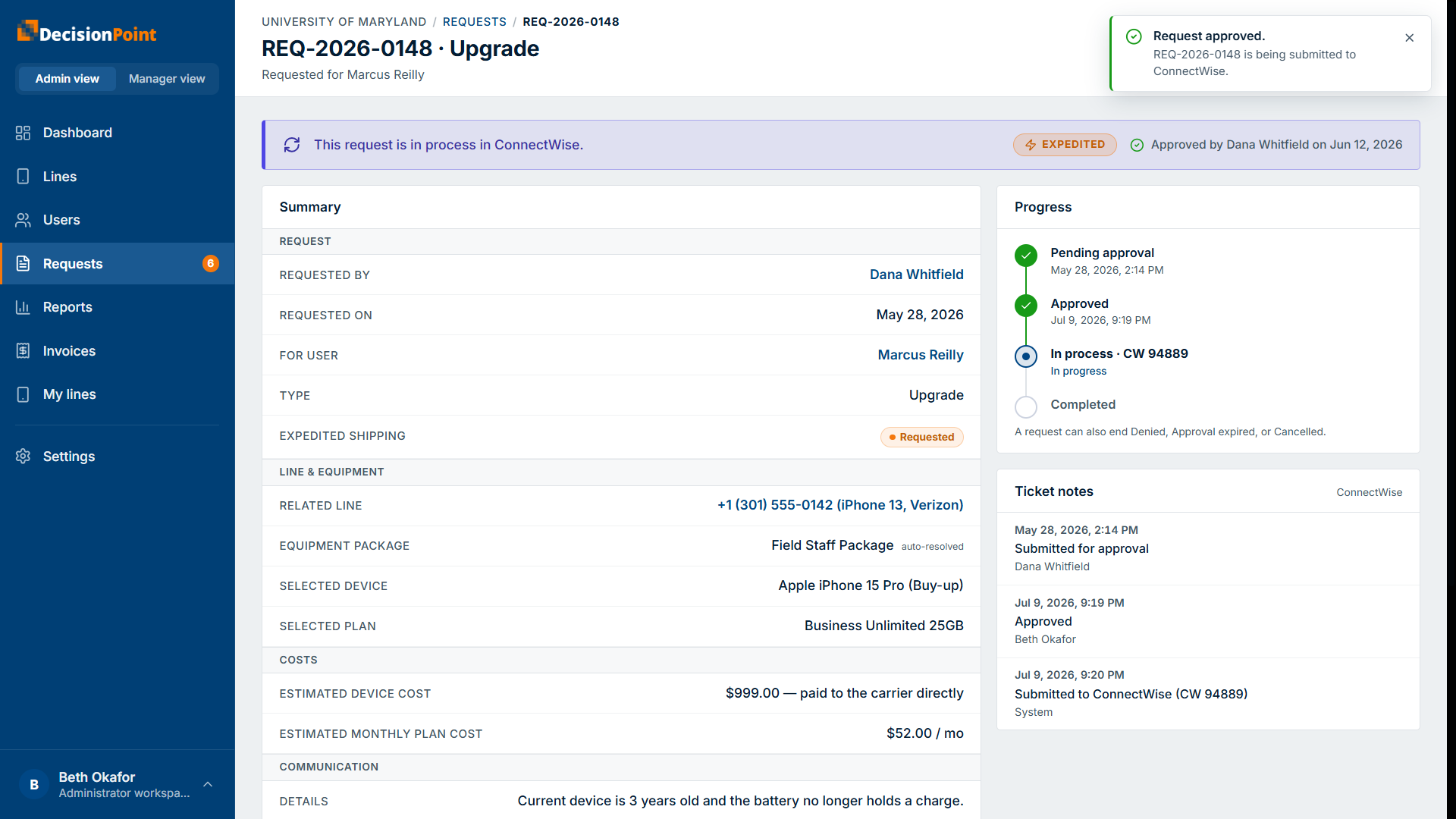
- Approve — the request moves ahead and is sent to the service team as a ticket. The banner switches to in process, and the progress timeline shows the request advancing toward completion.
- Deny — the request stops and no ticket is created. Everyone on the request is notified of the outcome.
Approvals expire
An approval request is valid for 7 days. If you don't act in time, it expires and no work happens until someone resends it. If you're going to be away, it's worth clearing your queue first.
Related
- Approving by Email — approve or deny without signing in.
- Requests overview — types, lifecycle, and statuses.
- Tracking Your Requests