Managing Users Administrators
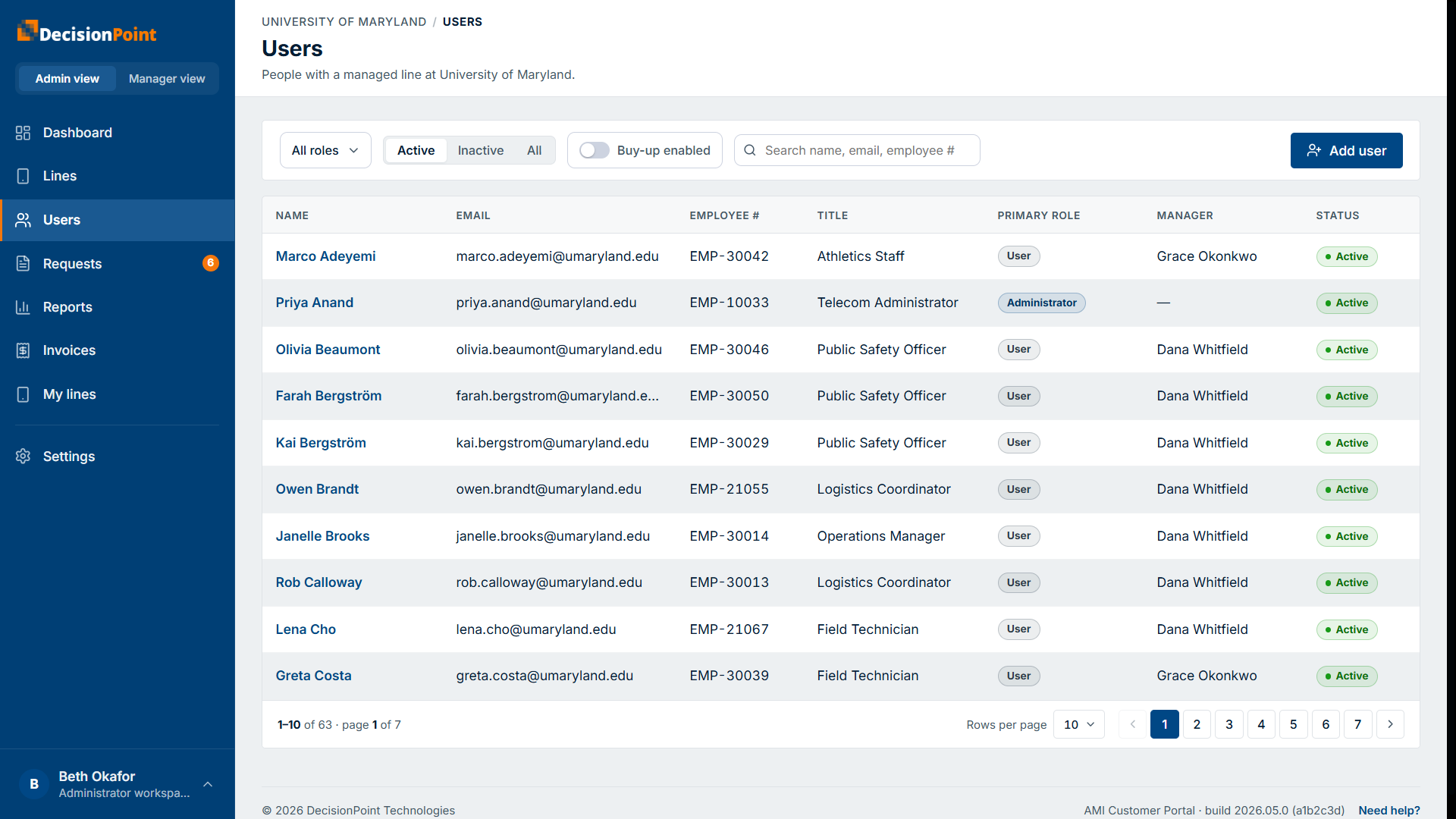
Open Users to see everyone with a managed line in your organization. From here you can review a person's details, add someone, or deactivate an account.
Finding people
Filter the list by role, by Active / Inactive / All, or by whether buy-up is enabled, and search by name, email, or employee number. Each row shows the person's title, primary role, manager, and status.
A person's details
Select anyone to open their detail page.
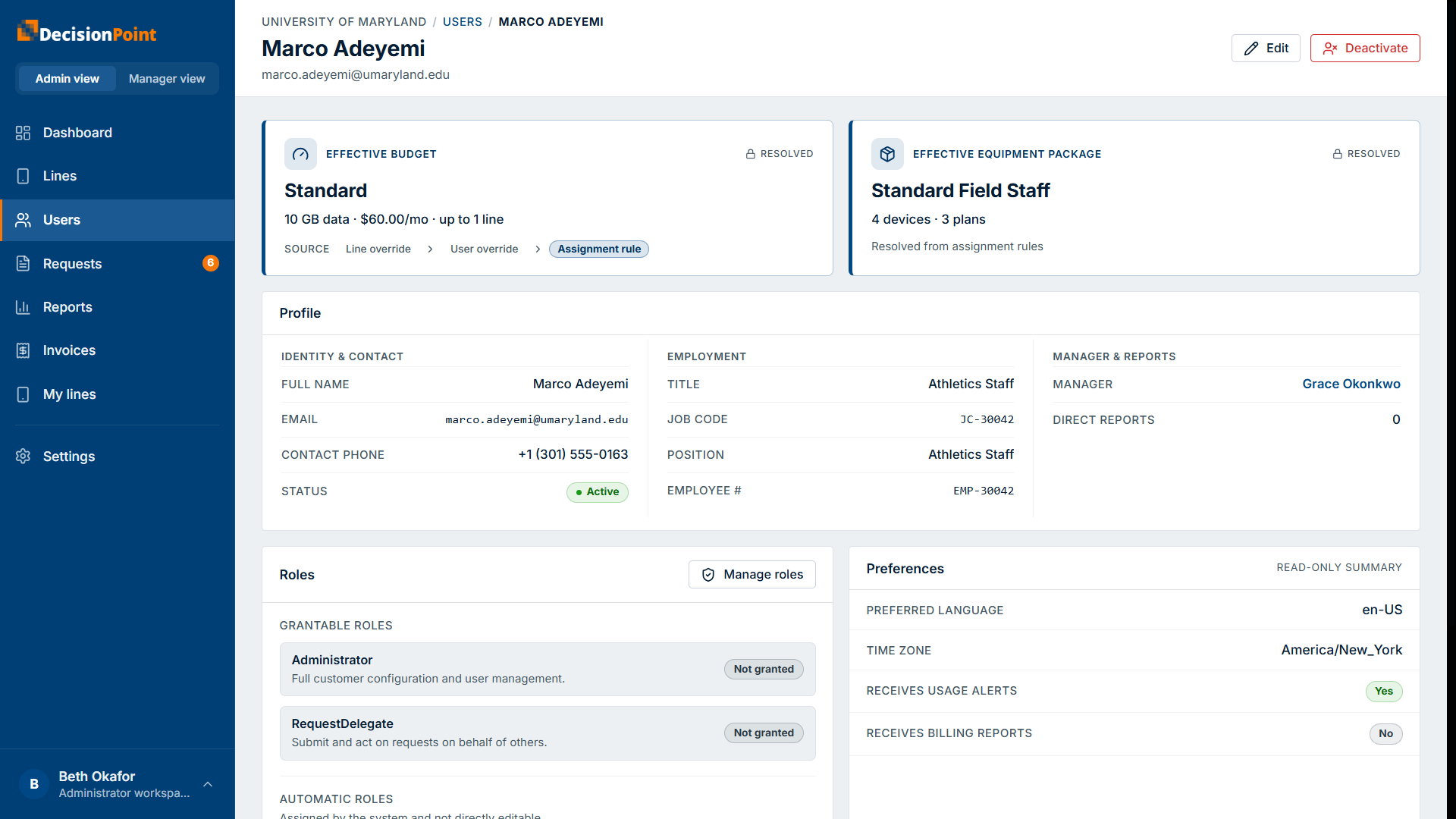
- Effective budget and effective equipment package — what actually applies to this person, and where it was resolved from (a line override, a user override, or an assignment rule).
- Profile — identity and contact details, employment (title, job code, employee number), and their manager and direct-report count. Most of this comes from your organization's HR records; use Edit to change what's editable.
- Roles — the roles this person holds, with Manage roles to change them (see Roles & Permissions).
- Preferences — a read-only summary of the person's own language and notification opt-ins (they control these themselves).
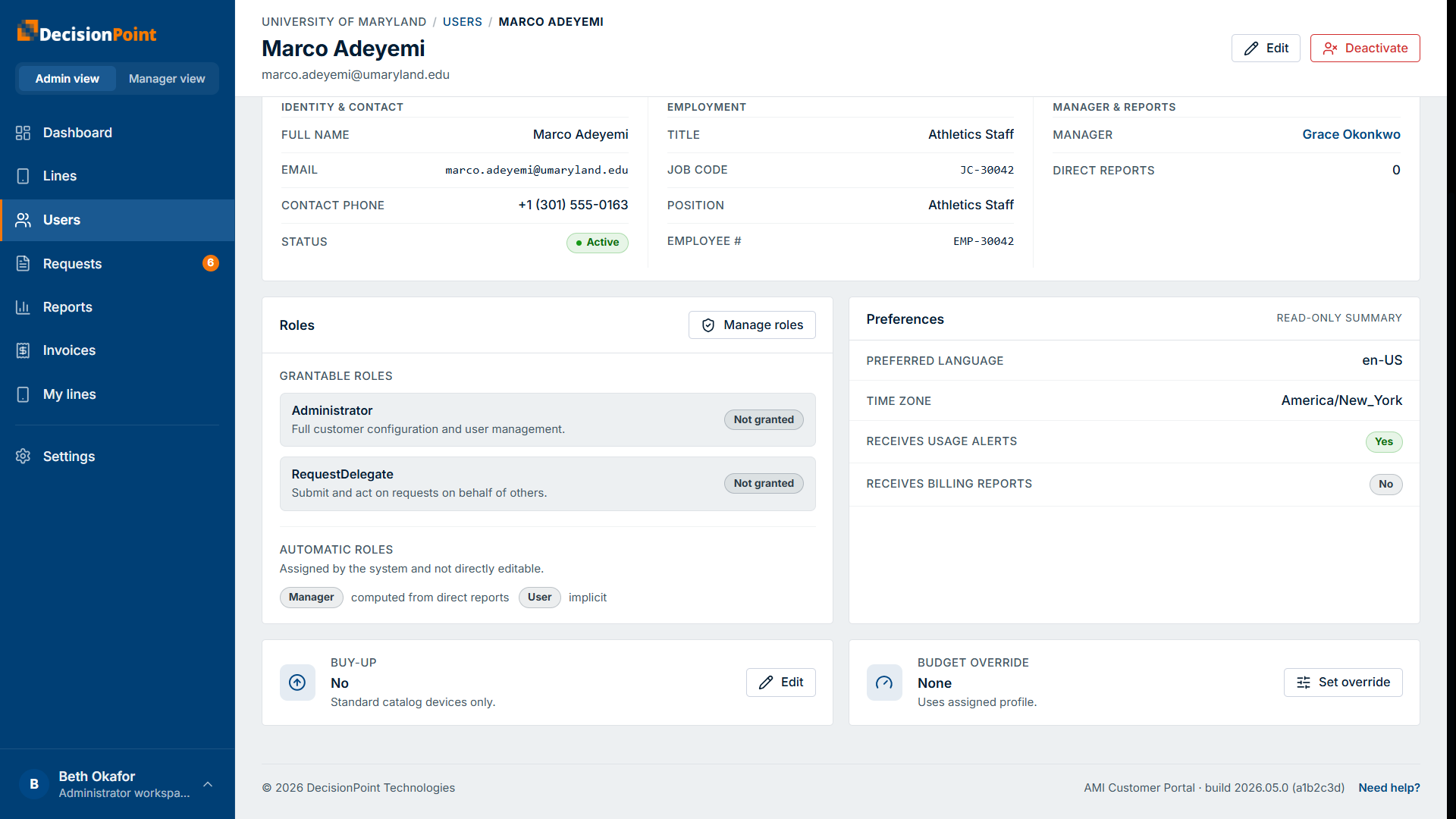
- Buy-up — whether this person may request buy-up devices at their own expense.
- Budget override — set a per-person budget that replaces their assigned profile, or leave it to use the assigned profile.
Adding and deactivating
- Add user creates a person manually. Most people arrive automatically through your organization's HR file import, so add-by-hand is for one-offs.
- Deactivate turns off an account without deleting it — history is kept, and the person's status changes to Inactive. There's no hard delete.
Related
- Roles & Permissions — grant or revoke access.
- Administration overview