Quickstart
A condensed walkthrough of the basics: signing in, finding your way around, and submitting each of the five request types — enough to know where to click and what to type. For the full detail on any of this, see Getting Started and Submitting a Request.
1. Sign in
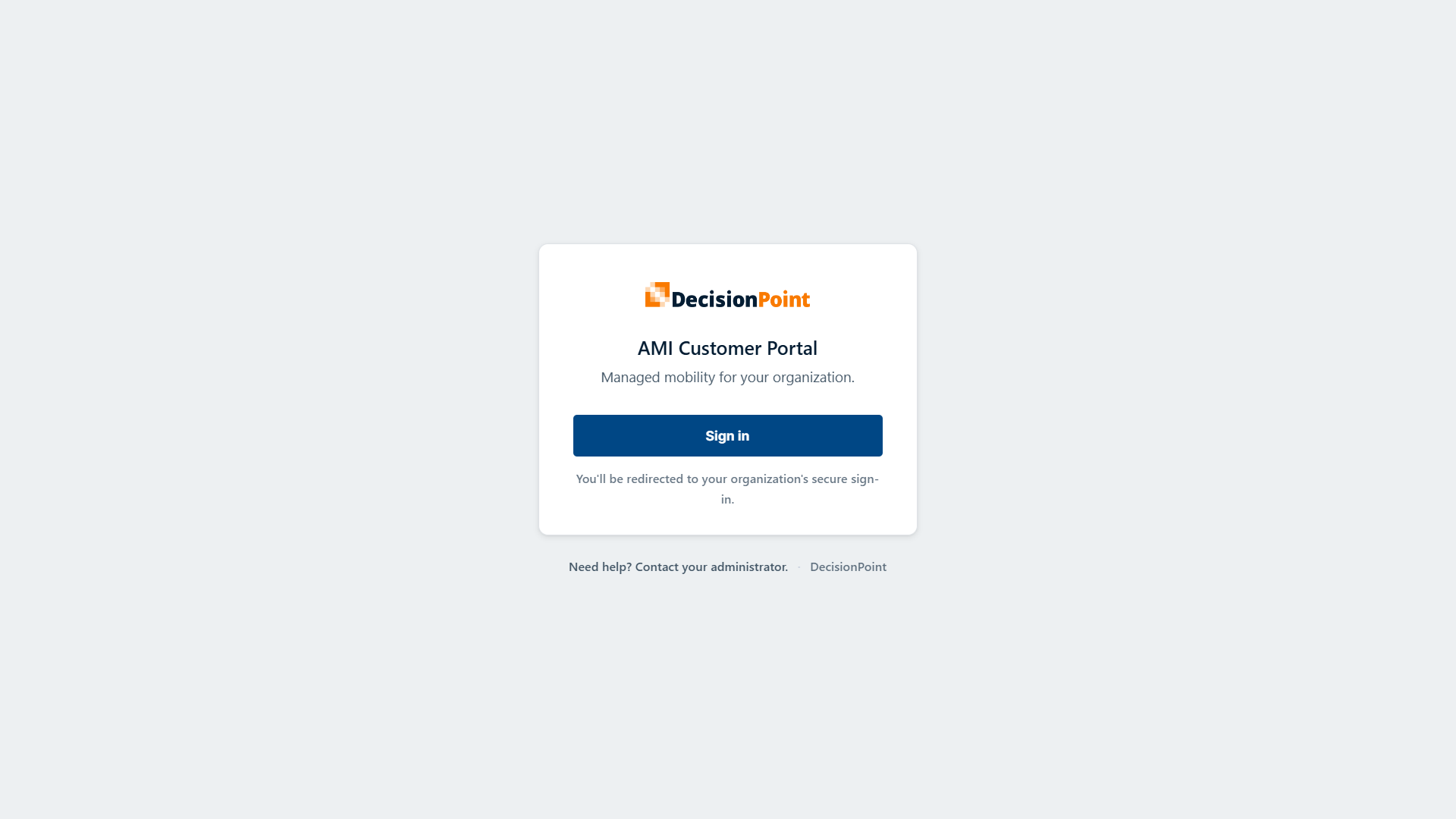
Select Sign in. You'll be redirected to enter your organization credentials. If your organization requires it, you may also be prompted for an extra verification step through an authenticator app.
2. Find your way around
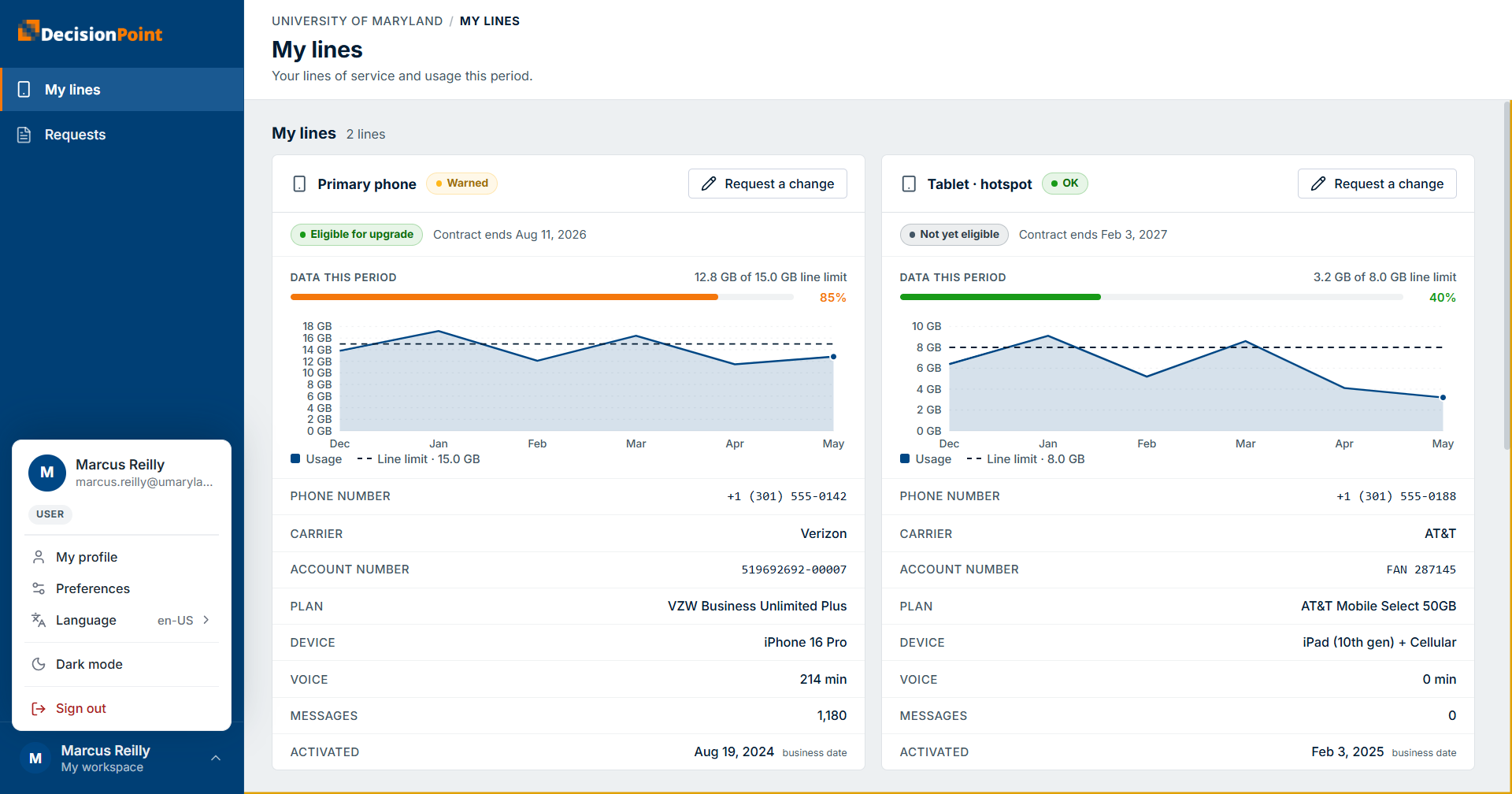
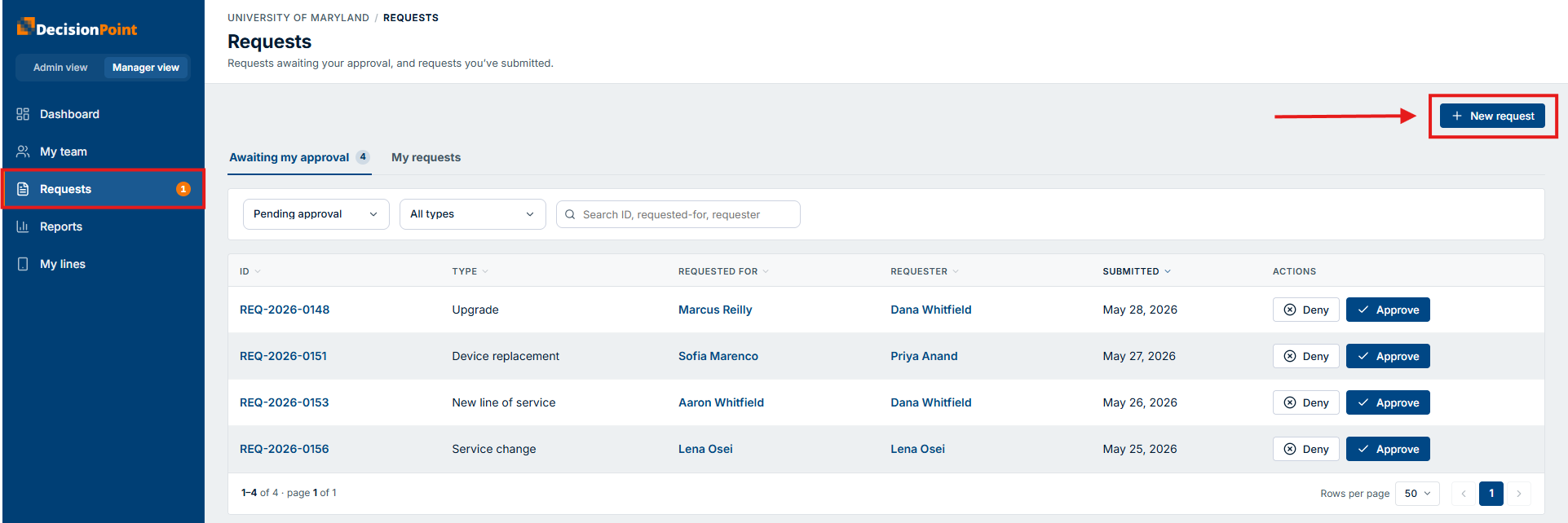
You land on My lines — your lines of service and this period's usage, with a Request a change shortcut on each. Select Requests in the left nav to submit new requests or see ones made by or for you. Your account menu (profile, preferences, language, dark mode, sign out) is in the bottom-left corner.
3. Start a new request
Select New request, then pick one of the five types.
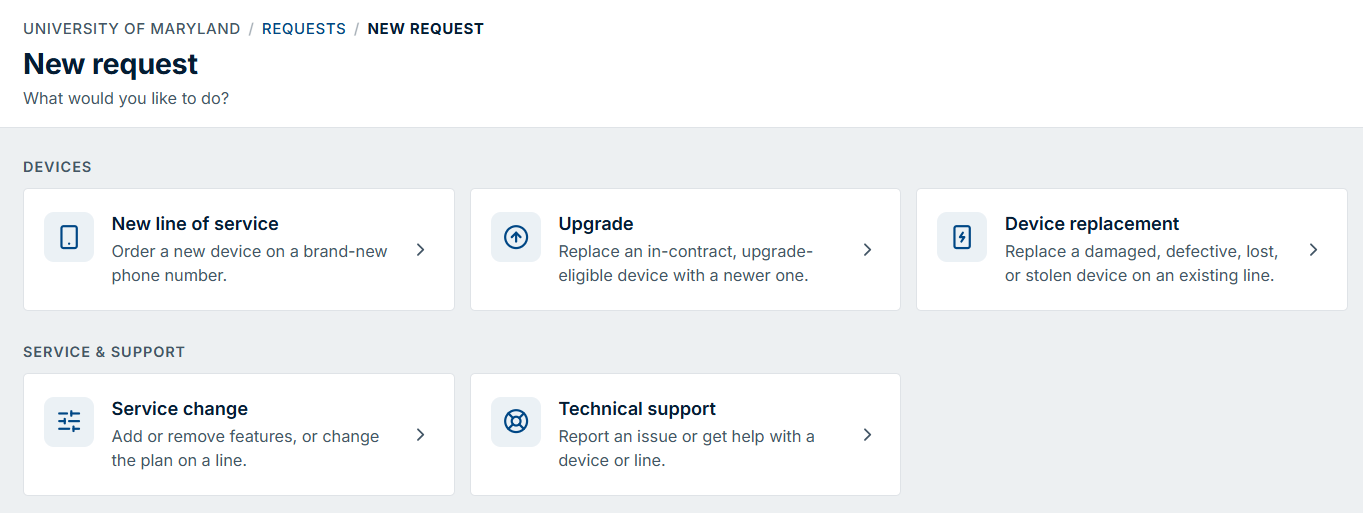
If you're a manager, a request delegate, or an administrator — anyone who can submit on others' behalf — every type below starts with a "Who is this request for?" picker. Everyone else doesn't see it at all; the request is automatically for you.
4. Who & why — New line, Upgrade, Replacement
New line of service, Upgrade, and Device replacement all start with a Who & why step — shown below is Device replacement, the fullest version of it:
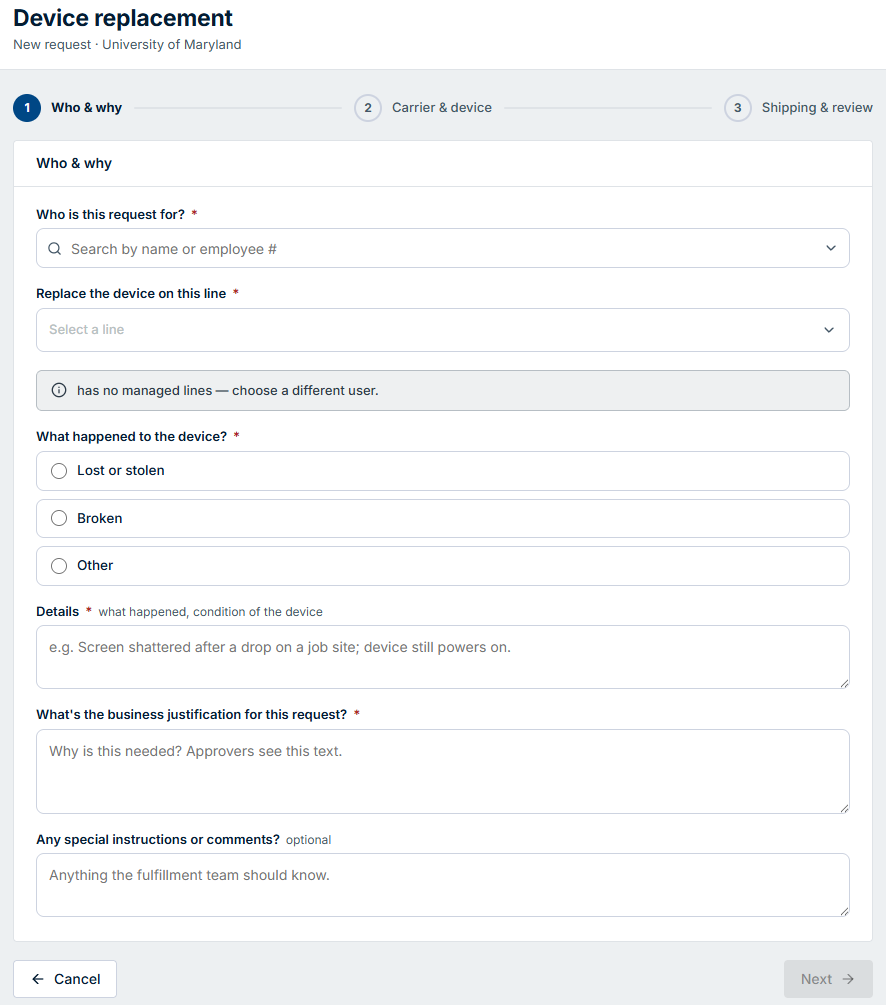
- Who is this request for? — only shown to managers, request delegates, and administrators (see step 3); required when it appears. Everyone else skips it — the request is for you.
- New line: no line to pick (it's a brand-new number) — just Business justification (required); special instructions are optional.
- Upgrade: pick the line to upgrade (required) — only eligible lines are selectable; there's no separate justification field.
- Device replacement (shown): pick the line, what happened — Lost or stolen, Broken, or Other — and Details, all required, plus Business justification (required). Special instructions are optional.
5. Carrier & device — New line, Upgrade, Replacement
All three continue to a Carrier & device step — shown below is New line, the fullest version of it:
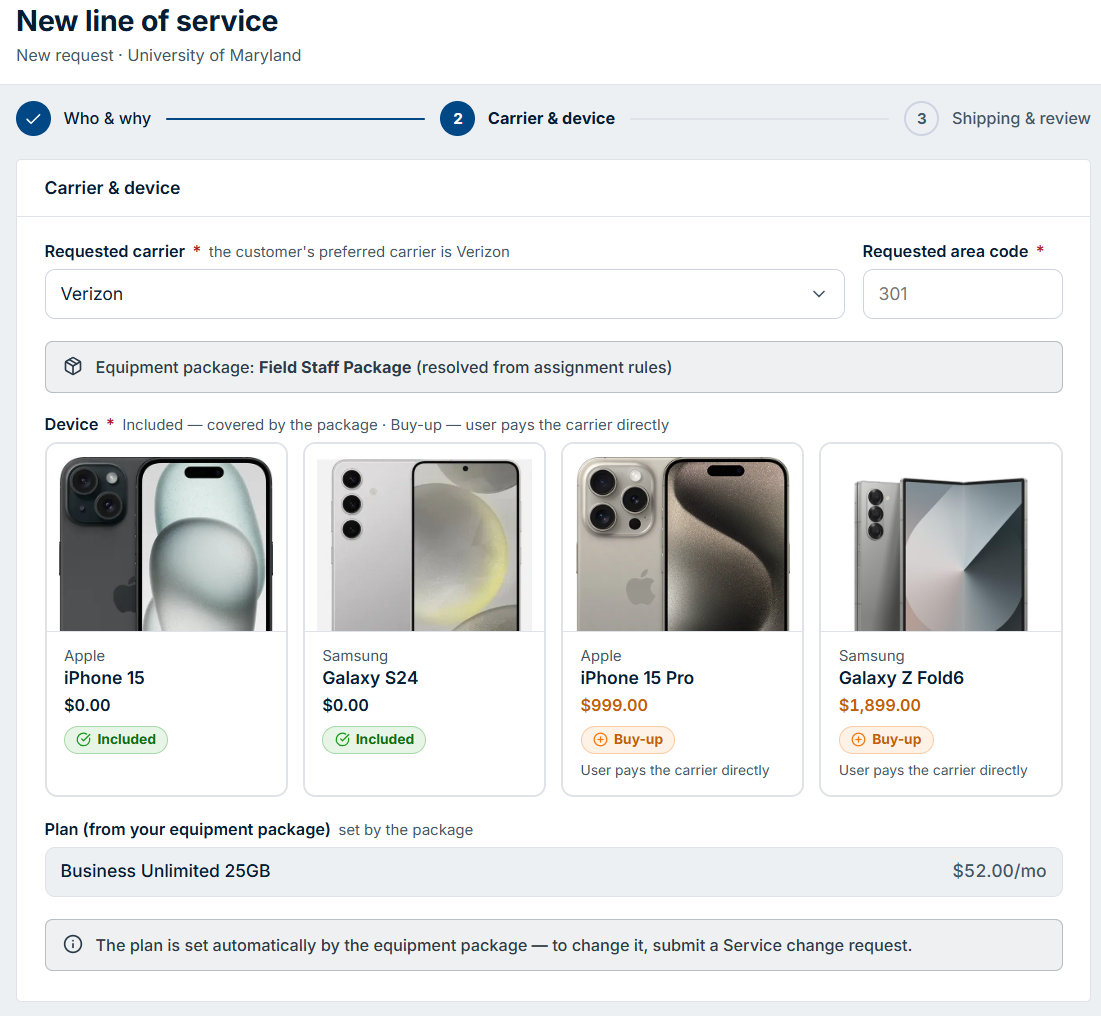
- Device — required on all three. Included costs nothing; Buy-up is paid to the carrier directly.
- New line (shown): also pick Carrier and Area code (both required, since it's a brand-new number). Plan is then set automatically by the resolved equipment package.
- Upgrade & Device replacement: no carrier or area code fields — the new device must match the line's existing carrier (shown as a note instead). Plan is kept from that line automatically; to change it, submit a Service change request instead.
6. Shipping & review
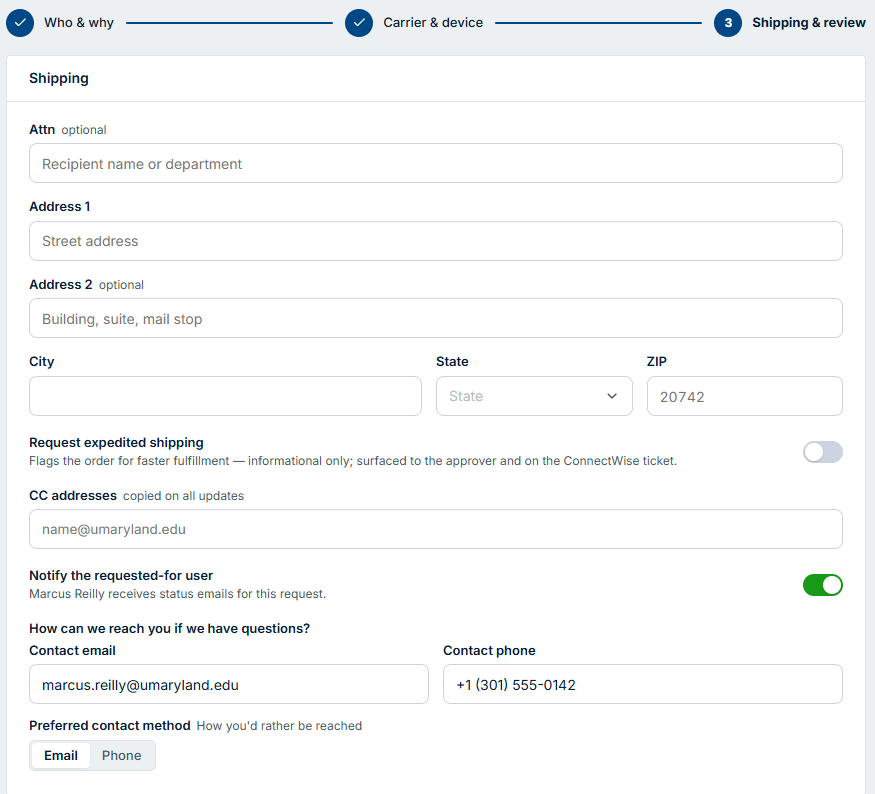
The shared final step for New line, Upgrade, and Device replacement.
- Address 1, City, State, ZIP — required. Attn and Address 2 — optional.
- Request expedited shipping — optional toggle; flags the order as urgent.
- CC addresses — optional. Notify the requested-for user — only shown when you're submitting for someone else (managers, request delegates, administrators); on by default.
- Contact email/phone and preferred contact method — confirm these so the fulfillment team can reach you.
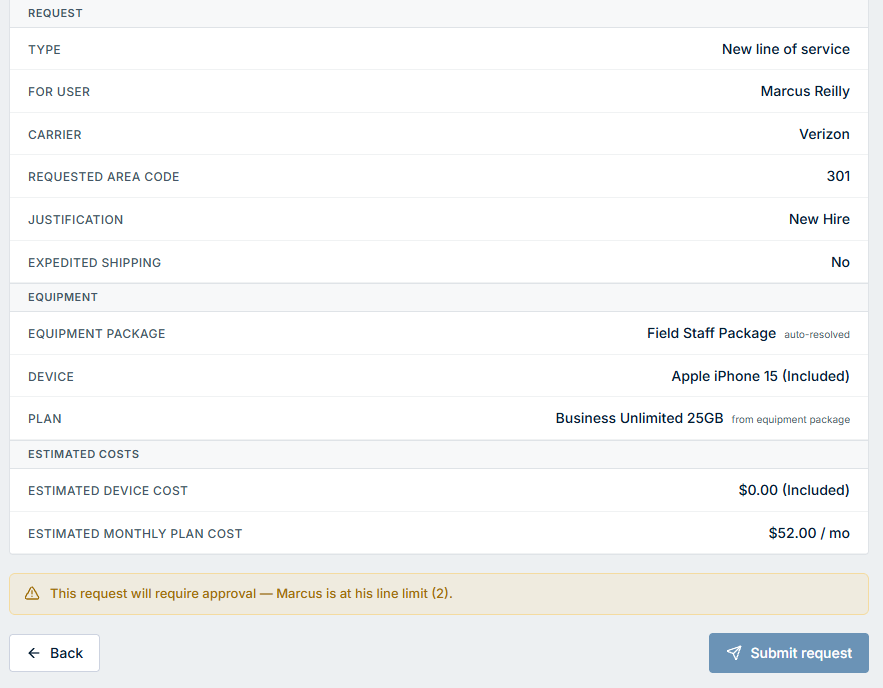
Review summarizes everything — including estimated costs — before you Submit request.
7. Service change
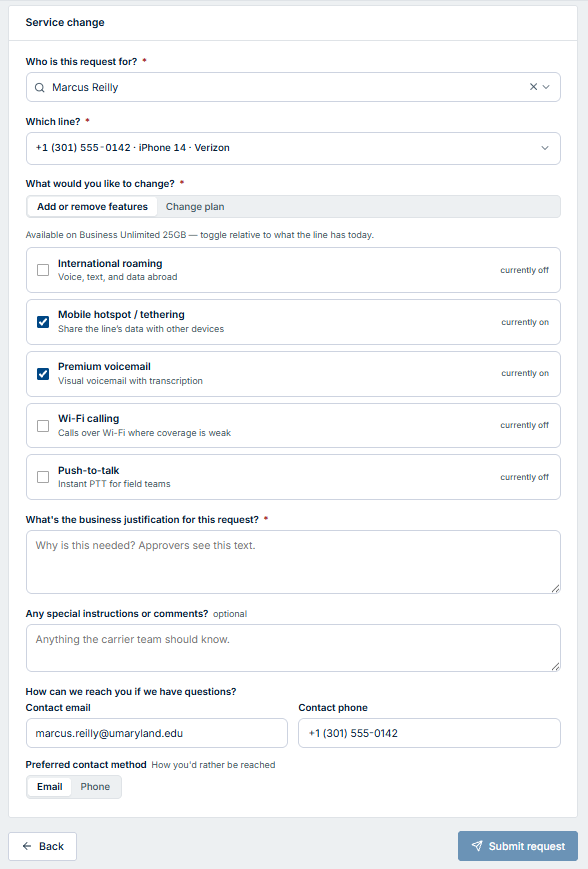
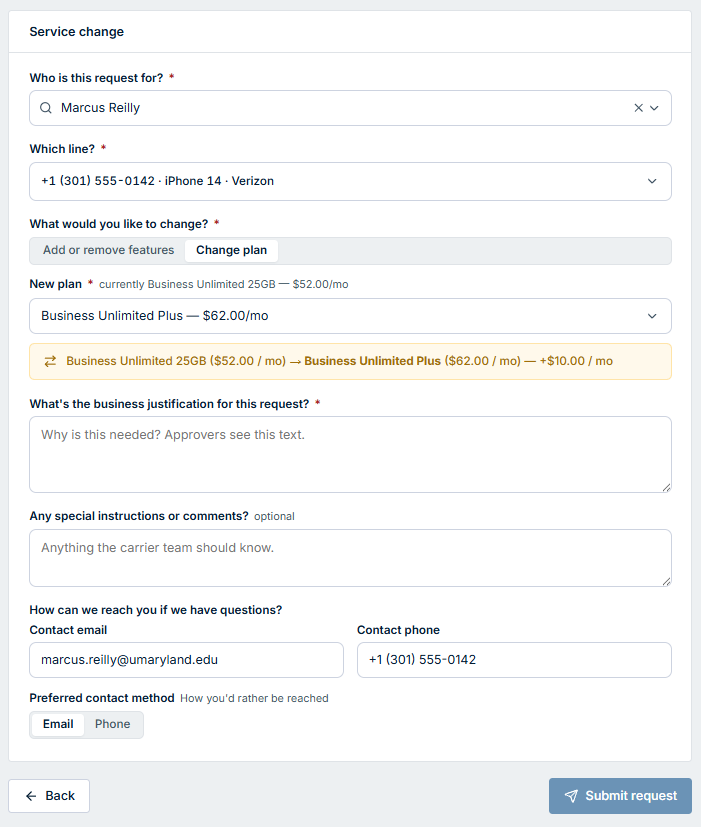
A single form — nothing ships. Who is this request for? appears only for managers, request delegates, and administrators (required when shown; otherwise it's you). Pick which line (required), then choose what to change:
- Add or remove features — toggle each one relative to what the line has today; nothing else is required beyond justification.
- Change plan — pick a new plan (required); the monthly cost difference is shown.
Either way, business justification is required and special instructions are optional.
8. Technical support
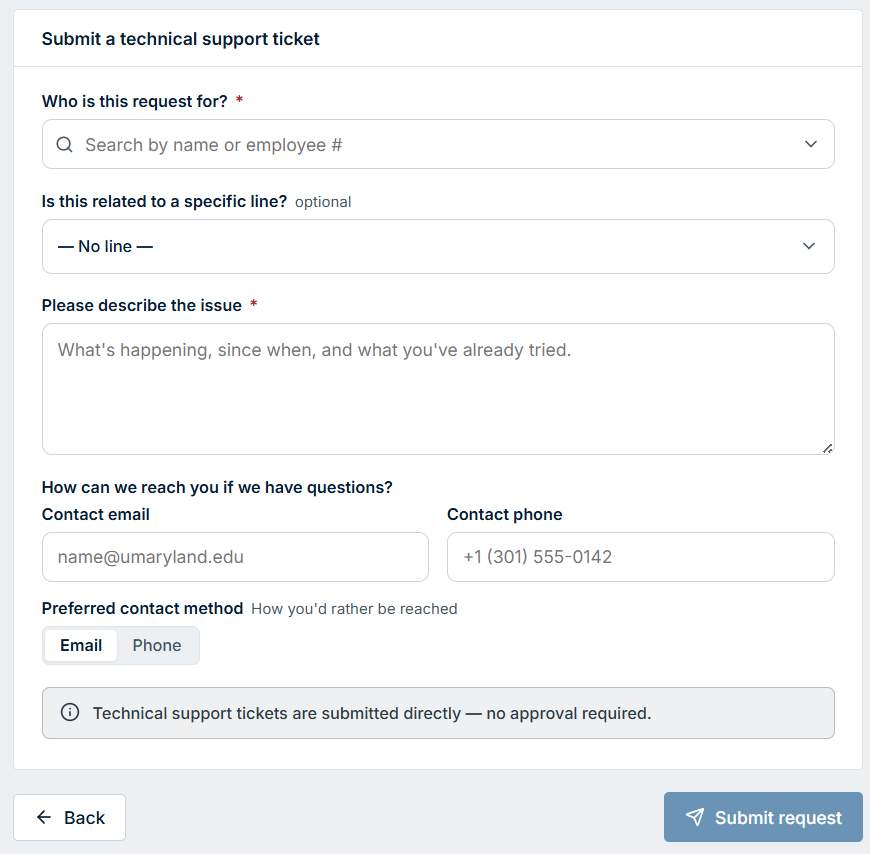
Who is this request for? appears only for managers, request delegates, and administrators (required when shown; otherwise it's you). Optionally link it to a specific line, and describe the issue (required). This one goes straight to the service team — no approval needed.
Related
- Getting Started — the full walkthrough, including your profile and preferences.
- Submitting a Request — every request type's fields in full detail.
- Tracking Your Requests — notes, cancelling, and resending an expired approval.