Notification History
The portal keeps a record of the notifications it has sent, so you can confirm whether a message went out and what happened to it.
Your own history
You can review the notifications the portal has sent to you — the usage alerts, summaries, and request updates you've received — with the date and delivery status of each.
Organization-wide history Administrators
Administrators can review every notification sent for the organization. Open the administrator view and go to Settings → Notifications → Delivery history.
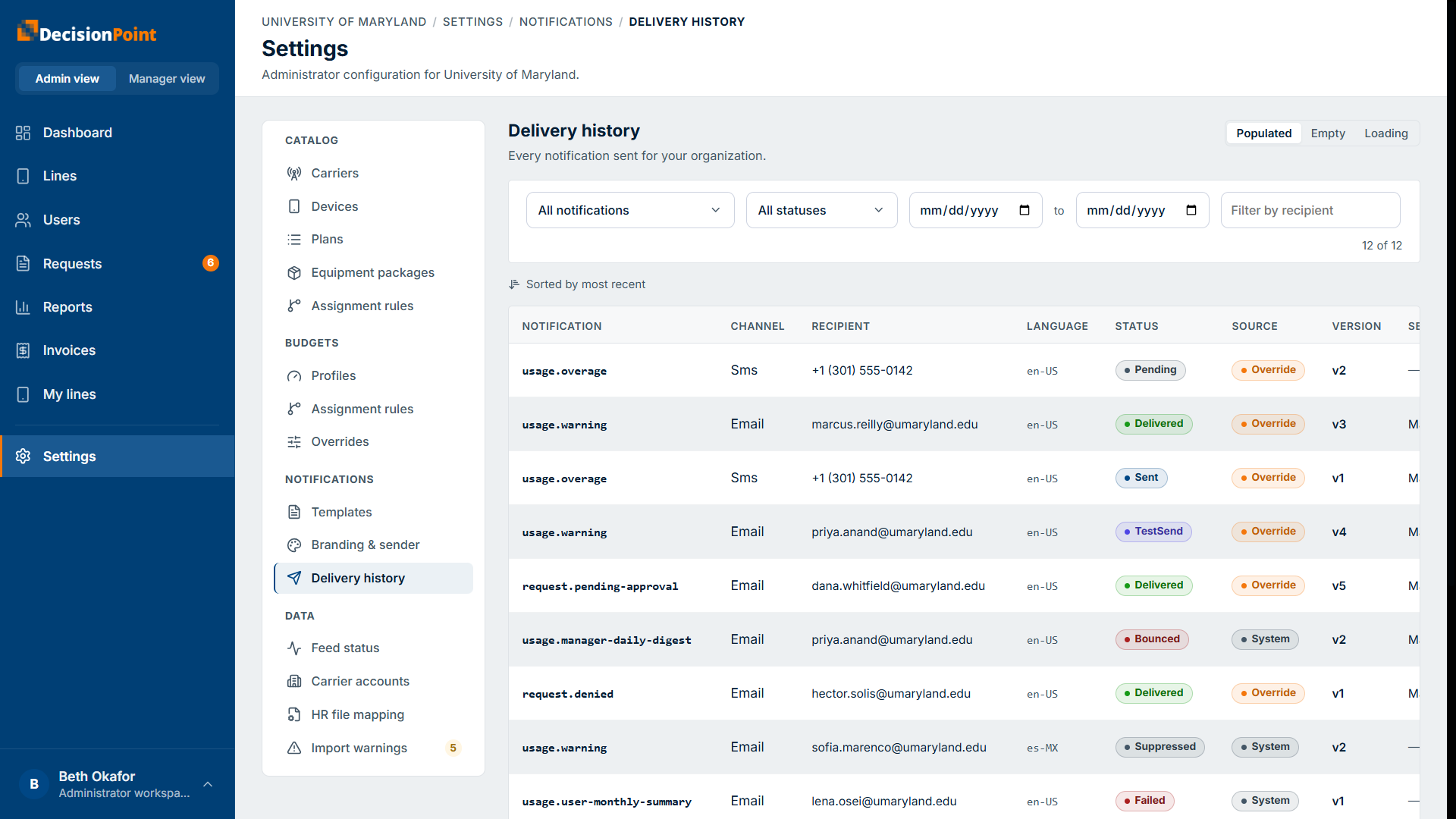
Filter by notification type, status, date range, or recipient. Each row shows:
- The notification type and channel (email or text).
- The recipient and the language it was sent in.
- The status — for example Delivered, Sent, Pending, Bounced, Suppressed (not sent, e.g. the recipient opted out), Failed, or Test send.
- The source — whether it used your organization's override template or the system template — and the template version.
Resending a notification
If a message bounced or a recipient didn't receive it, an administrator can resend it from the history. A resend goes out as a fresh message and is recorded as its own entry.
Related
- Managing Your Preferences — opt-ins and channels.
- Customizing Templates — what the messages say.
- Notifications overview