Roles & Permissions Administrators
A person's role determines what they can do in the portal. There are four roles, and it's important to know that only two of them are something you grant — the other two are worked out automatically.
The four roles
| Role | How it's assigned | What it allows |
|---|---|---|
| User | Automatic — everyone has it | See their own usage and submit their own requests. |
| Manager | Automatic — anyone with at least one direct report | Everything a User can do, plus see their team's usage and approve requests. |
| RequestDelegate | Granted by an administrator | Submit and act on requests on behalf of other people. |
| Administrator | Granted by an administrator | Full customer configuration and user management. |
Granting or revoking a role
Open a person from Managing Users, then select Manage roles.
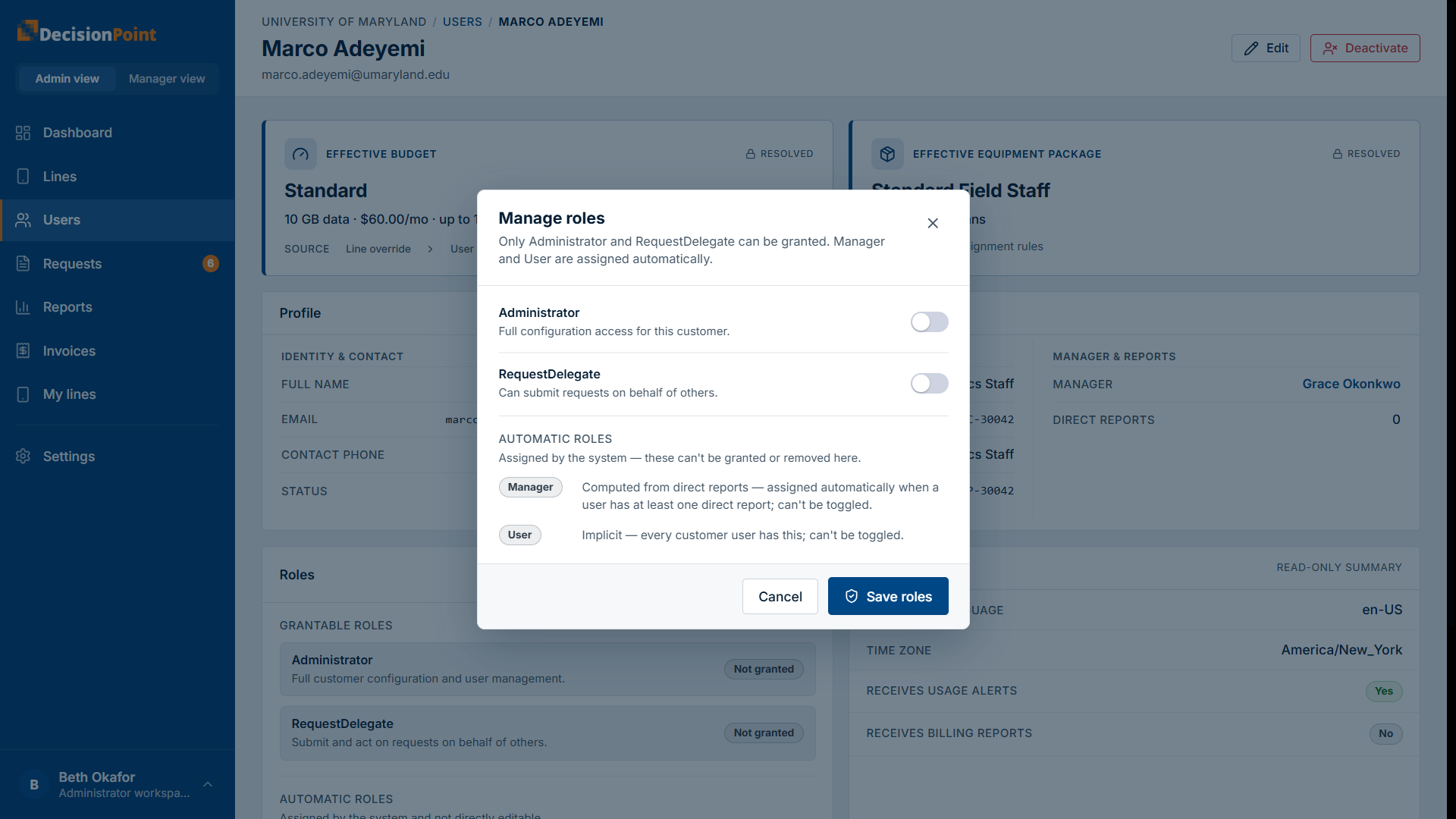
- Toggle Administrator and RequestDelegate on or off, then Save roles.
- Manager and User appear as automatic roles and can't be toggled:
- User is implicit — every customer user has it.
- Manager is computed from direct reports — the moment someone has a direct report, they're a manager; when they no longer do, they aren't. You don't turn it on or off.
Why can't I make someone a manager?
Manager status follows your organization's reporting structure, which comes from your HR records — not a switch in the portal. To change who someone manages, update the reporting relationship in your HR data (or ask DecisionPoint support).
Related
- Managing Users — where you open Manage roles.
- Requesting on Behalf of Others — what a RequestDelegate can do.
- Approving Requests — what managers do.