Your Profile & Preferences
Open your account menu in the bottom-left corner to review your account details and choose how the portal communicates with you.
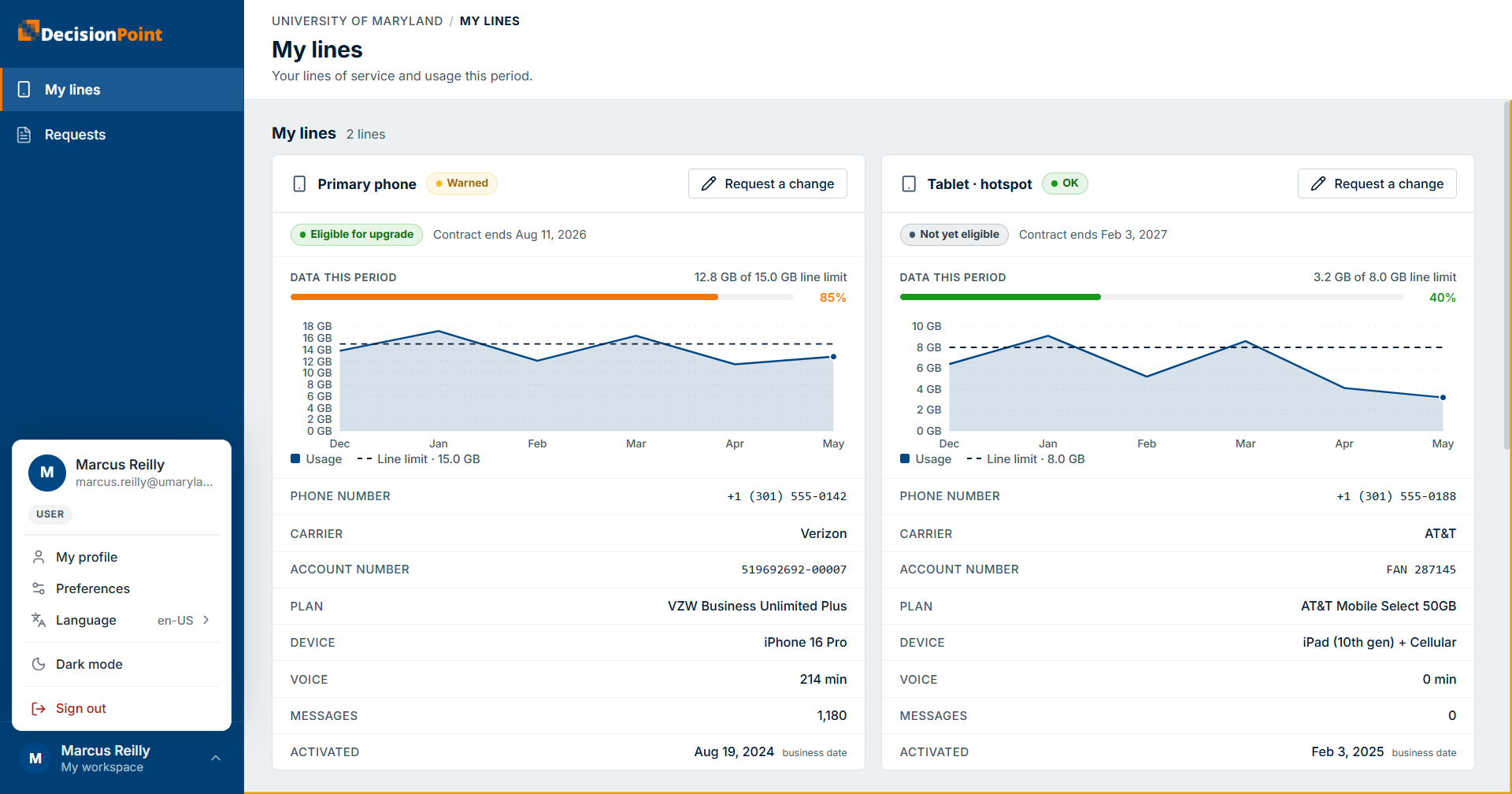
From this menu you can open:
- My profile — your account details.
- Preferences — which notifications you receive (see below).
- Language — your preferred language (see Choosing Your Language).
- Dark mode — switch between a light and dark appearance at any time.
Your notification preferences
Under Preferences, choose which messages the portal sends you:
- Usage alerts — notices when your cellular usage is trending toward or over budget. See Overage Alerts Explained.
- Billing summaries — periodic summaries once a billing period closes.
Choosing Your Language
The AMI Customer Portal is available in three languages:
- English (United States)
- Spanish (Mexico)
- French (Canada)
Your language choice affects both what you see in the portal and how numbers, dates, and currency are formatted.
Open your account menu in the bottom-left corner, select Language, and choose the language you prefer. The portal updates immediately.
Your selection is saved to your profile, so the portal opens in your preferred language the next time you sign in — on any device. It also determines the language of the notifications the portal sends you (such as usage alerts and request updates), whether by email or text message.
What comes from your organization
Some details — such as your name, job title, and who you report to — come from your organization's records and are kept up to date by your administrator. If any of these are incorrect, contact your organization's administrator; they can update your record or open a support request.
Managers
The "manager" role isn't something you turn on. The portal recognizes you as a manager automatically when other people report to you in your organization's records.
Related
- Portal Tour — a tour of the main areas, by role.
- Overage Alerts Explained