Submitting a Request
To start a request, open Requests and choose New request, then pick the type. The form changes depending on the type you choose.
By default you submit requests for yourself — the forms don't ask who it's for, because it can only be you. If your role lets you submit for other people, each form starts with a "Who is this request for?" picker; choose the person and their details (contact info, and the lines you can act on) fill in automatically. See Requesting on Behalf of Others.
Choosing a request type
The New request page groups the five request types:
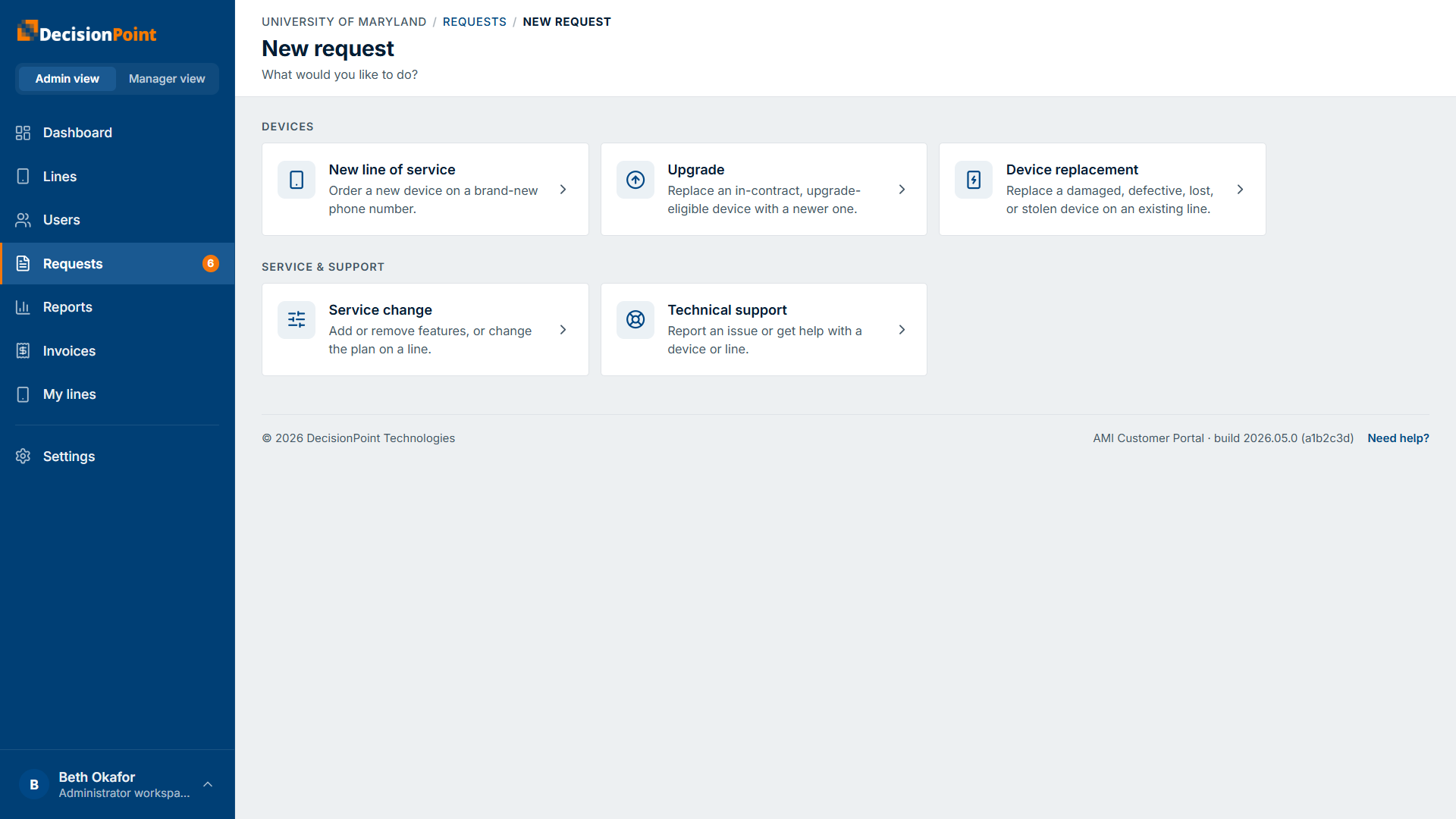
- Devices
- New line of service — order a new device on a brand-new phone number.
- Upgrade — replace an in-contract, upgrade-eligible device with a newer one.
- Device replacement — replace a damaged, defective, lost, or stolen device on an existing line.
- Service & Support
- Service change — add or remove features, or change the plan on a line.
- Technical support — report an issue or get help with a device or line.
New line of service
Requests a new phone number and device for someone. The form walks through three steps.
1. Who & why
When you can request for others, pick who the request is for. Then give a business justification (required — approvers see this) and any optional special instructions for the fulfillment team.
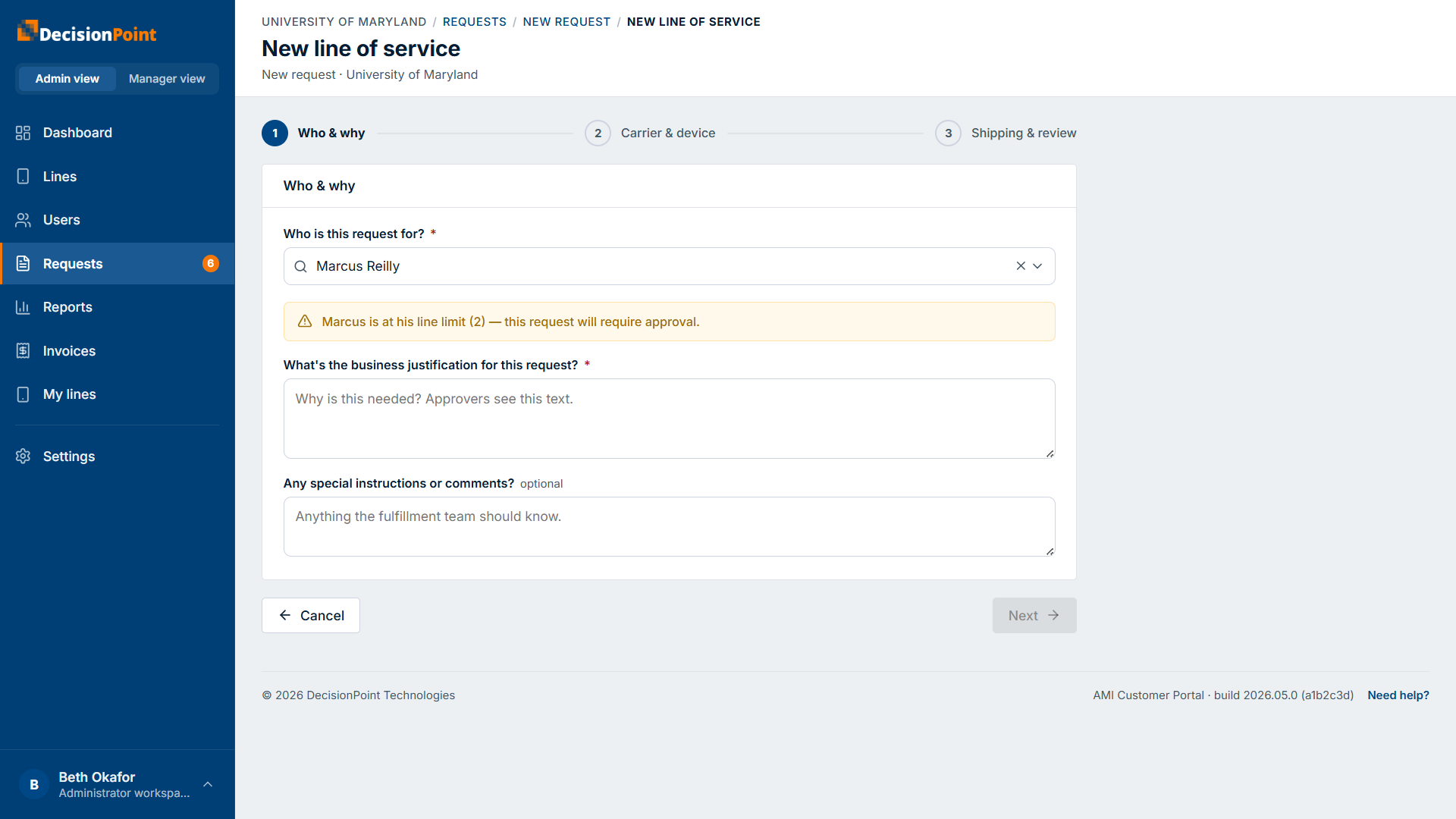
If the person is already at their line limit, the portal warns you here and notes that the request will require approval.
2. Carrier & device
Pick the requested carrier (the person's preferred carrier is pre-selected) and a requested area code. The portal resolves the right equipment package automatically from your organization's assignment rules, and shows the devices that package allows.
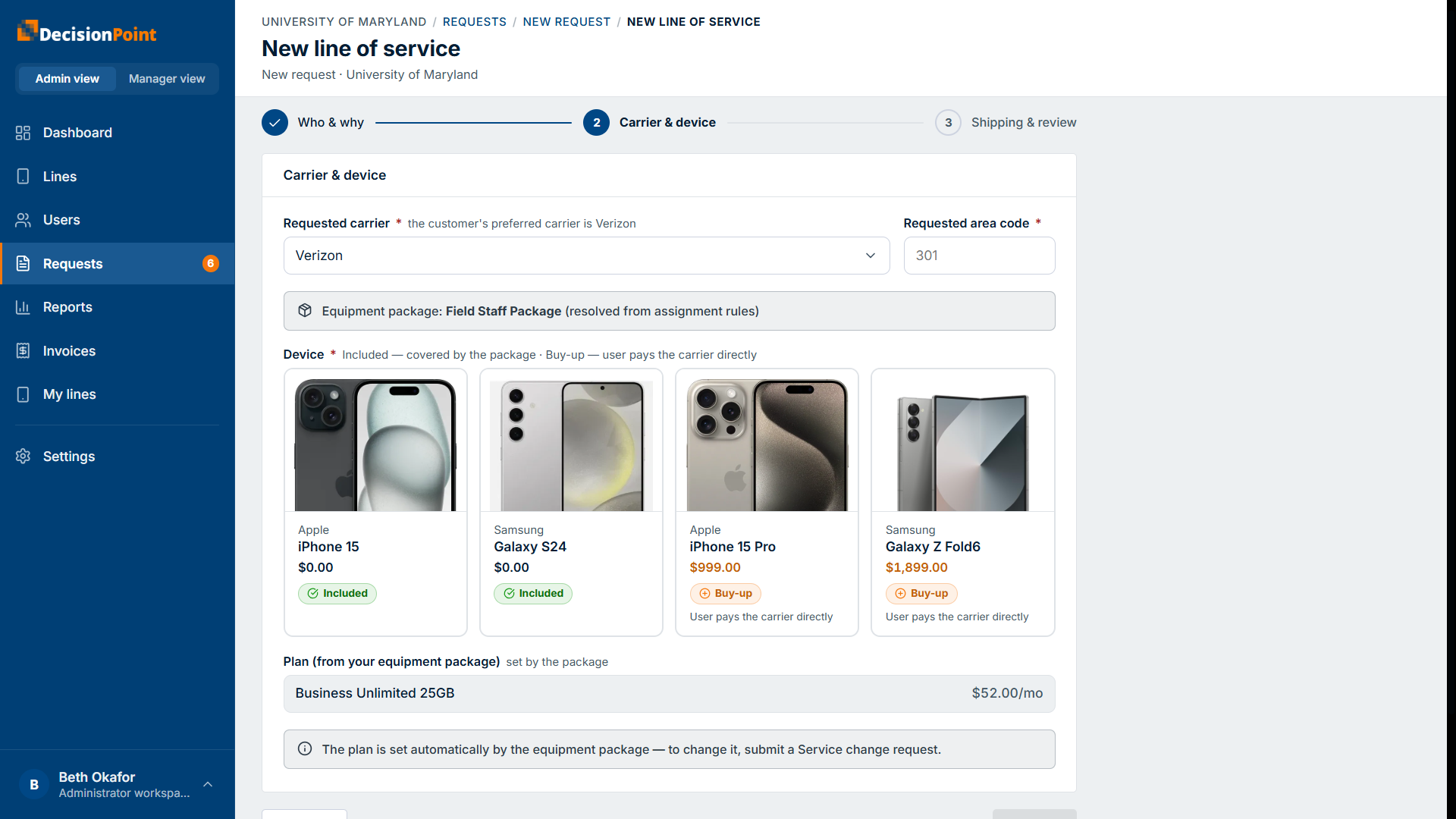
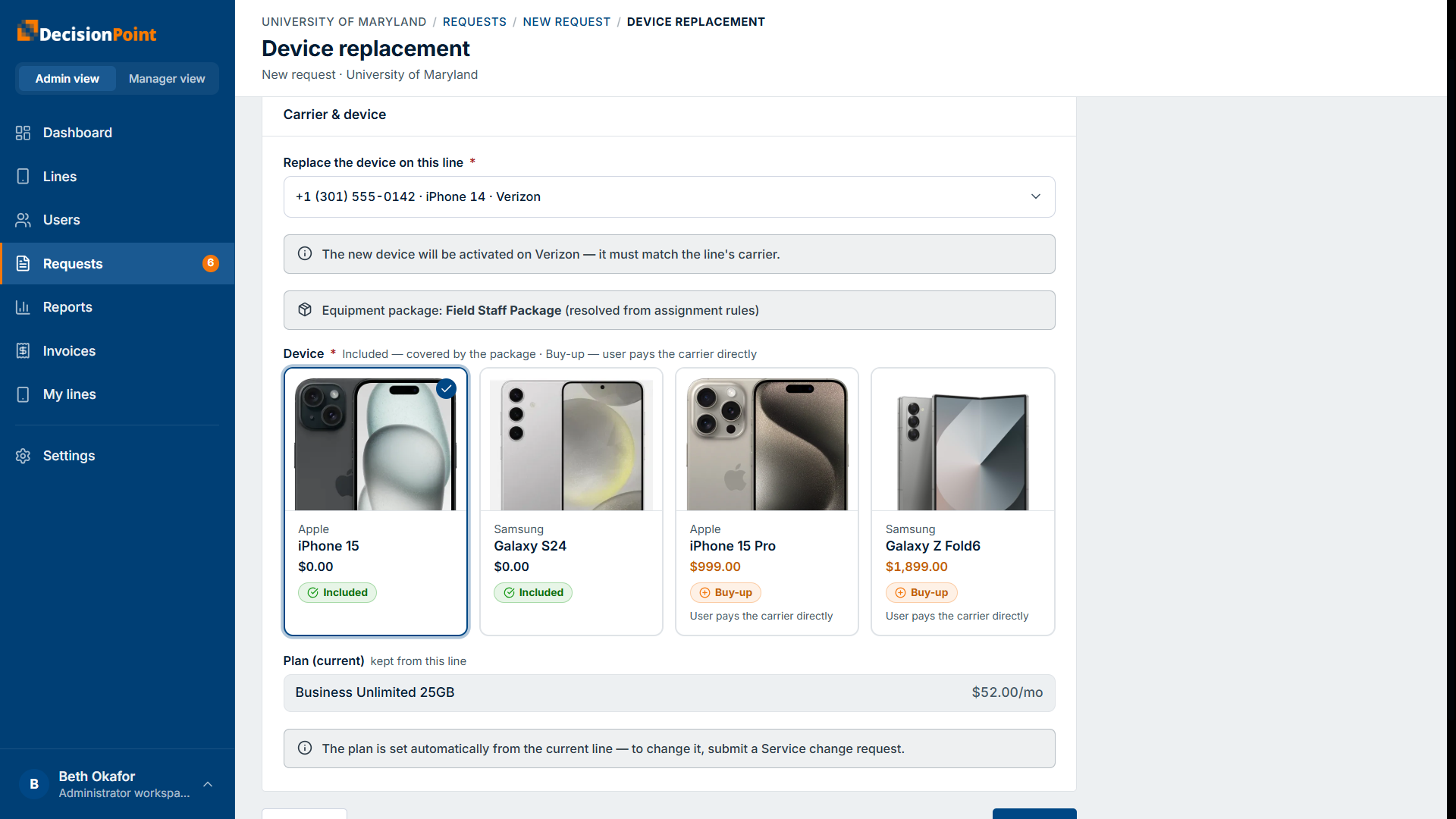
- Included devices are covered by the package at no cost to the user.
- Buy-up devices carry an additional cost that the user pays the carrier directly — the organization isn't billed for it. Buy-up options only appear if buy-up is enabled for that person.
- The plan is set automatically by the equipment package and can't be changed here — to change a plan, submit a Service change request instead.
3. Shipping & review
Enter the shipping address, then set the options that ship with the request:
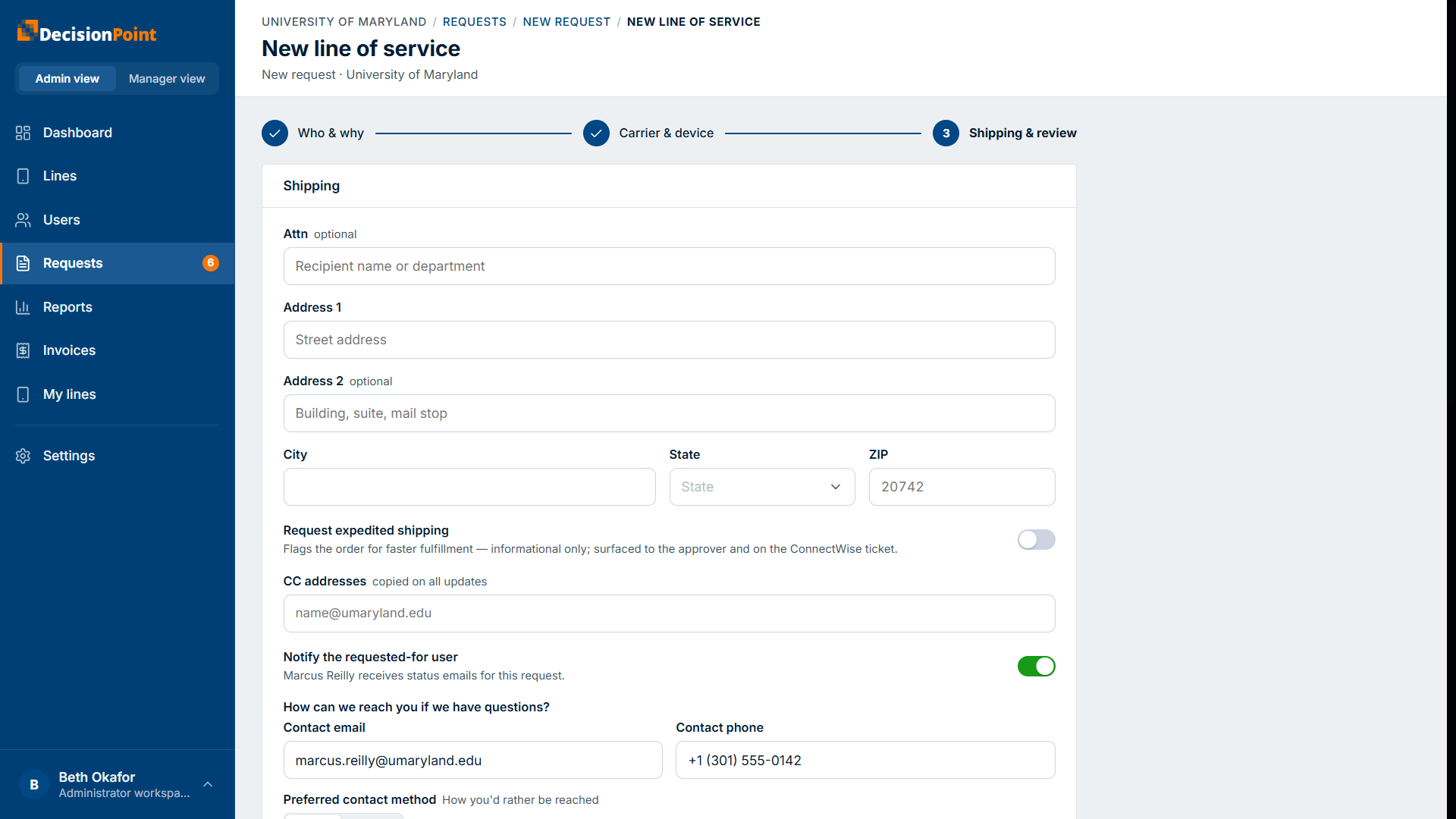
- Request expedited shipping — flags the order for faster fulfillment. It's informational: it's surfaced to the approver and on the service ticket.
- CC addresses — email addresses copied on all updates.
- Notify the requested-for user — on by default; the person the request is for receives status emails.
- Contact details and a preferred contact method, in case the fulfillment team has questions.
A review summarizes everything — the request, the equipment, and the estimated costs (device cost and monthly plan cost) — before you submit.
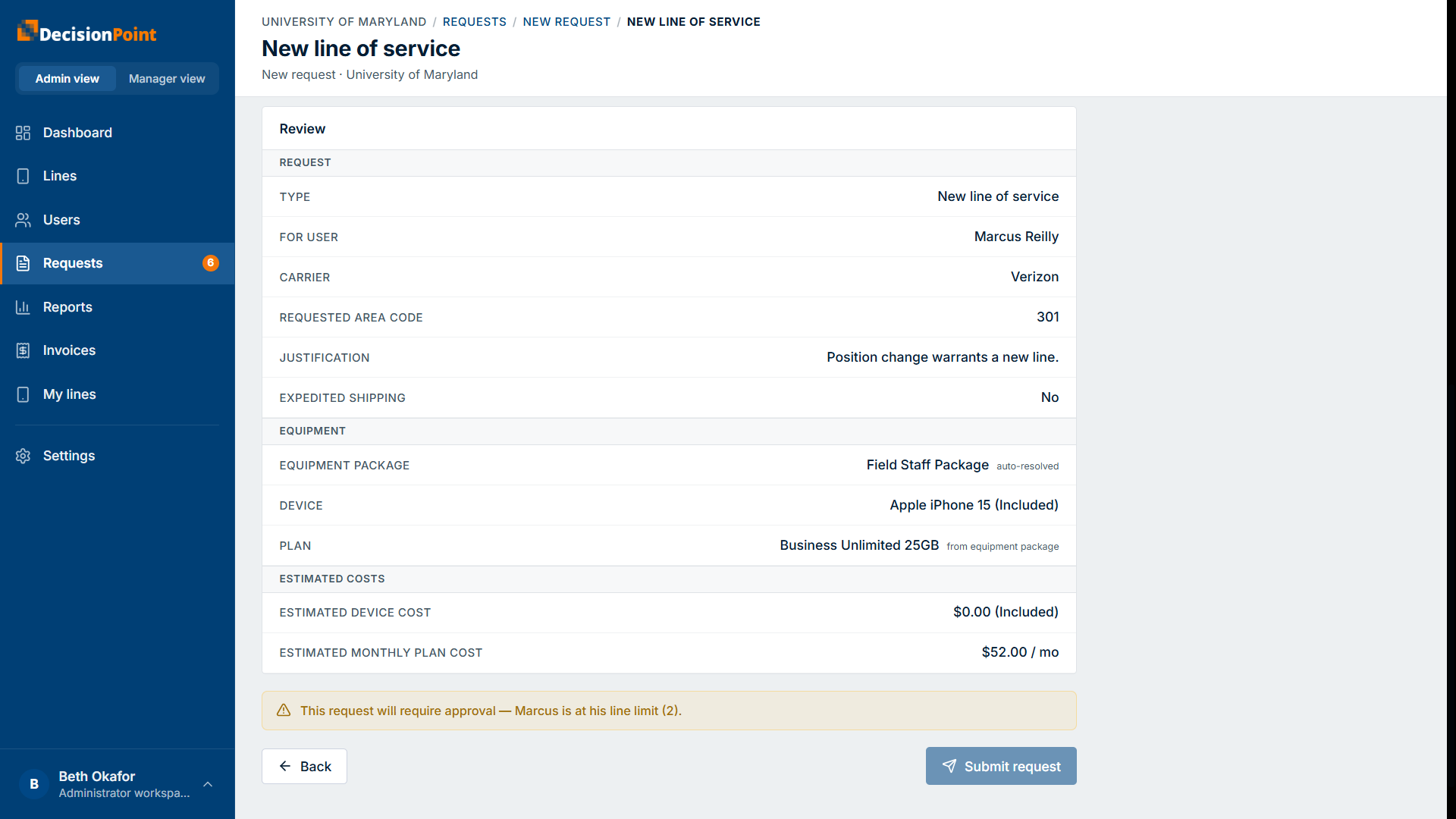
Paying for a buy-up device
When a request includes a buy-up device, the user doesn't enter payment here. After the request is approved (if approval is needed) and the service ticket is created, the user receives a secure payment link to enter their card details and pay the carrier for the device.
Options that appear on requests
A few options show up on the Shipping & review step above, whenever they apply:
- Notify the person the request is for — on by default. When you're requesting for someone else, you can turn this off if they already know. It doesn't change what you hear back.
- CC others by email — keep other people in the loop; they receive the same request emails and don't need a portal account.
- Request expedited shipping — on requests that ship a device, flag the order as urgent. It's a signal to the approver and the service team; the portal doesn't charge for it.
Upgrade
Replaces the device on an existing line. It follows the same three steps as a new line; only the first two differ.
On Who & why, pick the line to upgrade. You can only choose a line that's eligible — the portal detects eligibility automatically from carrier data and the line's contract end date, and confirms it right on the picker.
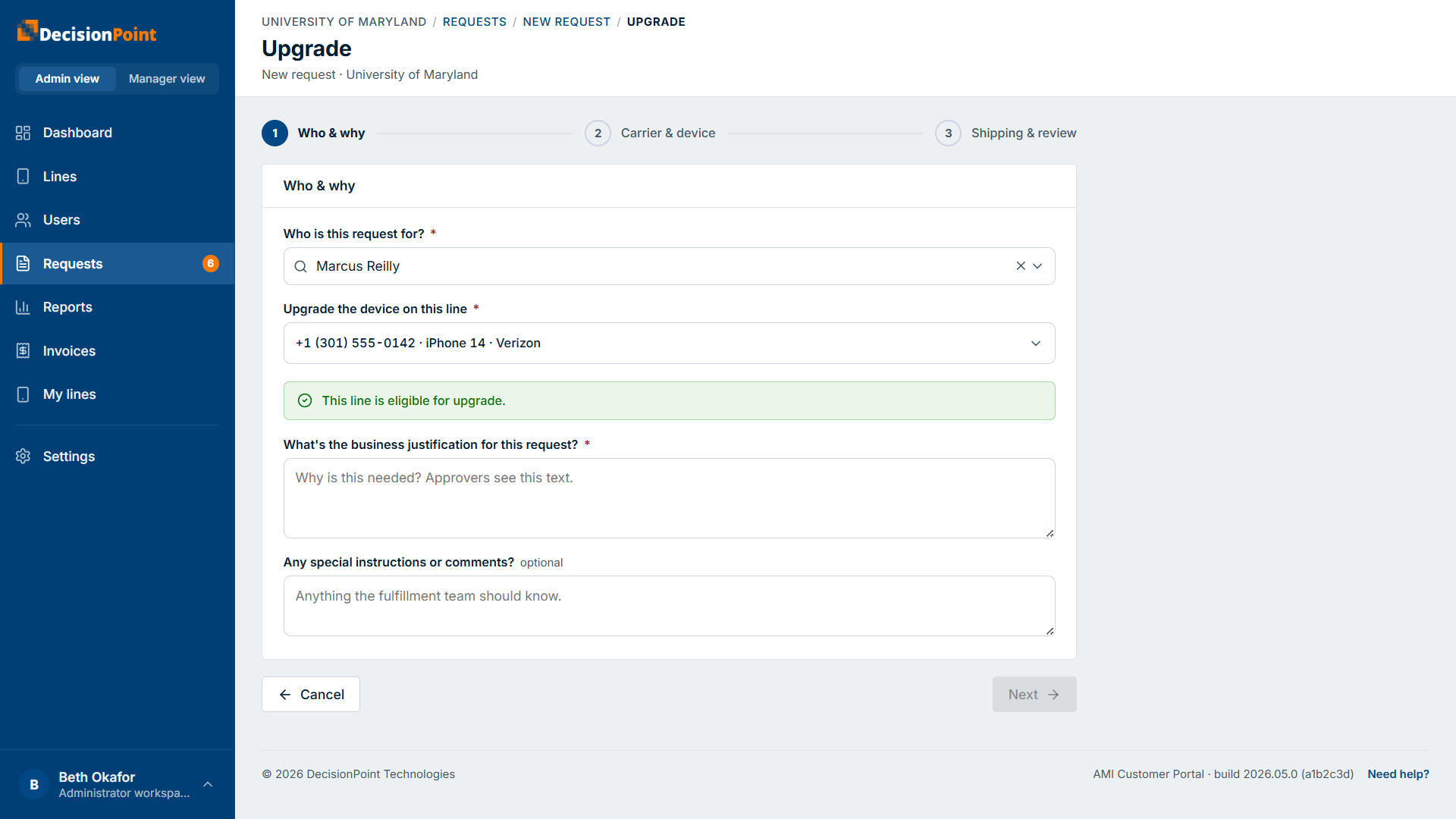
On Carrier & device, the new device must match the line's existing carrier. Choose from the package's Included or Buy-up devices. The plan is kept from the current line — to change the plan, submit a Service change request instead.
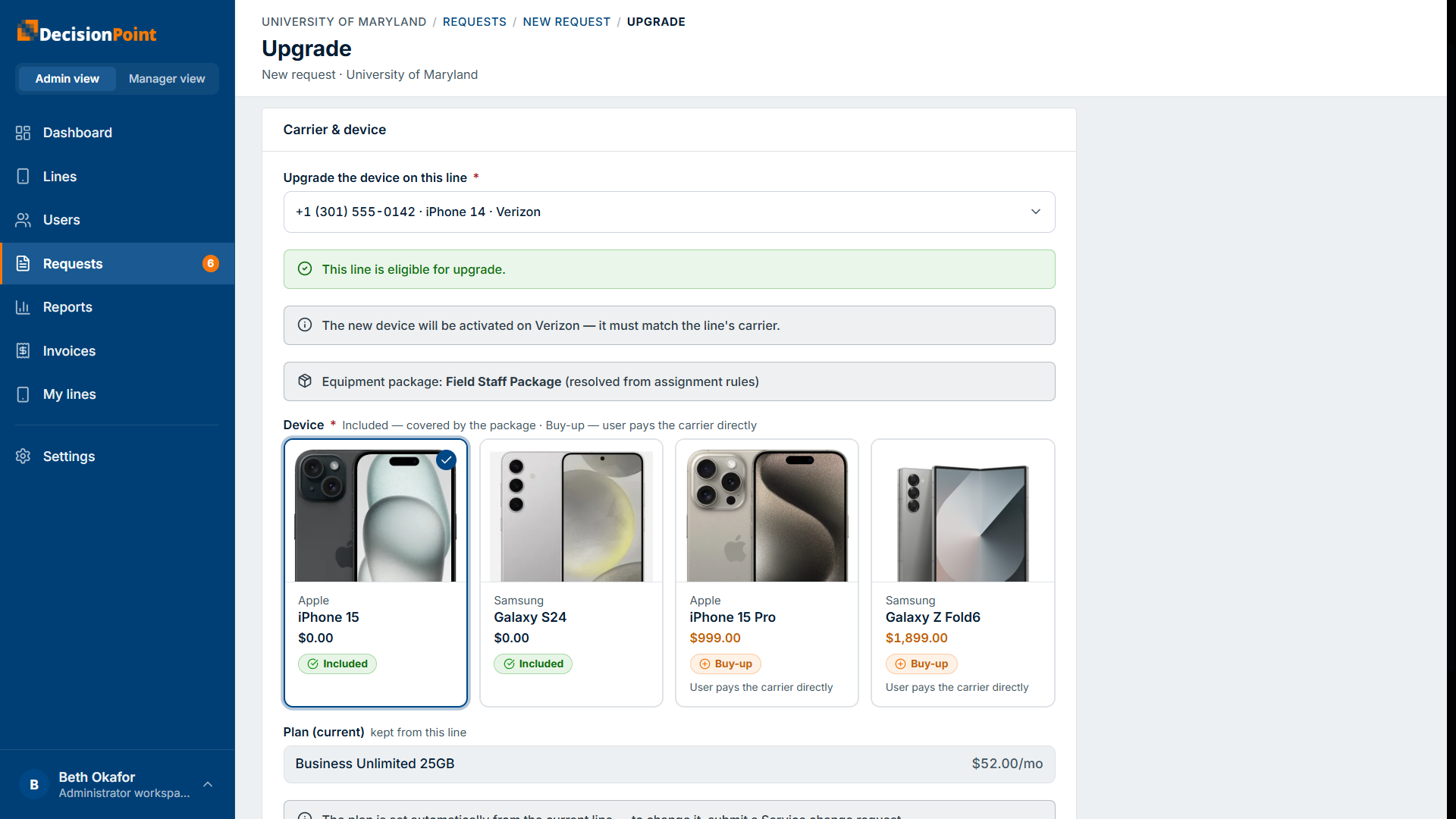
The final Shipping & review step is the same as for a new line.
Device replacement
For a device that was lost, stolen, or broken. Same three steps as a new line.
On Who & why, pick the line, choose what happened — Lost or stolen, Broken, or Other — and add Details (what happened and the condition of the device). A business justification is also required.
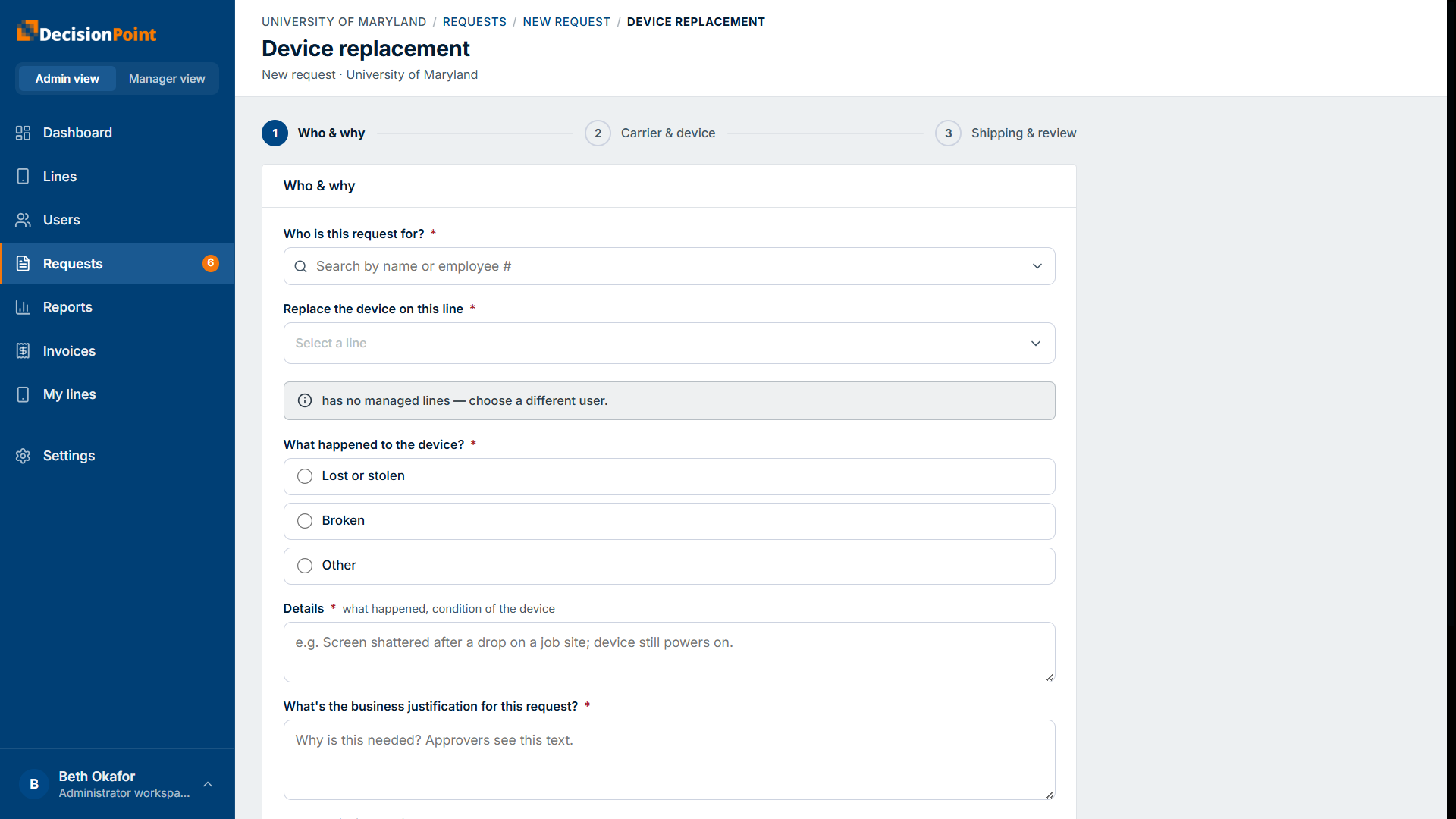
On Carrier & device, choose the replacement device (it must match the line's carrier); as with an upgrade, the plan is kept from the current line.
The final Shipping & review step is the same as for a new line.
Service change
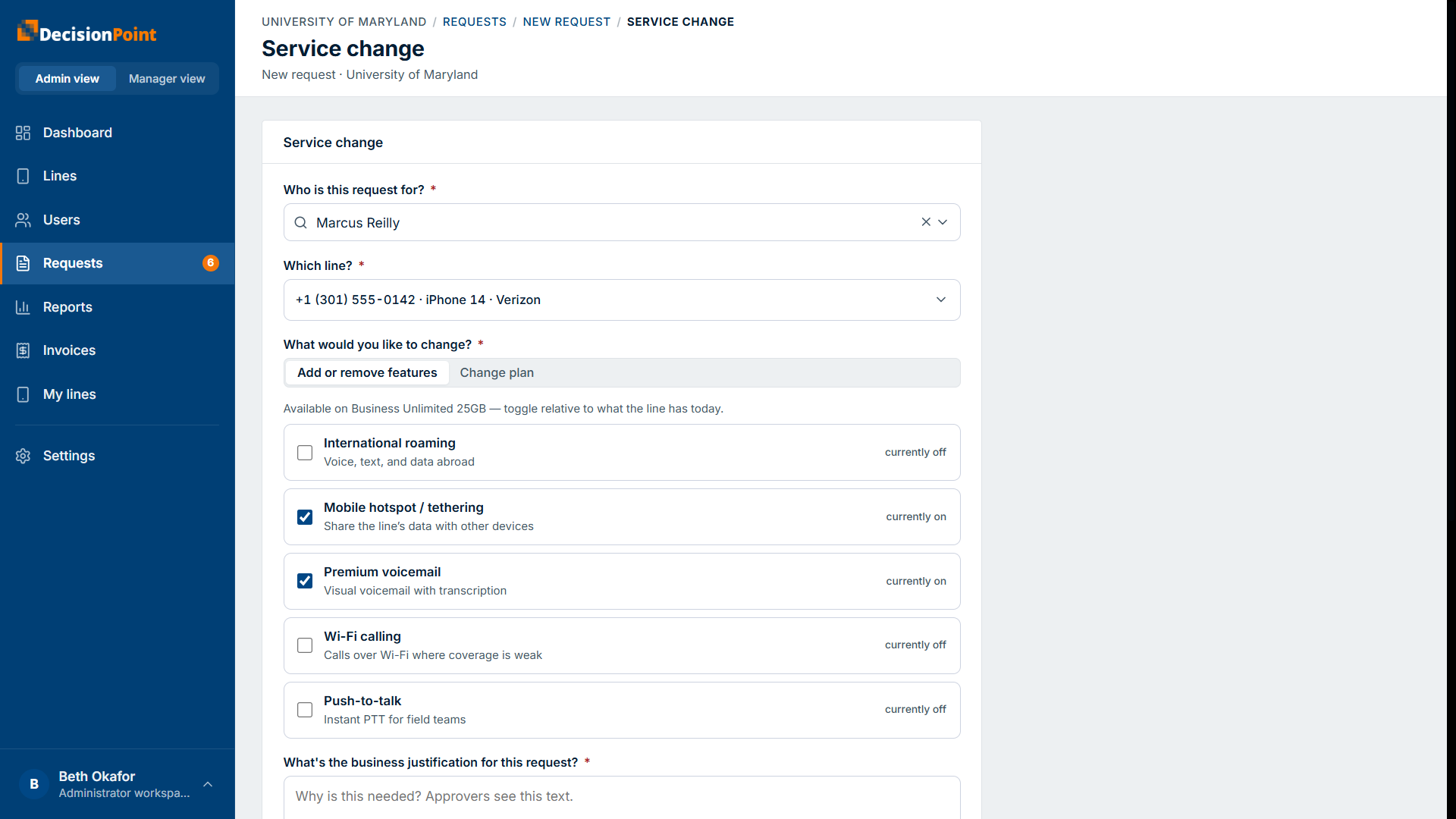
Changes an existing line — a single form, with nothing to ship. Pick the person and the line, then choose what to change: add or remove features, or change the plan.
Add or remove features
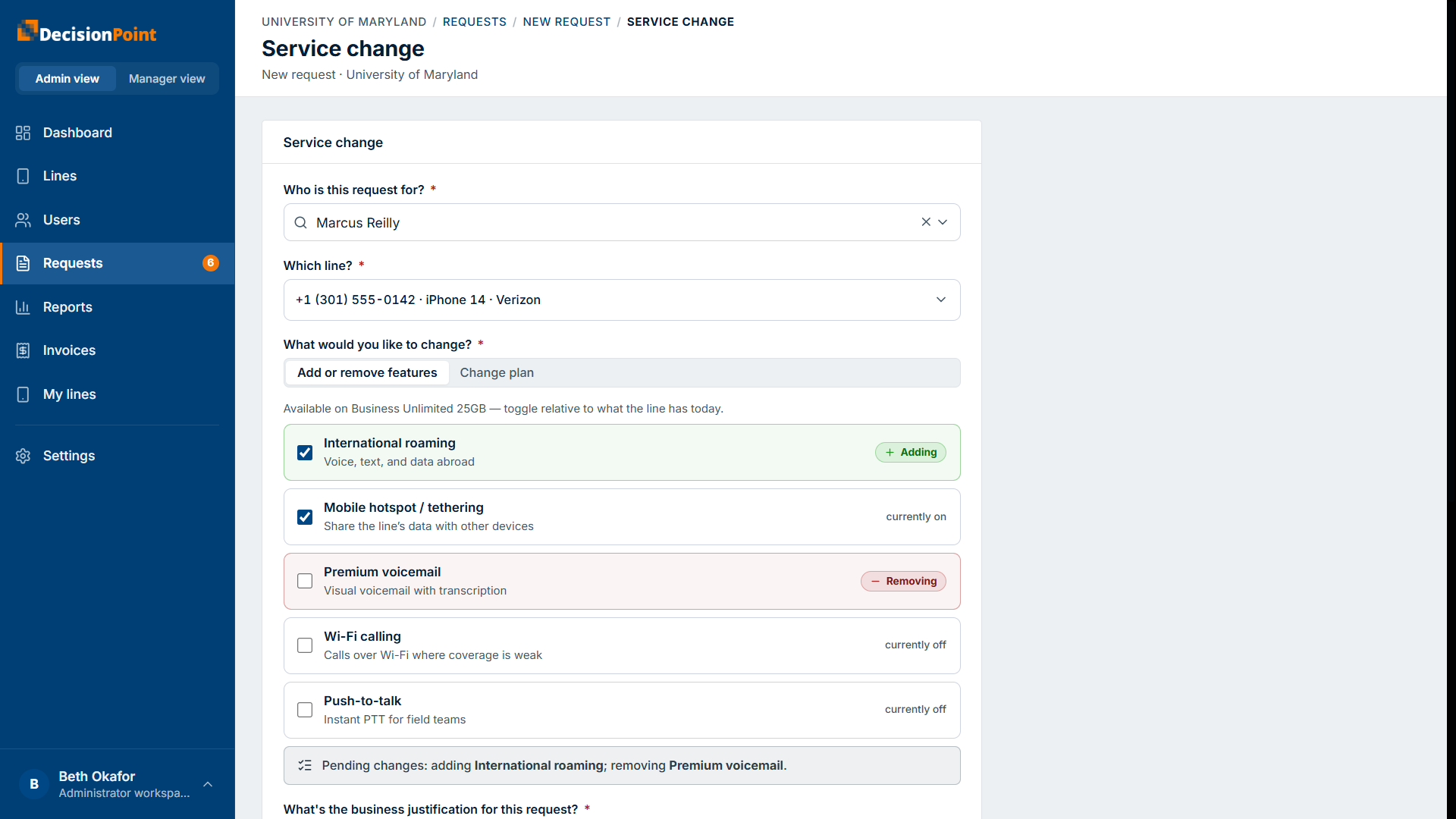
The feature list preloads with the line's current features — the ones it has today are already switched on. You toggle relative to today: switching a feature on marks it green as Adding; switching one off marks it red as Removing, and a running summary lists the pending changes.
Change plan
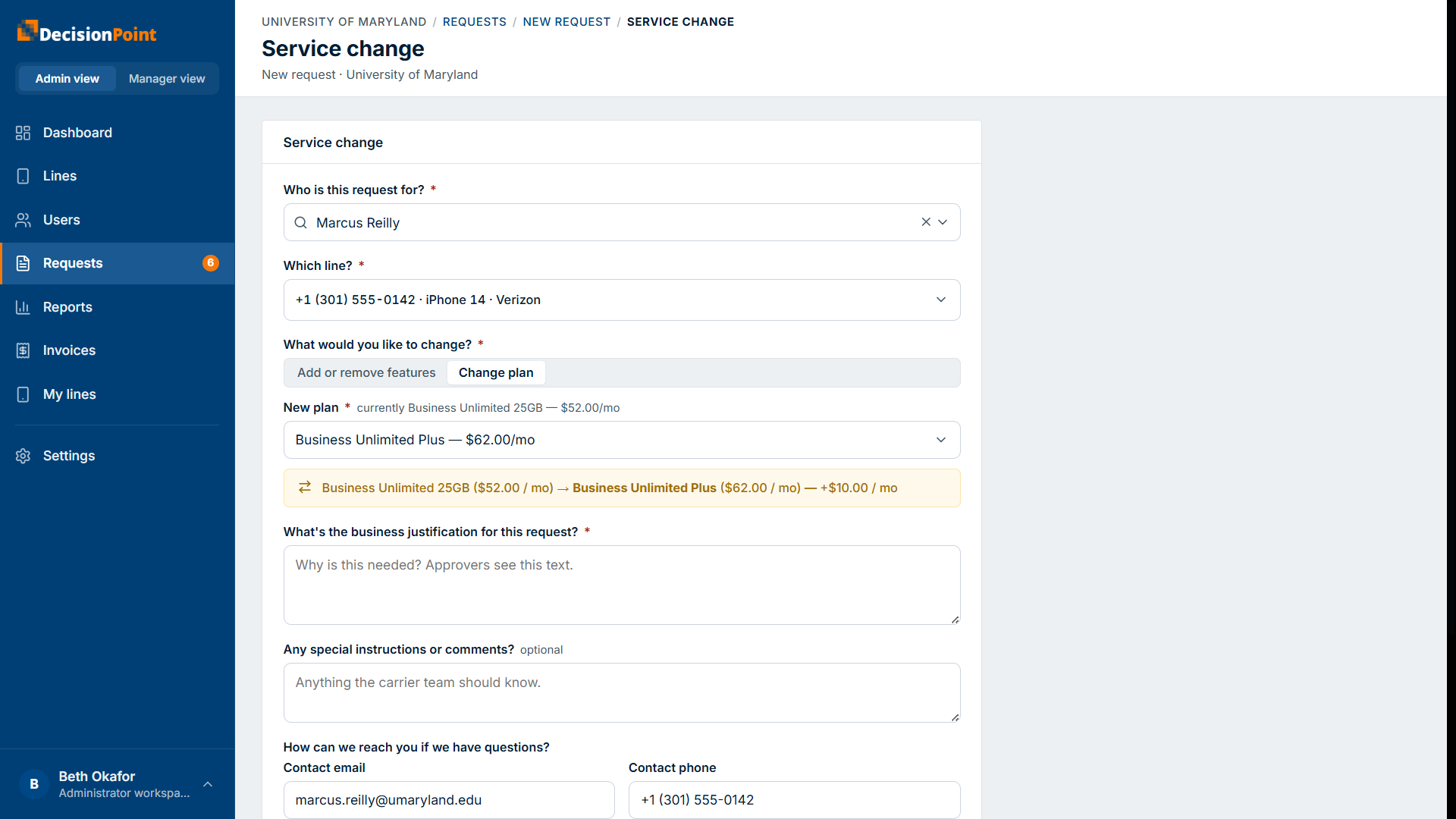
Pick a new plan from the plans allowed for the line's carrier. The form shows the change against the current plan and the monthly cost difference.
Technical support
For anything else — a single form, submitted directly with no approval. Pick the person, optionally link it to a specific line, and describe the issue. Confirm the contact details (filled in from the selected person) and submit.
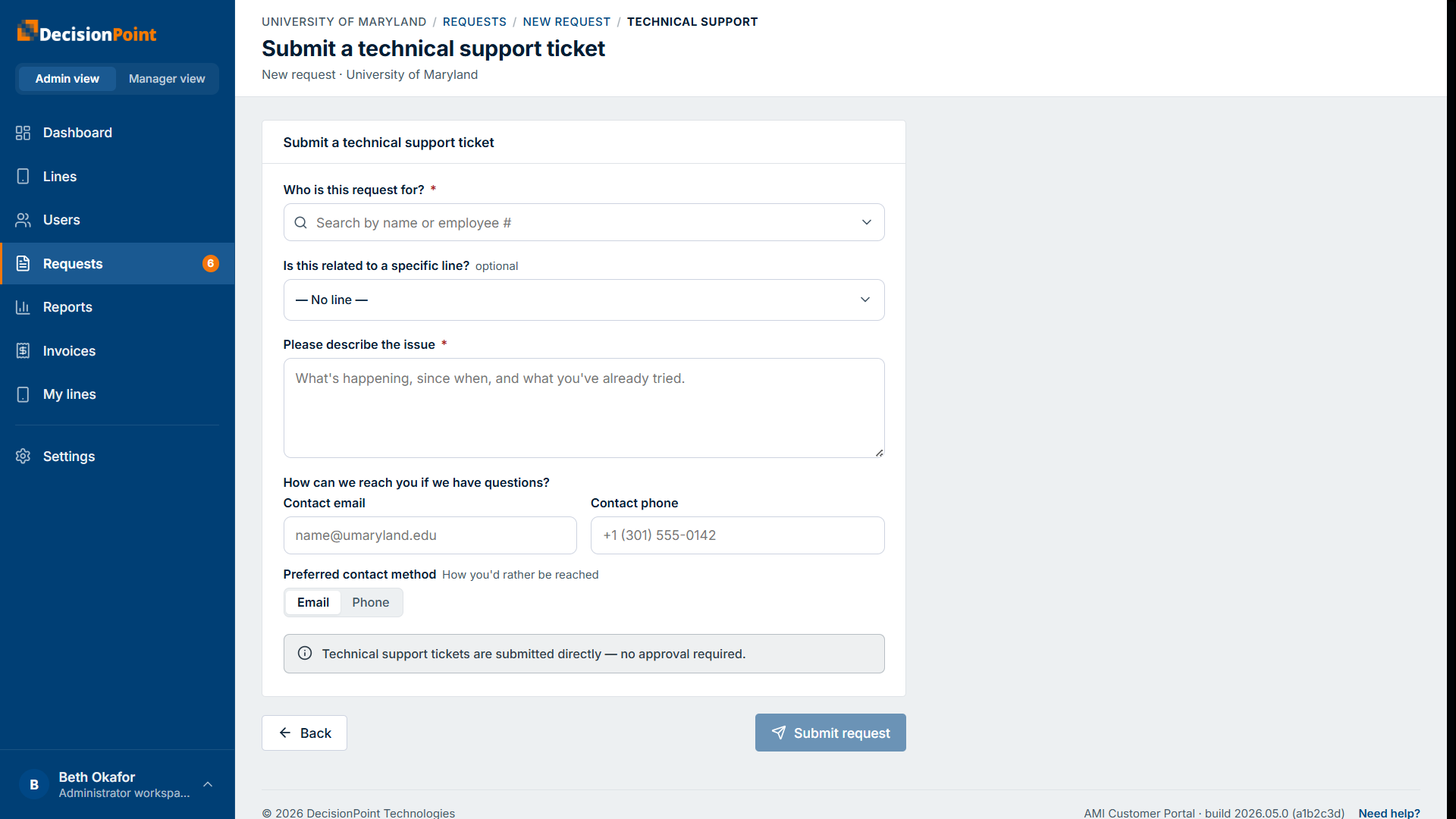
Contact details fill in automatically
On service-change and technical-support requests, once you pick the person the request is for, their contact email and phone are filled in for you — adjust them if a different contact is better for this request.
What happens next
When you submit, the request either goes for approval or straight to the service team, depending on your organization's rules for that request type and device. Follow it from Tracking Your Requests.
The person must already be in the portal
You can only submit a request for someone who's already set up in the portal. If they're not there yet, submit a technical support request asking your administrator to add them — then submit the request once they're in.
Related
- Requests overview — types, lifecycle, and statuses.
- Requesting on Behalf of Others
- Tracking Your Requests