Approving by Email
When a request needs your approval, the portal emails you. You don't have to sign in to act on it — the email has everything you need.
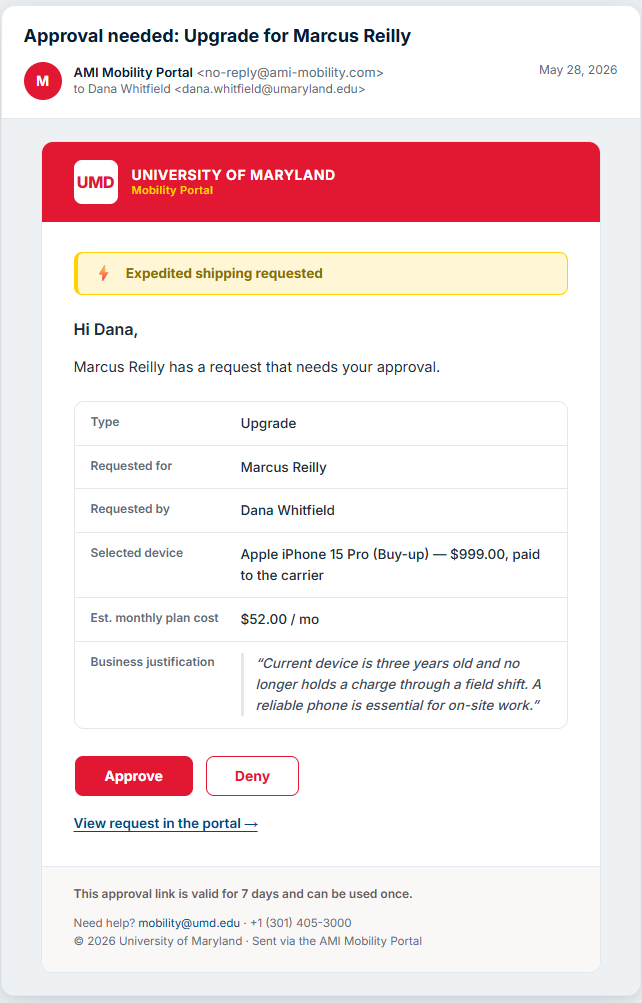
The approval email
The email summarizes the request — the type, who it's for, and the key details — and highlights anything you should weigh, such as ⚡ expedited shipping or an over-limit warning. It has three buttons:
- Approve — approves the request right away. It's then sent to the service team as a ticket.
- Deny — declines the request. No ticket is created, and everyone on the request is notified.
- View in the portal — opens the request in the portal for a closer look. This one does ask you to sign in; from there you can approve or deny as well.
You don't sign in to approve or deny
The Approve and Deny buttons work straight from the email, so you can act from your phone. Only View in the portal requires signing in.
After you click
You'll land on a short confirmation page telling you what happened:
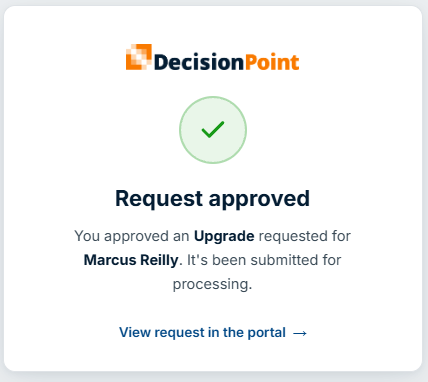
Approved — confirms the request is on its way to the service team.
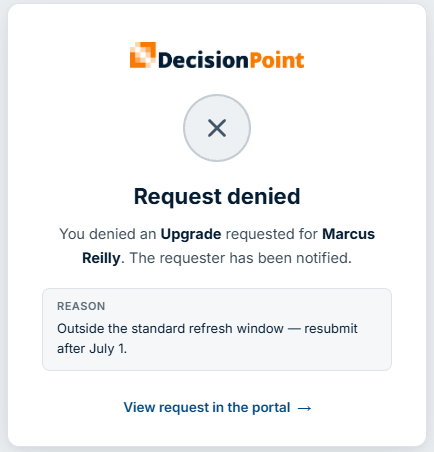
Denied — confirms the request was declined. If you gave a reason when denying, it's shown here — and the requester sees it too.
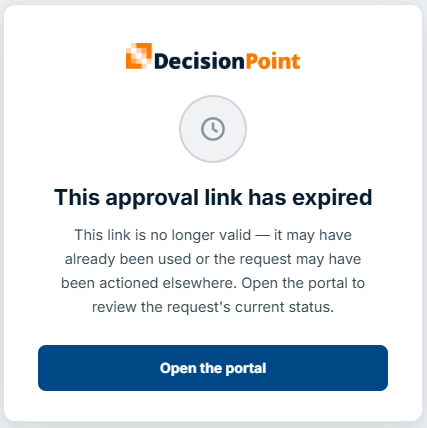
Expired — the approval link is valid for 7 days, and that window has passed. Nothing was actioned. The requester can resend the approval to get a fresh email — see Tracking Your Requests.
Related
- Approving Requests — the in-portal approval queue.
- Requests overview — types, lifecycle, and statuses.