Portal Tour
The portal adapts to your role. Everyone starts from the same base; managers and administrators see additional areas layered on top. This tour starts with what everyone has, then adds the manager and administrator views.
What everyone sees
Every user has a left-hand navigation with two areas, and lands on My lines after signing in.
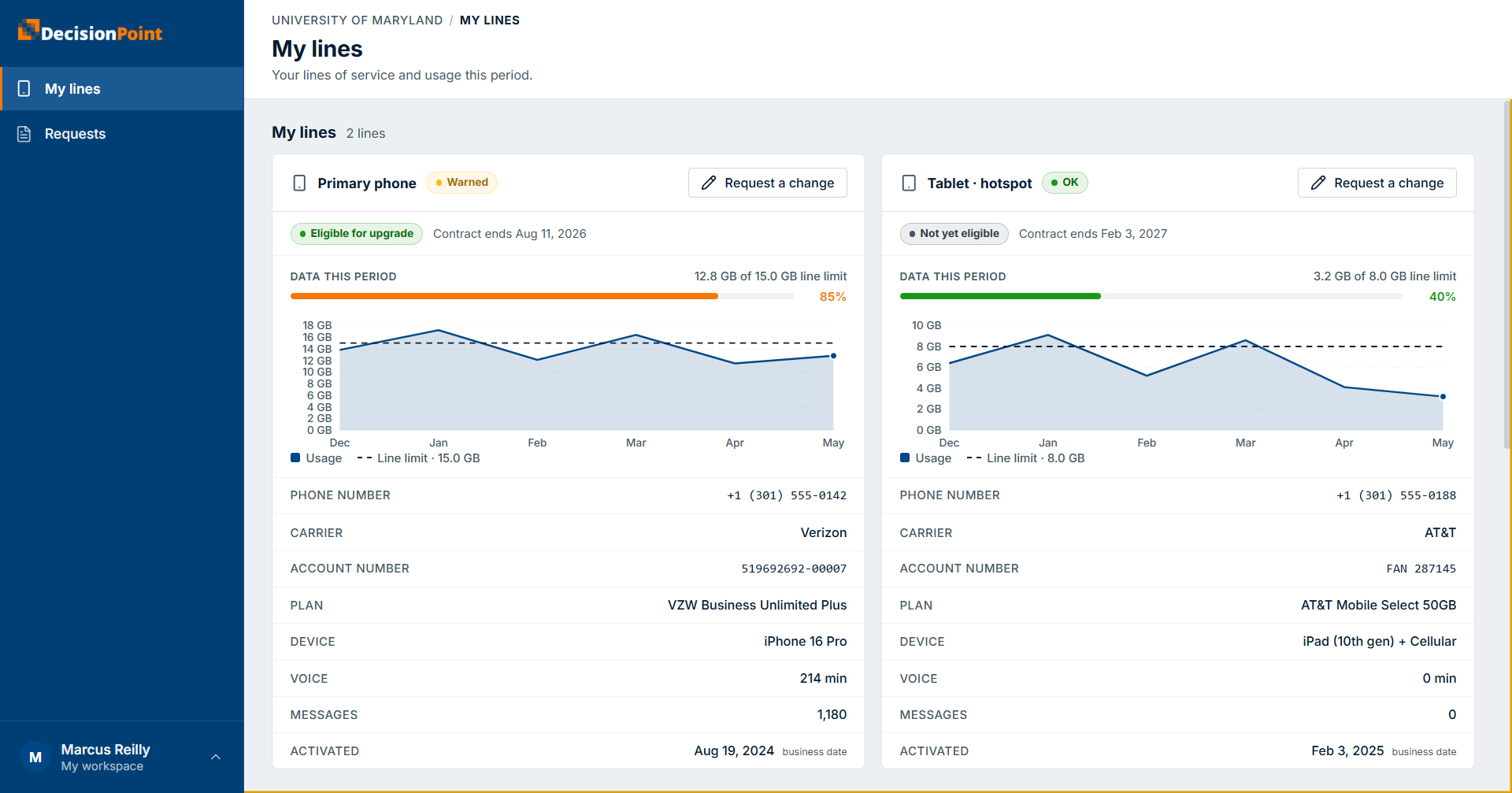
- My lines — your own lines of service and their usage this period. Each line shows its status, upgrade eligibility, data used against its limit, plan, and device. See Viewing Your Usage.
- Requests — submit and track requests for new lines, upgrades, device replacements, service changes, and technical support. See Requests Overview.
Your account menu sits in the bottom-left corner — that's where language, appearance, and your preferences live. See Your account menu below.
If you manage people Managers
If other people report to you, the portal recognizes you as a manager automatically and adds a team view: a Dashboard scoped to your team, a My team area, and Reports.
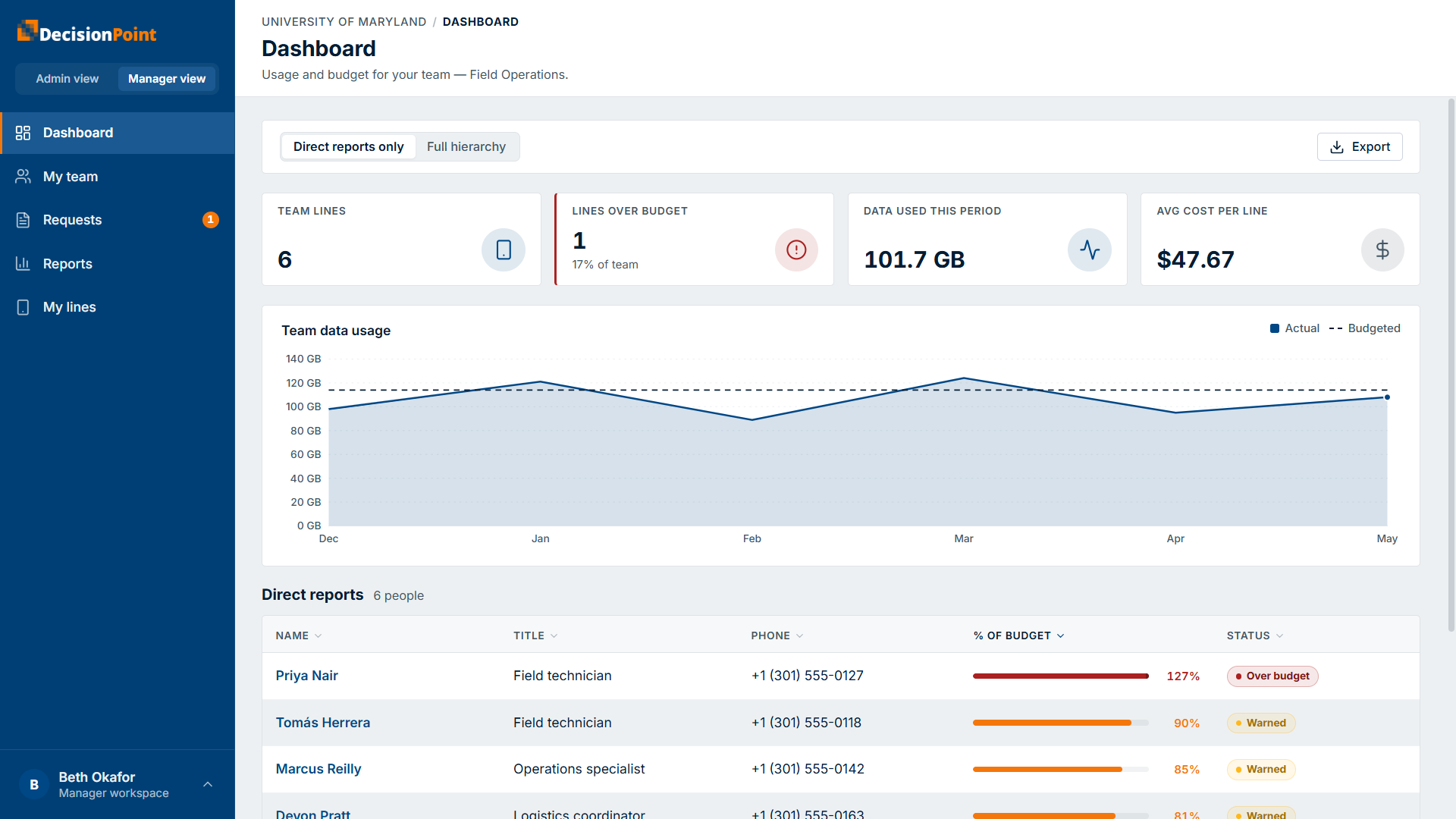
- The Dashboard summarizes your team — total lines, lines over budget, data used, and average cost per line — with a Direct reports only / Full hierarchy toggle to widen or narrow who's included.
- Requests flags how many are awaiting your approval. See Approving Requests.
See Viewing Your Team's Usage.
If you're an administrator Administrators
Administrators get an organization-wide view and the tools to configure the portal for everyone. The Dashboard covers the whole organization, and the navigation adds areas such as Lines, Users, Reports, and organization Settings.
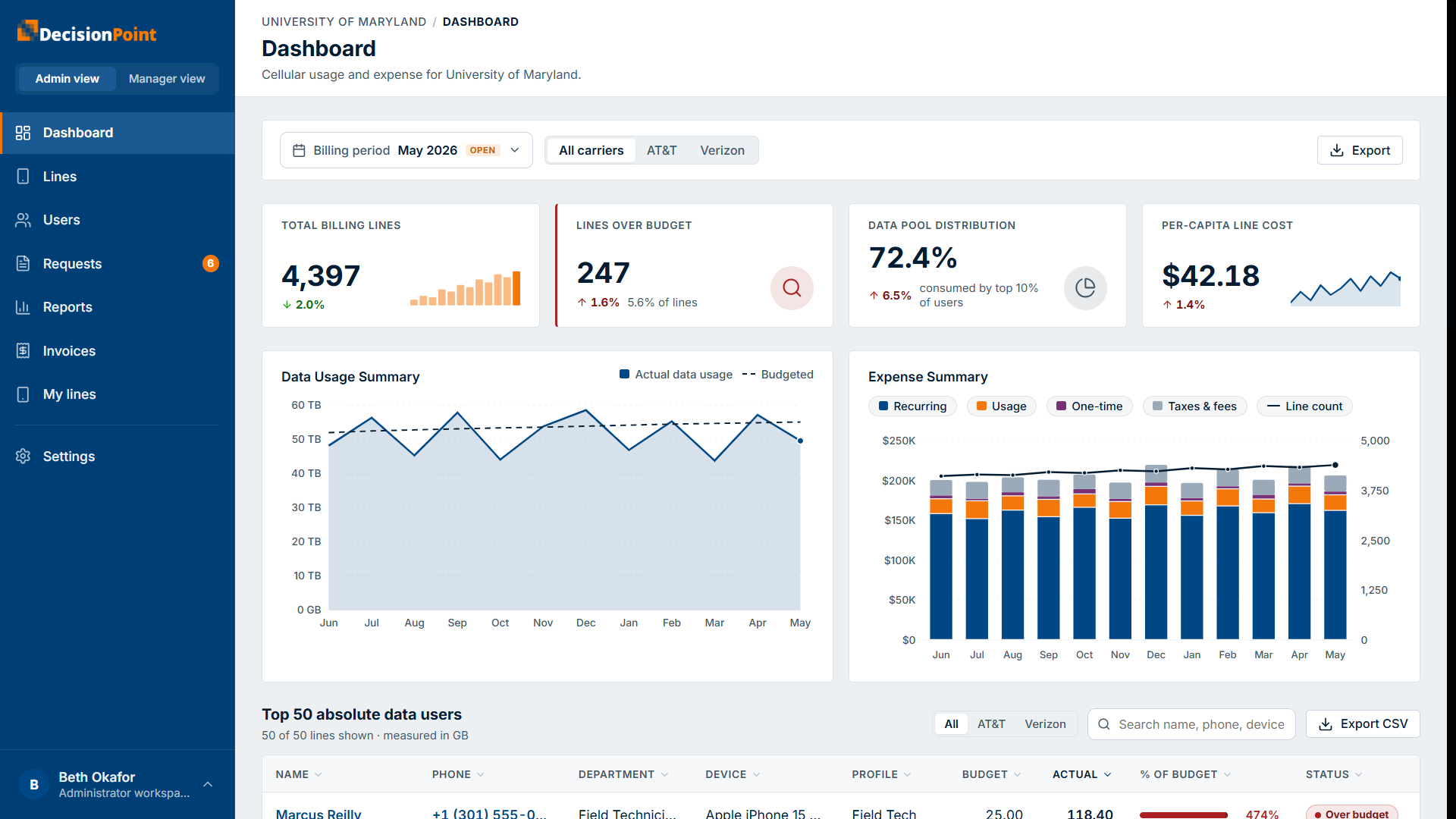
- The Dashboard shows organization-wide usage and expense for the selected billing period.
- Lines and Users list every line and person in your organization.
- Settings is where administrators manage equipment packages, budgets, the device and plan catalogs, and carriers.
See Organization Usage & Reports.
Your account menu
Select your name in the bottom-left corner to open your account menu.
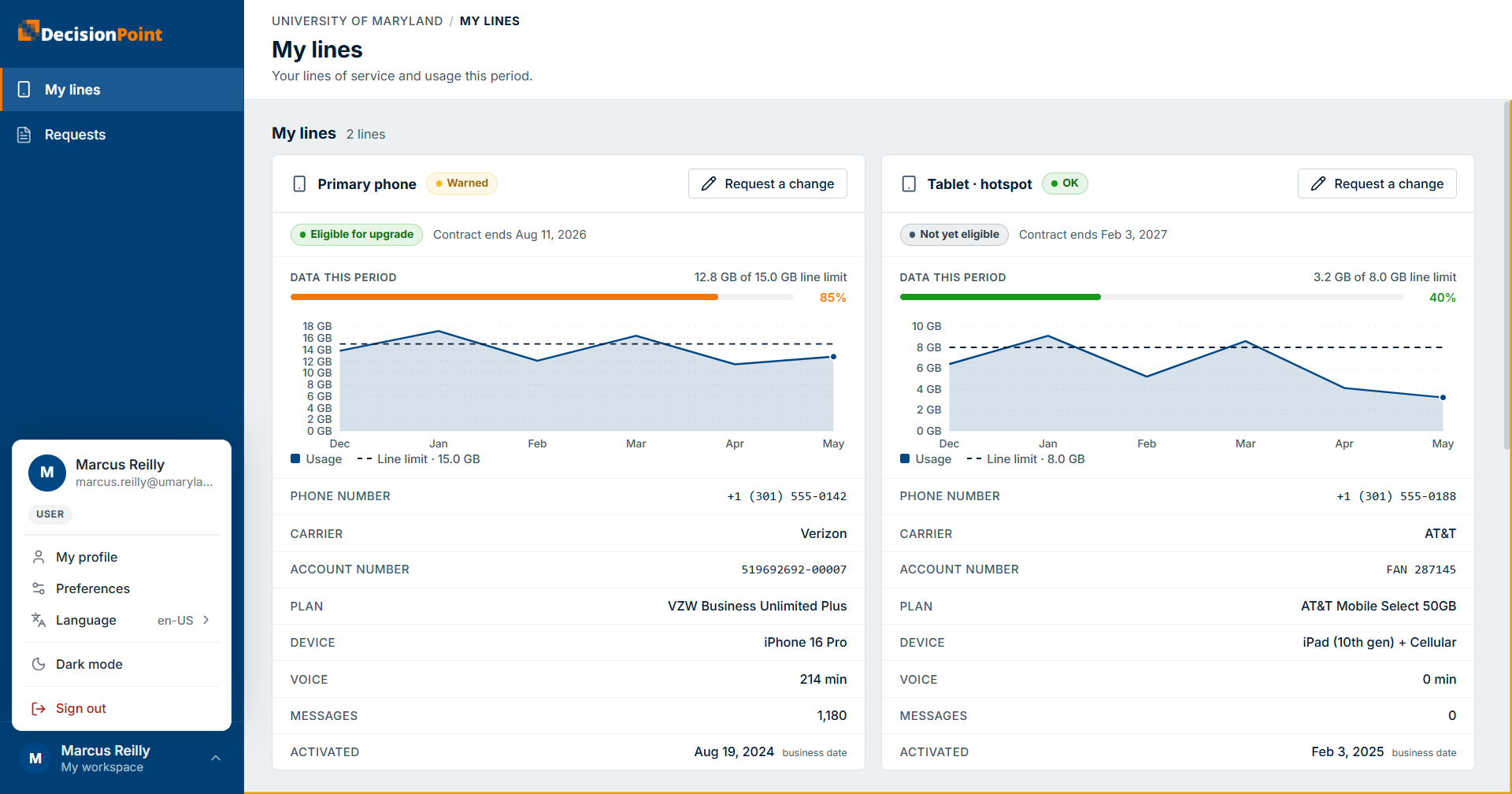
- My profile — your account details.
- Preferences — the notifications you receive.
- Language — switch between English, Spanish, and French. See Choosing Your Language.
- Dark mode — switch between a light and dark appearance.
- Sign out.
Don't see an area?
If an area described in this guide isn't in your navigation, your role probably doesn't include it. Contact your organization's administrator if you think you need access.
Related
- Signing In — how to access the portal.
- Your Profile & Preferences — manage your account and choose your preferred language.