Package Assignment Rules Administrators
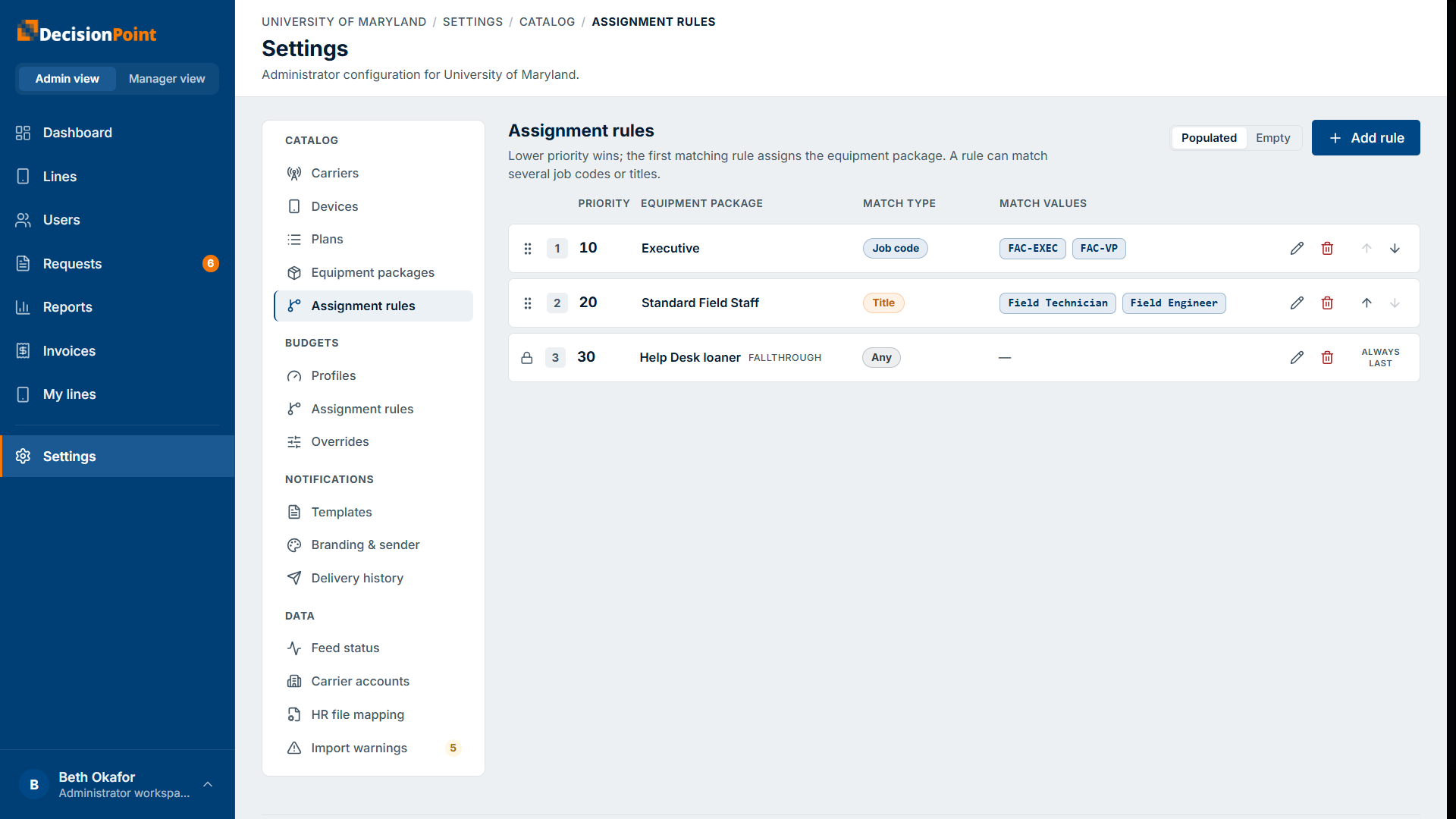
Assignment rules decide which equipment package each person gets, based on their HR details. Find them under Settings → Catalog → Assignment rules.
How matching works
Rules are evaluated in priority order — the lower priority number is evaluated first. Evaluation collects each rule that matches and stops at the first matching rule set to Stop (see Giving someone more than one package). Unless you turn stacking on, that means the first matching rule wins. Each rule matches on a match type:
- Job code — one exact HR job code per rule.
- Title — one exact HR job title per rule.
- Any — the catch-all, or package of last resort. It matches everyone, but it only applies to people no other rule matched — so it sits last, and nobody is left without a package.
The package (or packages) a person ends up with shows on their profile as their effective equipment package (see Managing Users).
Giving someone more than one package
Some people are entitled to more than one device — a salesperson who gets both a phone and a tablet, for example. Turn on Keep searching for additional matching packages on a rule to express that: instead of ending the evaluation, a matching rule of this kind adds its package and lets the lower-priority rules keep going.
A worked example, in priority order:
| Priority | Match | Package | When matched |
|---|---|---|---|
| 10 | Job code SALES | Tablet | Keep searching |
| 20 | Job code SALES | Phone | Stop |
| 100 | Any | Standard | Stop |
A salesperson gets both the Tablet and the Phone package, and never reaches the catch-all — rule 20 stops the evaluation. Everyone else falls through to Standard.
A few things worth knowing:
- Keep a rule that stops. Something has to end the evaluation. A catch-all with the toggle turned off is the usual way.
- The catch-all only covers people nothing else matched. It is the package of last resort, not an extra everybody collects: a salesperson who matched a Keep searching rule does not also pick up the catch-all package. If you want everyone to get a package on top of their specific one, put that rule above the specific rules and set it to Keep searching.
- The list shows which is which. Each row is marked Keep searching or Stop under When matched.
- Those marks apply only to the people a rule matches. This is the part worth reading twice: Stop on a rule does not stop the list for everybody — it ends the evaluation only for the people that rule actually matches. Somebody the rule misses carries straight past it to the next one. Use Try a person below to see it rather than reason about it.
- When someone has several packages, the request form asks which one the request is for, and shows the devices and plans of whichever they pick. People with a single package see no such question.
- There is no limit on how many packages someone can hold, or how often they can request against one. Approval is what controls that.
- Watch the budget. Someone with a phone and a tablet holds two lines. If their budget profile allows only one, every second-device request is sent for approval. Set their budget profile to match what they are entitled to.
Checking a rule set before you trust it
Because each mark applies only to the people its own rule matches, reading the list top to bottom does not tell you what any particular person ends up with. Try a person does.
Enter a job code, a title, or both, and the list re-reads itself for that person. The rules that applied move to the top, then a separator reads Everything below did not apply — so on a long rule set you are not hunting for the one row that fired. Priority order is kept inside each group, so the sequence still reads correctly. Each row is marked:
- Applied — the rule matched and contributed its package.
- Evaluation stopped here — the rule matched and ended the evaluation.
- Skipped — already matched — the rule is the catch-all, and this person had already matched something above it, so the package of last resort was not needed.
- Did not match — the rule was checked and its criteria did not fit.
- Not reached — the evaluation had already ended above this rule, so it was never checked at all. These rows are dimmed.
Underneath, Resolves to lists exactly what that person would be entitled to. If it says no package, that person cannot request a device until a rule covers them.
It runs the same logic the request forms run, so what you see here is what a request will actually do. Nothing is saved, and you can try as many people as you like.
If two packages that can both apply to the same person offer the same device, a warning appears above the list naming them. It is only a warning — you may well want the same phone offered under two entitlements — and nothing is blocked.
Adding a rule
Select Add rule.
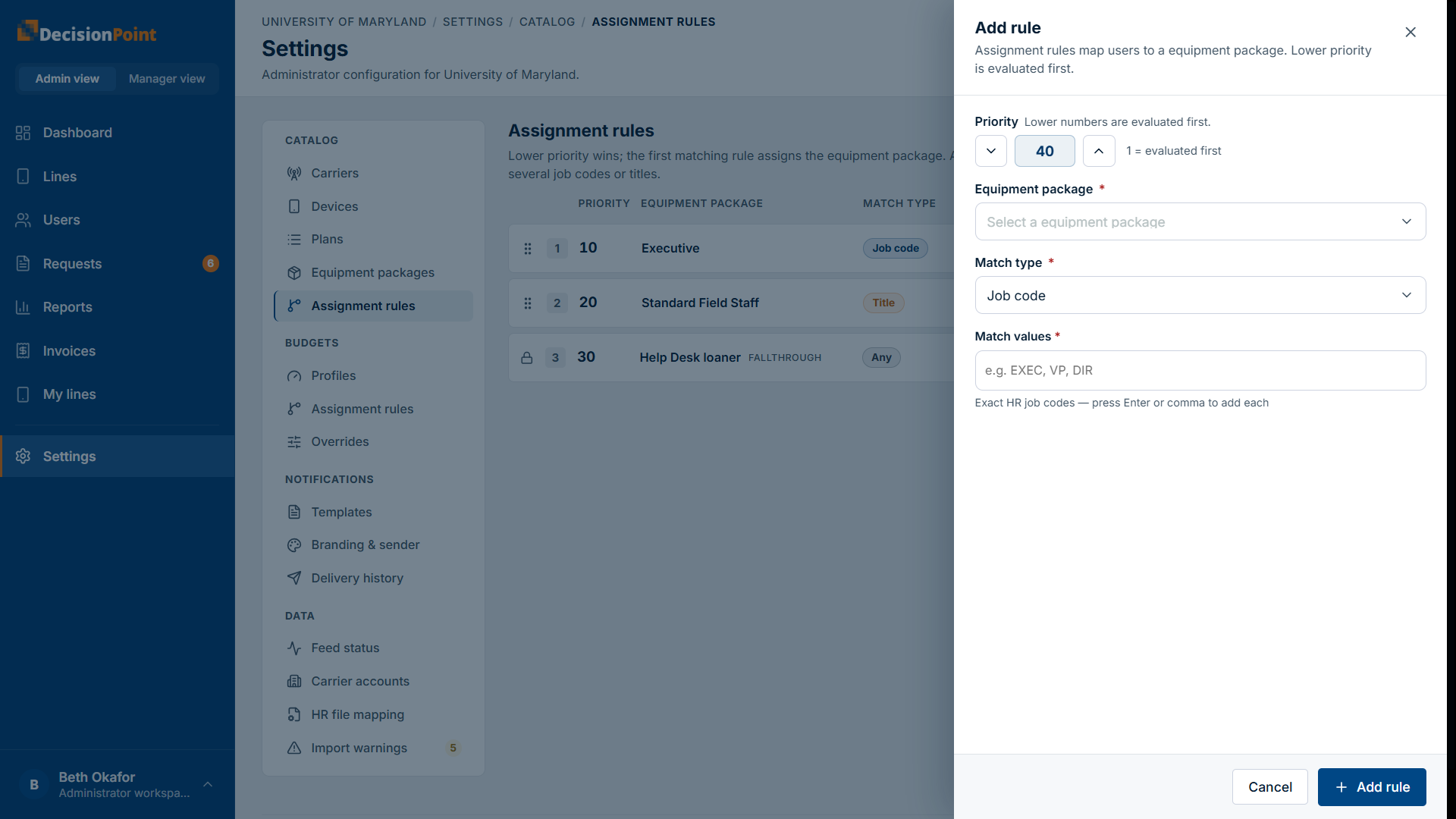
- Priority — lower numbers are evaluated first.
- Equipment package — the package to assign when the rule matches.
- Match type and match value — the HR value to match against.
- Keep searching for additional matching packages — carry on down the list instead of stopping here, so the person can hold more than one package. This rule's package is assigned either way.
Mapping several job codes at once
When the match type is Job code, you can enter several codes separated by commas — for example EXEC, VP, DIR. Each code is saved as its own rule, all at the priority you entered and all pointing at the same package. So one submission of three codes adds three rows to the list.
That keeps each code independently editable and deletable afterwards. To change one code later, edit its row; to map an additional code, add another rule. Repeated codes are ignored (matching is not case-sensitive, so EXEC and exec are the same code).
Titles are not split on commas, because a real job title can contain one — so Manager, Operations is matched as a single title.
Every rule created this way gets the same Keep searching setting you chose.
Reorder rules from the list to change the evaluation order — which decides where the evaluation stops, and therefore which rules apply.
Related
- Equipment Packages — what gets assigned.
- Managing Users — see a person's effective package.
- Administration overview