Branding & Sender Settings Administrators
Set the look of your portal and the support contacts and sender identity used on your notifications — two related settings screens that, together, carry your organization's branding across the portal and its emails and text messages.
Portal branding
Your display name, logo, favicon, and brand colors theme the portal itself, and are also the customer tokens your notification templates draw on — so changing them here updates both places at once, without editing each template. Find this under Settings → Branding.
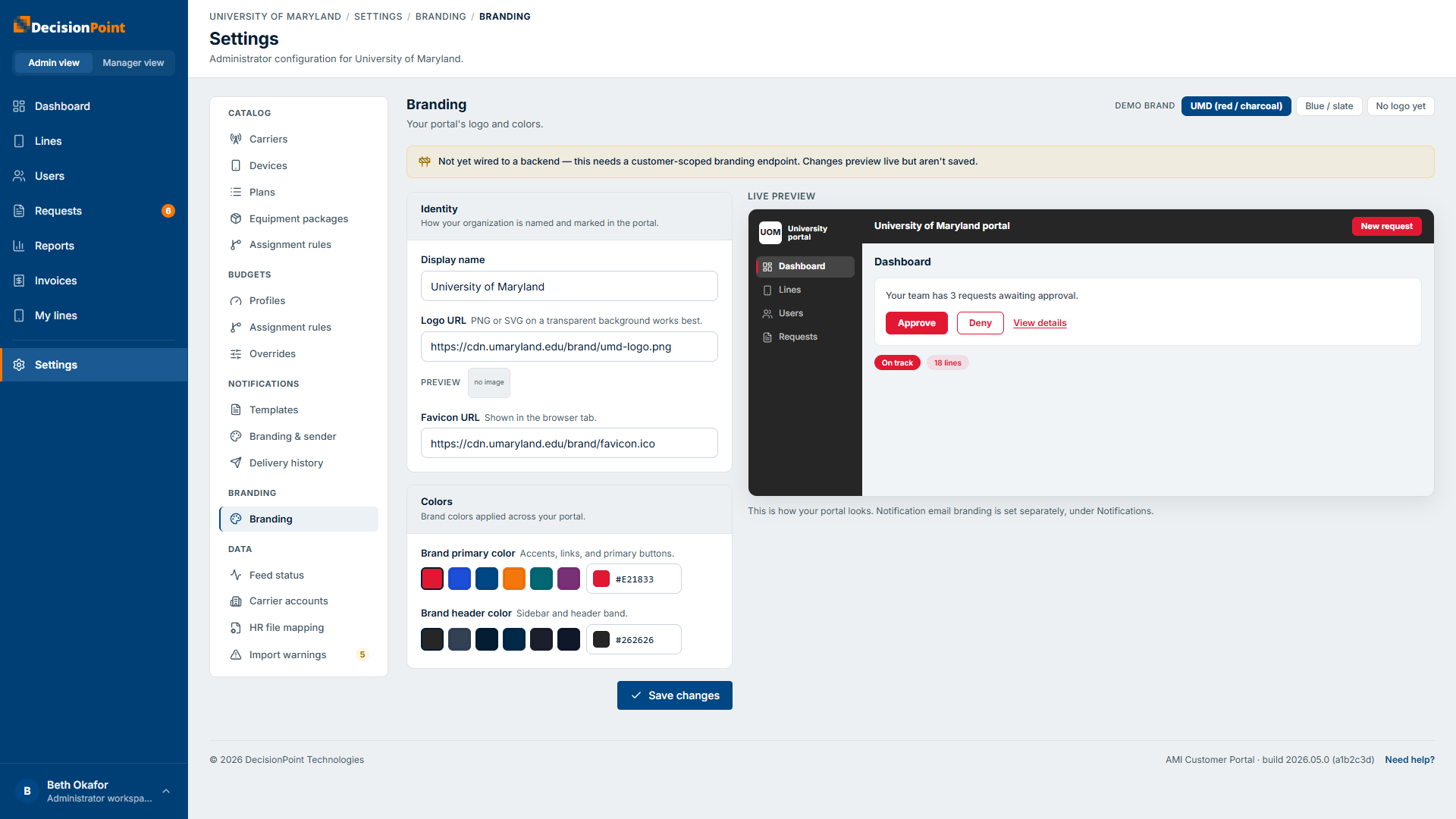
- Display name and logo URL — shown in the portal's header/sidebar and in the header of your notification emails.
- Favicon URL — shown in the browser tab.
- Brand primary color and brand header color — theme the portal's accents, links, and buttons, and the sidebar/header band; each is chosen from a swatch or entered as a hex value.
A live preview on the right shows the portal shell with your choices applied.
Notification support & sender
The support contacts, boilerplate copy, and sender identity used on outbound notifications live separately, under Settings → Notifications → Branding & sender — the logo and colors from Portal branding above carry over automatically, so you don't set them twice.
Support & copy
- Support email and support phone — the contact details shown in the email footer.
- Intro paragraph and footer paragraph — the boilerplate copy that wraps the message body.
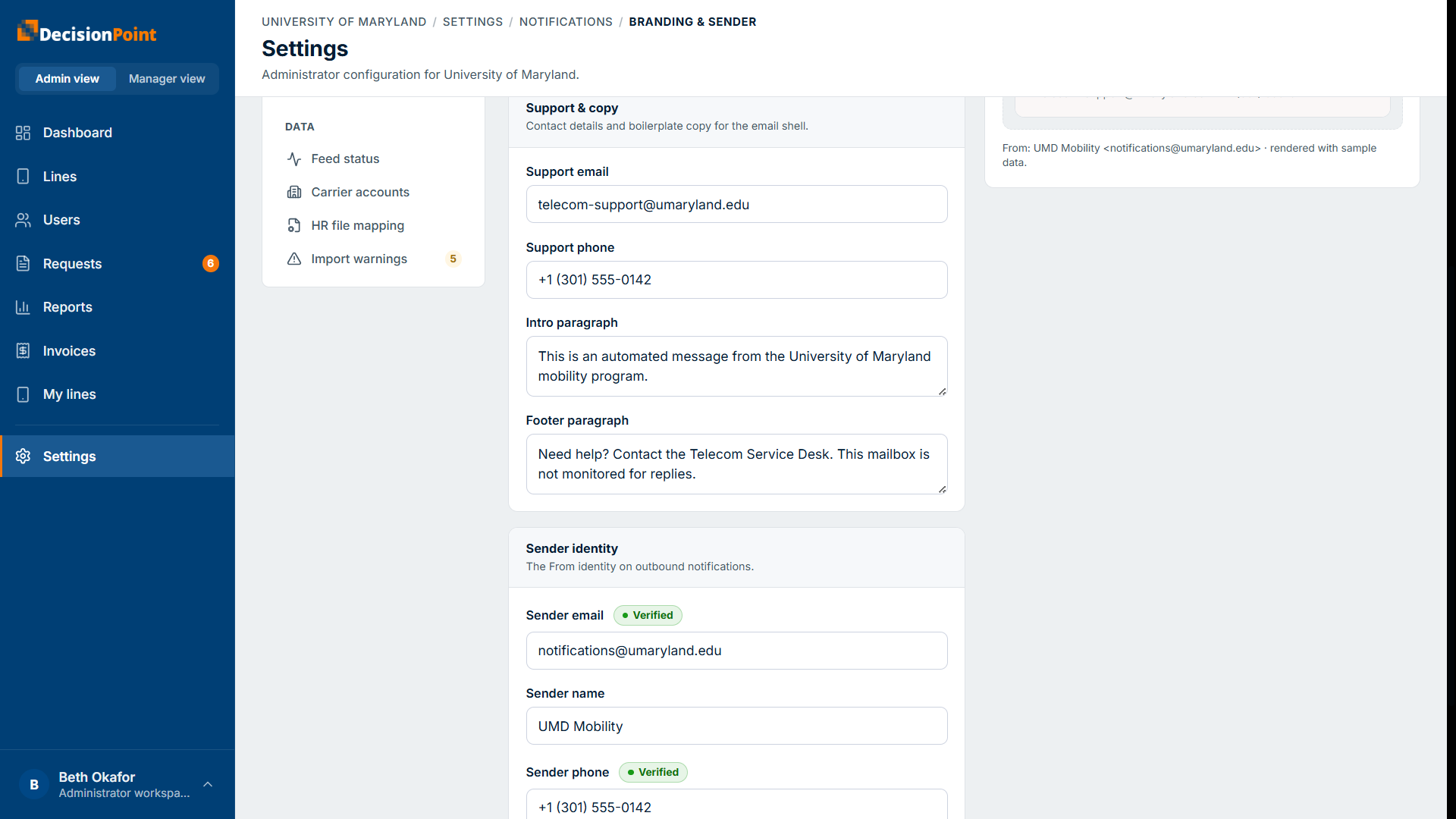
Sender identity
This is the From identity on outbound notifications:
- Sender email — the address notifications are sent from. Changing it requires verification before it can be used; the field shows a Verified status once confirmed.
- Sender name — the display name recipients see.
- Sender phone — the number text-message alerts are sent from. This one is shown but not editable: text messages have to leave from a number on DecisionPoint's messaging account, so it is assigned for you. It shows Not assigned until that happens — contact support to have a number set or changed.
Select Save changes to apply. Verification of a new sender email may take a little time before the status shows Verified.
Related
- Customizing Templates — the tokens above are used here.
- Notifications overview