Customizing Templates Administrators
Every notification the portal sends is built from a template. DecisionPoint provides a system template for each notification type, and your organization can customize any of them — the wording, the layout, or both. Templates live in the administrator view under Settings → Notifications → Templates.
System templates vs. your overrides
- A system template is the default DecisionPoint provides. If you don't customize anything, that's what's sent.
- When you customize a notification, the portal creates an override for your organization — your own copy that's used instead of the system template. You can revert to the system template at any time.
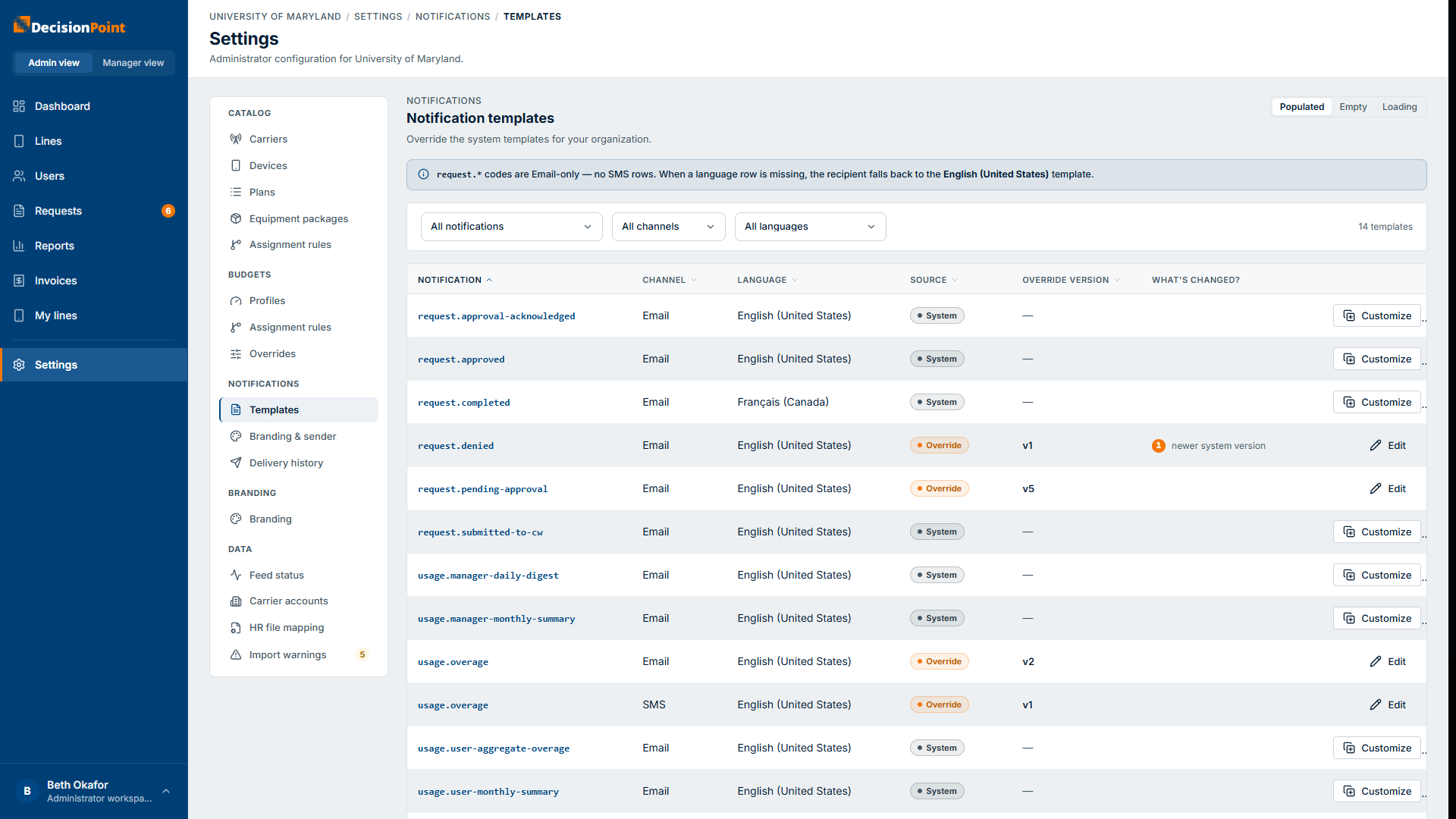
Each row is one notification type in one channel and language — request notifications are email-only, while some usage notifications (like an overage alert) have both an email and an SMS row. If a language's row doesn't exist, that recipient falls back to the English (United States) version.
Editing a template
Open a notification type to edit it. Each language (English, Spanish, French) is a separate template with its own version history — there's no "save all languages" action, so switch tabs and edit each one you want to customize.
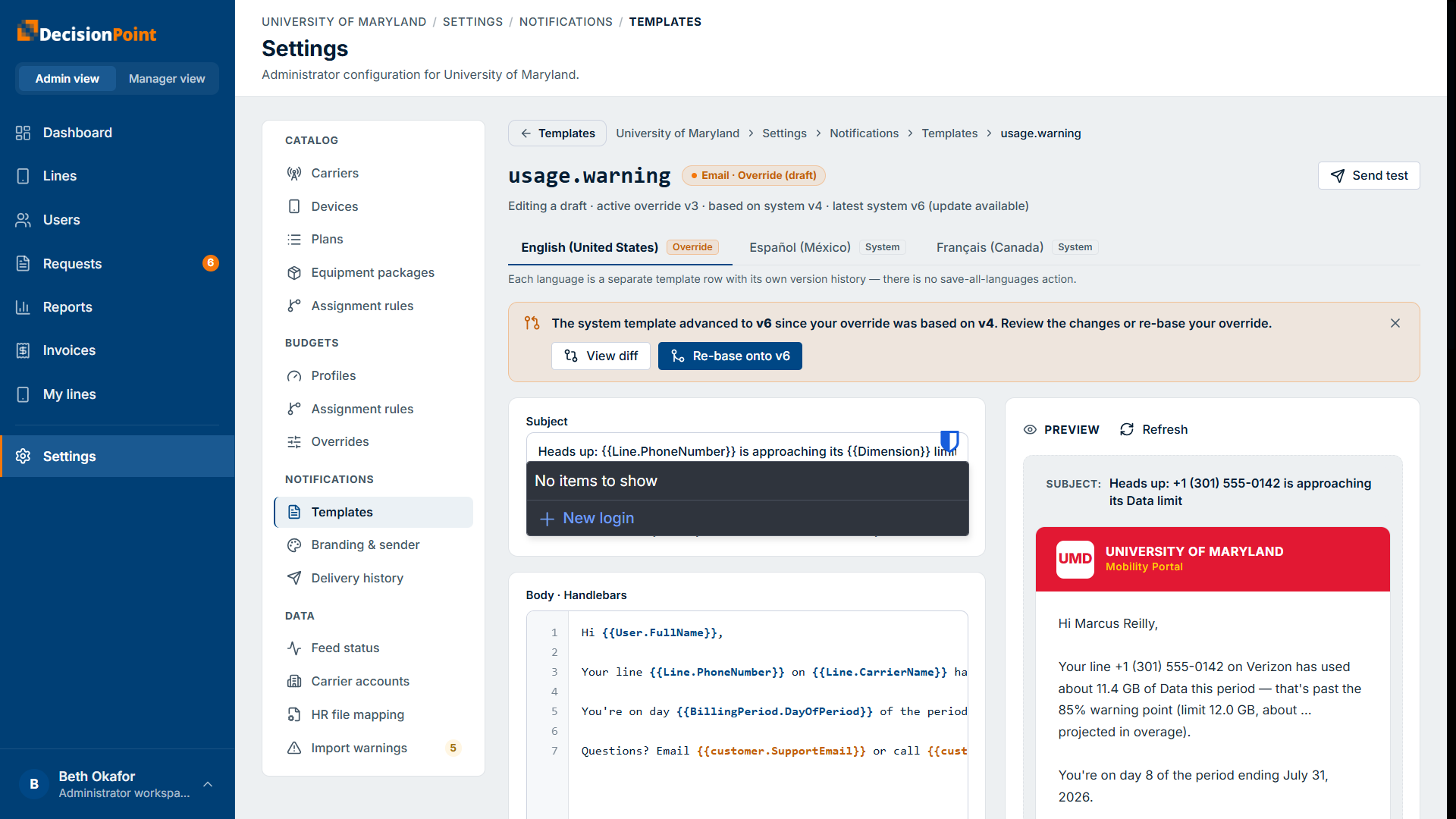
You edit two parts:
- Subject (email only).
- Body, written in Handlebars — plain text with
that get replaced with real values when the message is sent.
A live preview on the right renders the template with sample data and your organization's branding so you can see roughly how it'll look. Use Send test to email a real copy to yourself and check how it renders in an actual inbox.
Inserting tokens
The editor lists the tokens you can drop in, grouped by kind:
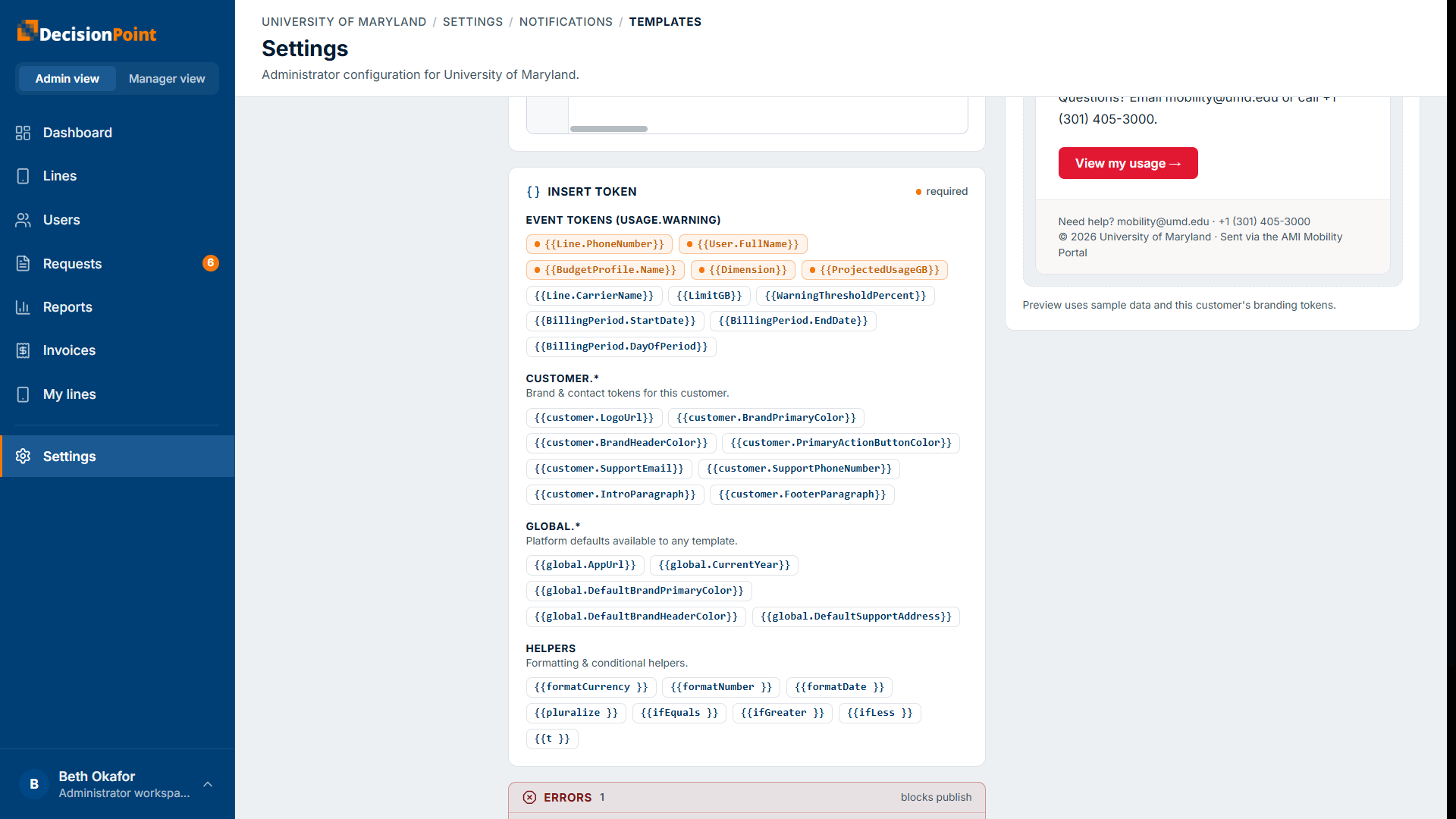
- Event tokens — values specific to this notification (for a usage warning: the line's phone number, the user's name, the projected usage, and so on). Some are required and must appear in the body.
- Customer tokens — your organization's branding and contacts (logo, colors, support email/phone). These come from Branding & Sender Settings.
- Global tokens — platform defaults such as the app URL and current year.
- Helpers — formatting and conditional helpers (format currency, numbers, and dates; pluralize; simple comparisons).
Validation, publishing, and rollback
The editor checks your template as you go:
- Errors (for example, a required token missing from the body) block publishing until you fix them.
- Warnings (for example, an unknown helper) are advisory and don't block.
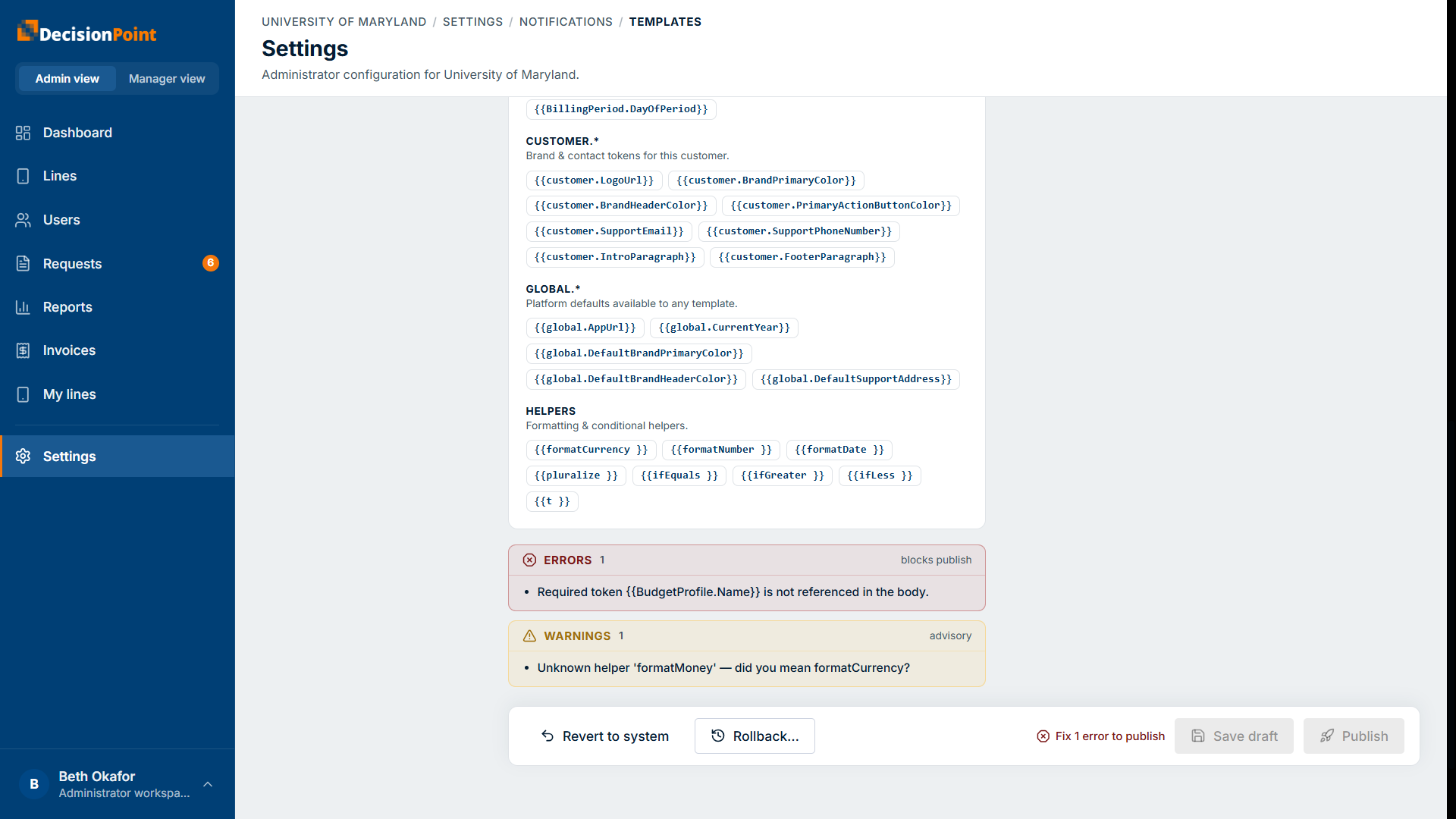
- Save draft keeps your changes without sending them live.
- Publish makes your override the version that's sent (once it's error-free).
- Rollback restores an earlier version from this template's history.
- Revert to system discards your override and goes back to the DecisionPoint default.
When the system template changes
If DecisionPoint updates a system template after you based your override on it, the editor flags that an update is available and offers to view the differences or re-base your override onto the newer version — so you can pick up improvements without losing your customizations.
Related
- Branding & Sender Settings — the logo, colors, and contacts your templates use.
- Notification History — confirm what was sent.
- Notifications overview