Viewing Your Team's Usage
If people report to you in your organization's records, the portal recognizes you as a manager and gives you a Dashboard of your team's cellular usage alongside your own. You don't turn this on — it's based on who reports to you.
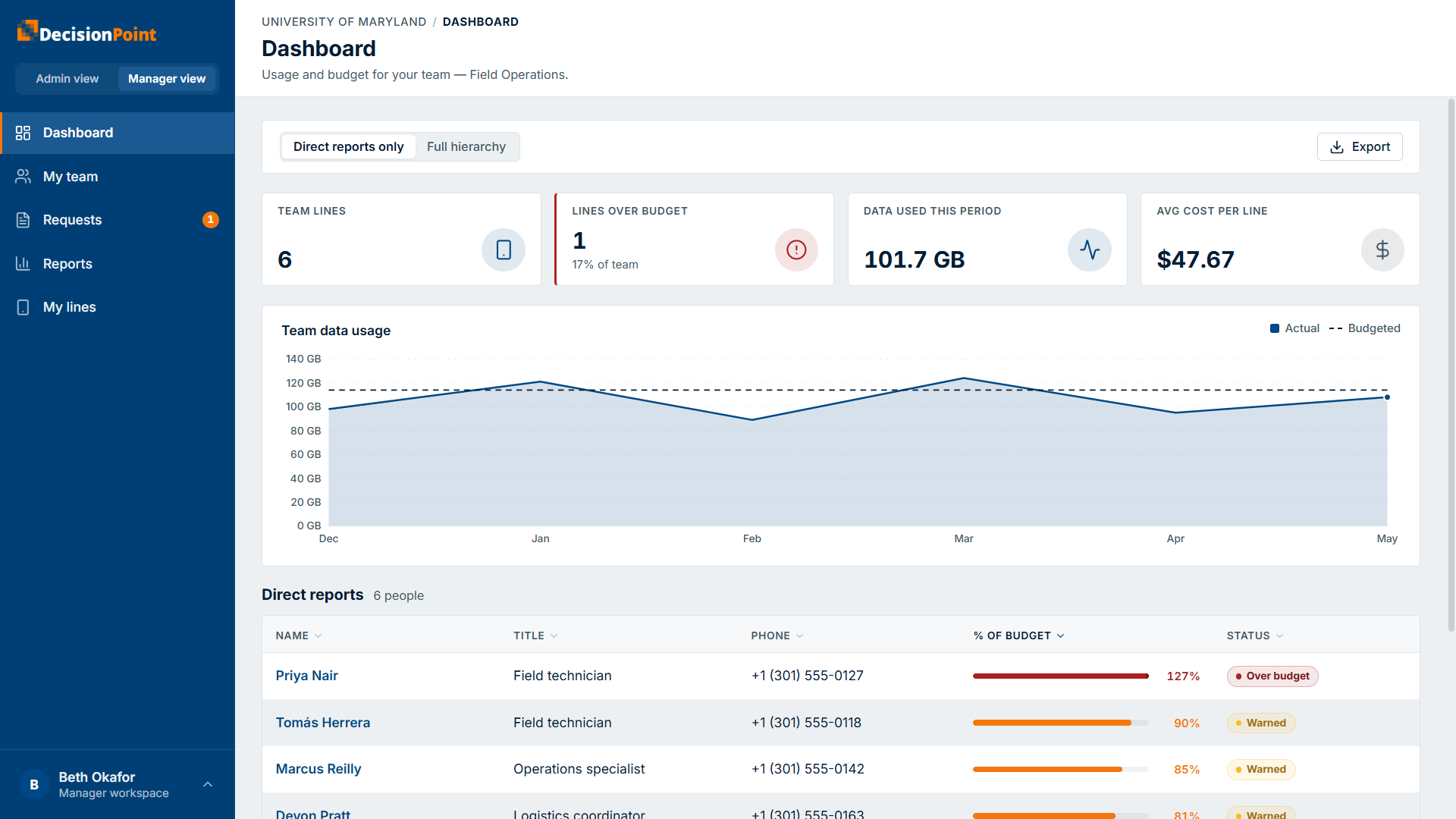
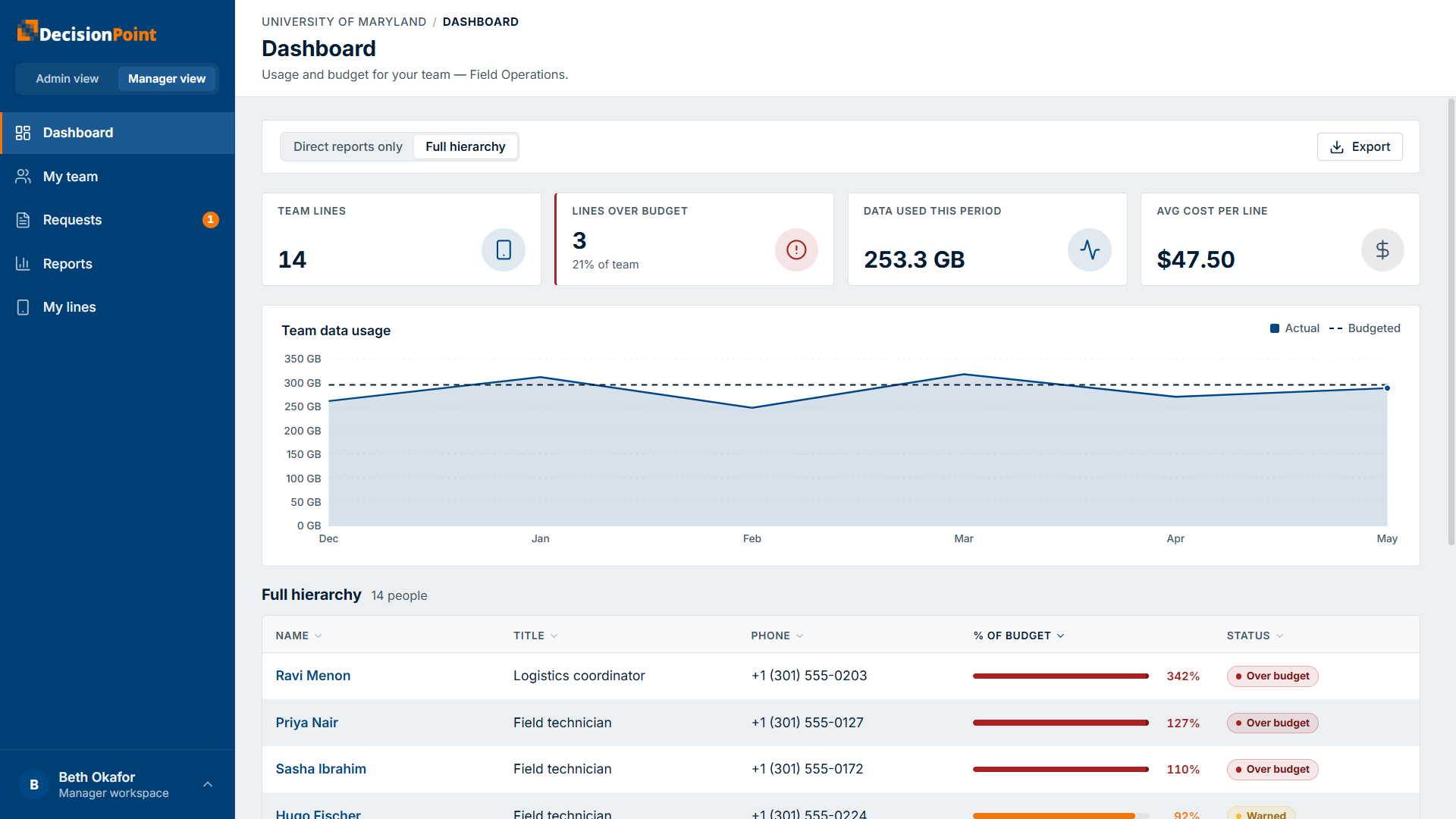
The dashboard summarizes your team at a glance — total team lines, lines over budget, data used this period, and average cost per line — above a chart of your team's actual usage against its budget.
Direct reports vs. your full team
A scope toggle controls whose usage you see:
- Direct reports — the people who report directly to you. This is the default.
- Full team (hierarchy) — everyone in your reporting line, including the people who report to your direct reports, all the way down.
Switch between the two at any time. The portal remembers your choice and uses it as your default the next time you sign in.
What you see for each person
For the current billing period, the team table lists each person with their title, phone, percent of budget used, and a status — such as Over budget, Warned, or on track. People trending over stand out in the list, so you can see where to focus. You can also export the list.
You can also switch to history to review your team's usage across recent closed billing periods.
Drilling into one person
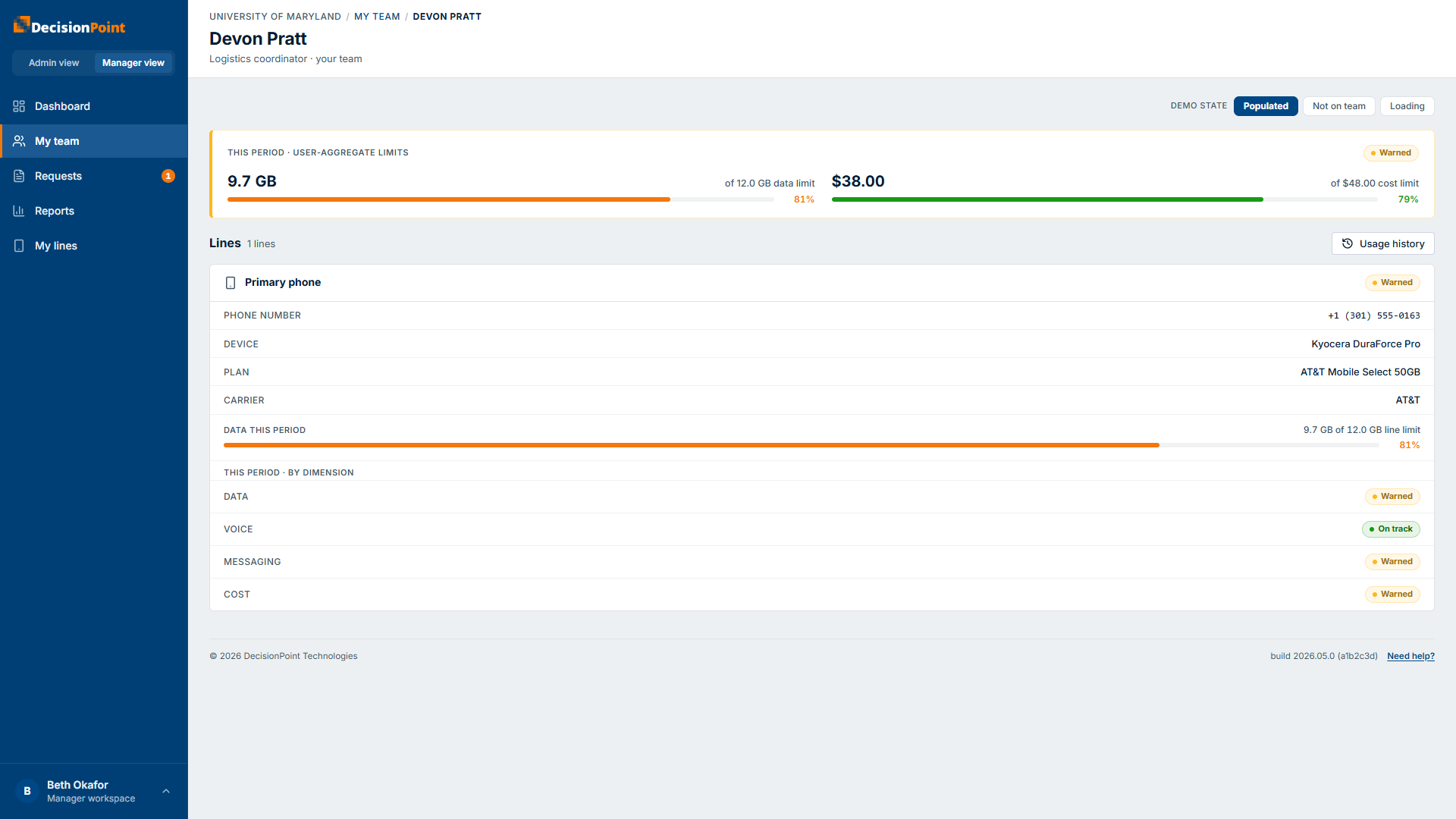
Select anyone in the list to open their detail and see their individual lines and usage, the same way they'd see it themselves — user-aggregate totals against their limits, then each line's own usage and per-dimension status (data, voice, messaging, cost). This helps when you're following up on a line that's trending over budget.
Overage alerts for your team
As a manager, you may also receive a summary of your team's overages by email or text message. See Overage Alerts Explained.
Related
- Viewing Your Usage — your own lines.
- Understanding Usage & Budgets — the concepts behind these views.
- Overage Alerts Explained — how the portal warns you.