Signing In
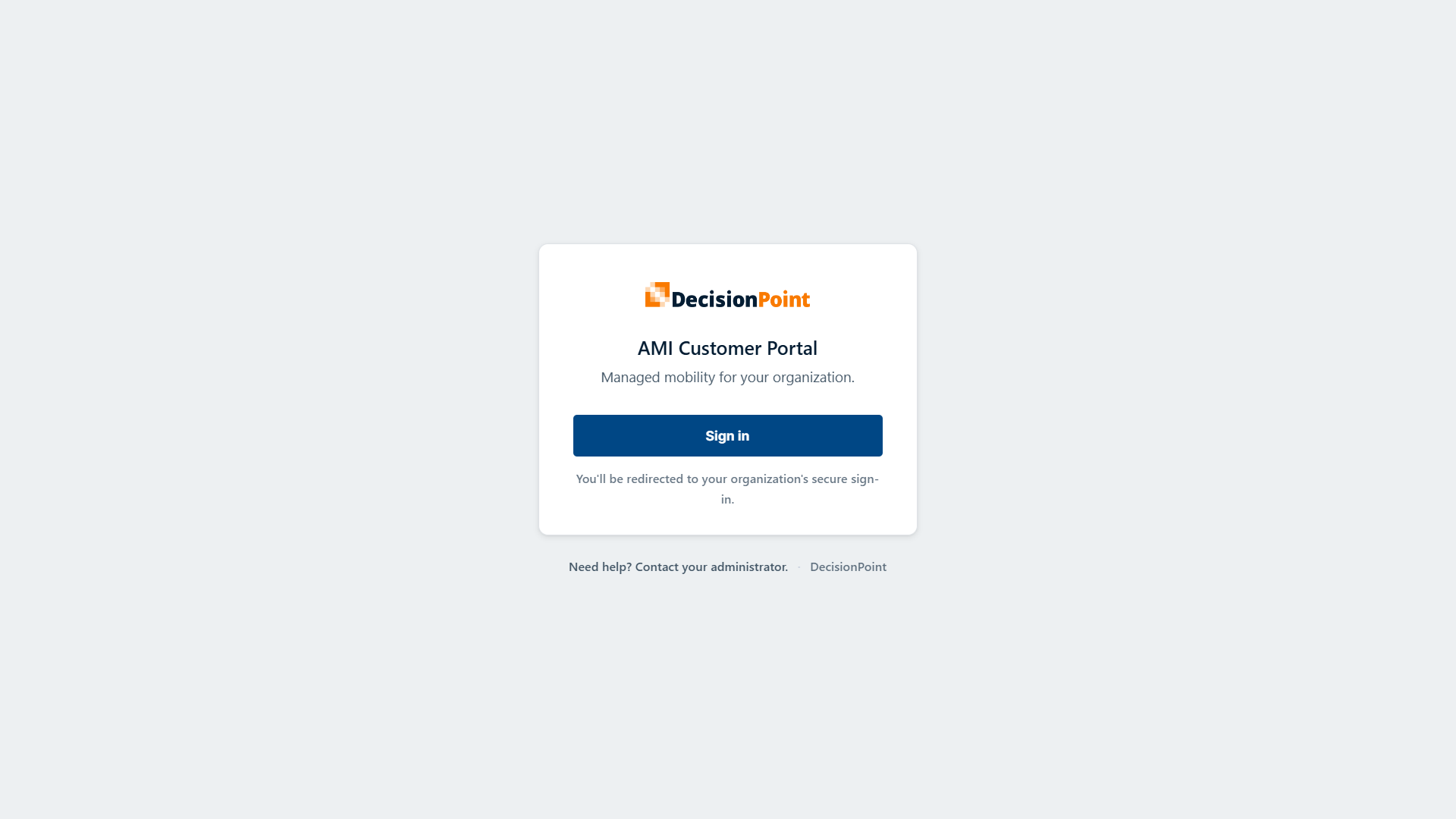
You access the AMI Customer Portal with your organization email address — the same email your company uses for you. There is no separate portal password to remember; sign-in is handled securely through your organization's identity provider.
Sign in for the first time
- Open the portal link provided by your organization's administrator.
- Select Sign in.
- Enter your organization email address and complete the sign-in prompts.
- If your organization requires an extra verification step (such as a code from an authenticator app), complete it when prompted.
Once you're signed in, you land on your home page. What you see there depends on your role — see the Portal Tour.
Staying signed in
The portal keeps you signed in for a period of time so you don't have to re-authenticate on every visit. For your security, you may be asked to sign in again after a period of inactivity or when your session expires.
Trouble signing in?
- "We couldn't find your account" — your email may not be set up in the portal yet. Contact your organization's administrator to confirm you've been added.
- You changed roles or lost access to a screen — role changes take effect the next time you sign in. Sign out and back in to pick up new access.
- Anything else — your organization's administrator can help, or can open a support request on your behalf.
Related
- Welcome — an overview of the portal and roles.
- Portal Tour — where to find things once you're signed in.