All Requests
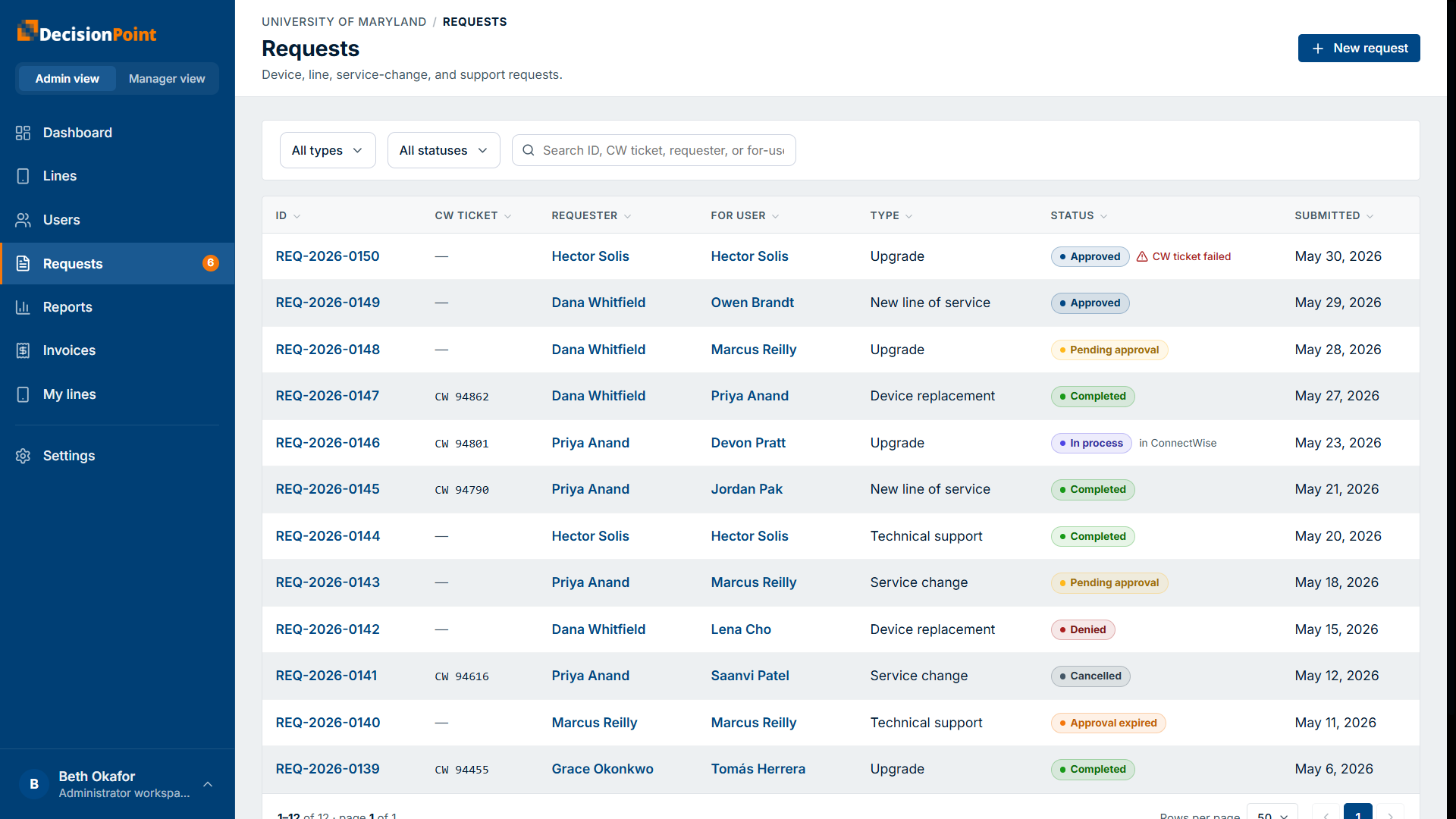
Administrators can see every request in the organization, not just their own or their team's. Open Requests in the administrator view for the organization-wide list of device, line, service-change, and support requests.
Finding requests
The list is built for large volumes:
- Search by request ID, ticket number, requester, or the person a request is for.
- Filter by type and status.
- Sort by any column — ID, requester, for-user, type, status, or submitted date.
Each row shows the request ID, its ticket number (once it has one), requester, for-user, type, status, and submitted date. Statuses span the full lifecycle — Pending approval, Approved, In process, Completed, Denied, Cancelled, and Approval expired.
When a ticket didn't get created
If a request was approved but its service ticket couldn't be created, the row flags it (for example, ticket failed) so you can follow up. Contact DecisionPoint support if you see one.
What you can do
From the list, open any request to see its full detail, status, ticket number, and notes — the same detail view described in Tracking Your Requests. As an administrator you can also add notes, cancel a request that hasn't become a ticket yet, and resend an expired approval.
Related
- Requests overview — types, lifecycle, and statuses.
- Tracking Your Requests — the request detail view.
- Approving Requests